
Beeline Virtual PBX (Kyrgyzstan) lets you set up call handling on a single multi-line number, a voice greeting, and call distribution to any mobile and landline phones. It also allows you to collect call statistics and listen to recordings of any conversation in the call log.
Learn more about Beeline Virtual PBX (Kyrgyzstan) on the website vats.beeline.kg.
Altegio integration capabilities with Beeline Virtual PBX (Kyrgyzstan) #
After setting up the integration, new features will appear in your Altegio account, making it even easier and more convenient to serve clients by phone:
- If a call comes from an unknown number, during the call you can use the pop-up card to immediately add a new client to the database and schedule their visit.
- If a regular client calls, you will see their name on the pop-up card and can greet them by name, as well as schedule, edit, or cancel their visit. This is much faster than searching for the client in the database manually.
- After the call, if needed, you can return to the call recording and listen to it in the Altegio interface.
Integration setup instructions #
STEP 1. Configuration on the PBX side #
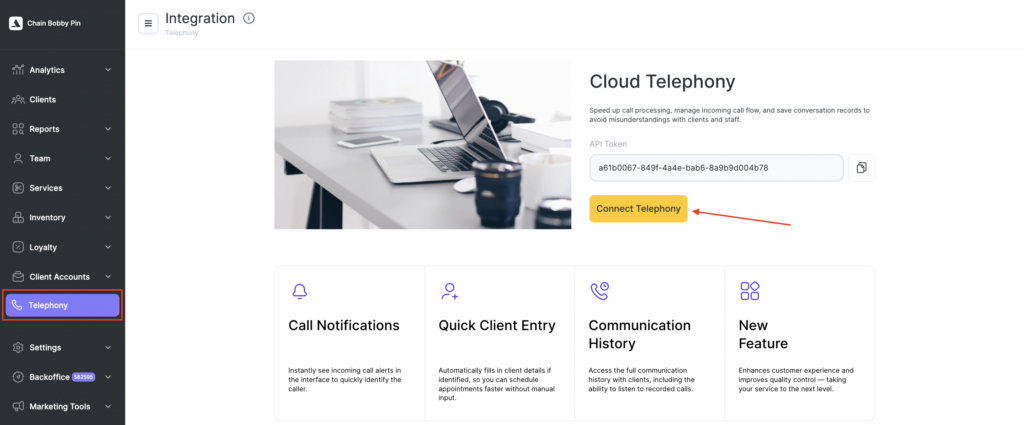
- In Altegio, go to the Telephony section and copy the token.
- Open a new tab in your browser and log in to your Beeline Virtual PBX. Go to Settings, then CRM integration. In the Altegio widget, click Connect.
- Paste the copied token. Click Connect. No additional settings are required in the PBX interface. To continue the setup, go back to Altegio.
STEP 2. Configuration on the Altegio side #
- Refresh the page in Altegio (press F5). In your account, the integration status will appear as Connected, and in the Telephony menu four new sections will be available: Integration, Routing, Routes, and Calls.
- Go to the Routes section and edit the default route. To do this, in the Actions column click the pencil icon.
- In the window that appears, enter the route name (for example, Main office or Sales department), and select the users and locations that will receive calls. Here you also choose where to store the call history for calls coming through this route. This determines who, besides the manager/owner, will have access to the call log and recordings:
- Chain call history. Managers do not have access. The history is available to the manager/owner under Telephony > Calls.
- Chain and all locations call history. Managers have full access to the history of all calls received by the company (the history is duplicated under Reports > Call Logs).
- Chain and notified locations call history. Managers can view only the call history of their location (under Reports > Call Logs).
- In the lower-right corner of the route settings screen, click Save.
- Link the created route to the number that should receive calls. Go to Routing and click Add rule.
- When adding a rule, you need to specify:
- Routing type: Phone if calls will come to the company’s main number, or SIP if the call should be received by an employee or department with a short extension number.
- Identifier: the phone number (if Phone was selected) or the employee/department three-digit extension (if SIP was selected). Enter numbers without a plus sign, hyphens, or spaces.
- Call route (the name you gave the route when creating it).
- Click Save.
If needed, you can create any number of routes and rules for your numbers in the same way.

