
The WhatsApp Coexistence feature allows you to manage customer conversations using both WhatsApp Cloud API (for automated messaging in Altegio) and the WhatsApp Business app (for manual support)—all with the same phone number and chat history.
Why Use WhatsApp Coexistence?
With Coexistence, your business can:
Retain WhatsApp Business App features not available in the API (e.g., voice calls, groups).
Use one WhatsApp number for both manual and automated messages.
Maintain conversation continuity—customers see no change when you activate the feature.
Reply from any channel while keeping synced chat history.
Boost brand trust by blending human support with automation.
Key Benefits #
- Unified Chat Management: Answer messages via WhatsApp app or Altegio CRM.
- Real-time Syncing: Conversations stay updated across both tools.
- Automation Ready: Use chatbots, follow-ups, and campaigns in Altegio.
- No Lost Contacts: Customers message the same number and thread.
- Flexible Workflows: Choose where to route and respond to conversations.
- 24/7 Availability: Combine chatbots + human agents for round-the-clock support.
Requirements #
- Paid Altegio account (any plan)
- WhatsApp Business app version 2.24.17+
- Facebook Business Portfolio
- Phone number with eligible country code
Integration Types #
1. Official Meta Integration (via Altegio):
- Uses your own phone number
- Meta’s official pricing applies
2. Third-Party via AI Beauty Bot:
- Connects an alternative number
- Different fees may apply
Limitations #
Unsupported Locations: #
- Regions: EU, EEA, UK
- Countries: Australia, India, Japan, Nigeria, Philippines, Russia, South Korea, South Africa, Turkey
Functional Limits: #
- Only CRM can send template messages
- Only one number per WhatsApp Business App
- Business Profile updates only via the app
WhatsApp Business App Feature Changes: #
- No editing/revoking messages
- Disappearing/view-once messages disabled
- Broadcast lists become read-only
WhatsApp Cloud API Limitations: #
- No group chats, voice/video calls, broadcast lists, or business tools
What Changes After Enabling Coexistence? #
- Seamless chat mirroring between Altegio and WhatsApp app
- Some WhatsApp app features disabled or restricted
- Chat import and contact sync up to 6 months back
How to Set It Up in Altegio #
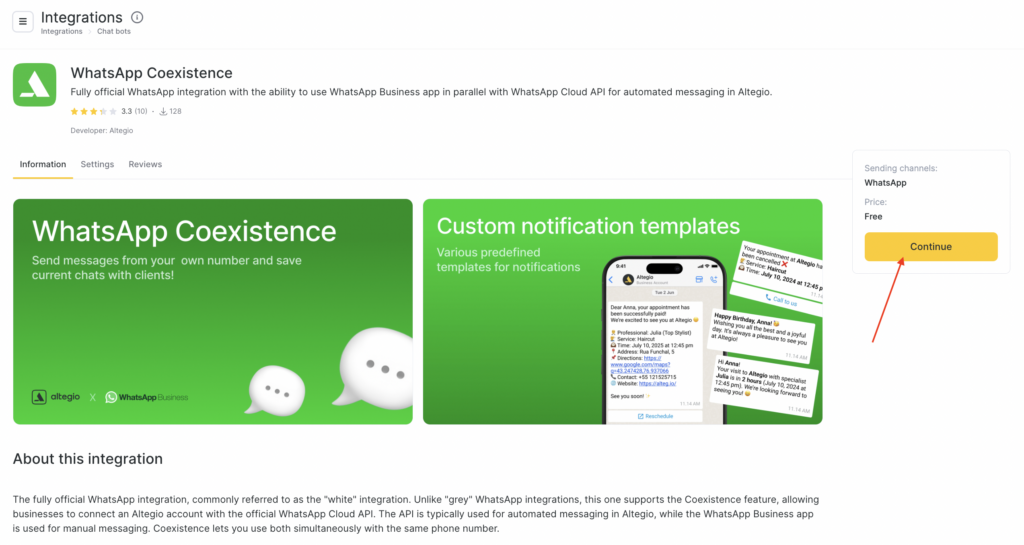
- Open the Integrations panel In the left-hand menu of Altegio, navigate to the Integrations section and select the WhatsApp Coexistance app and click Continue.
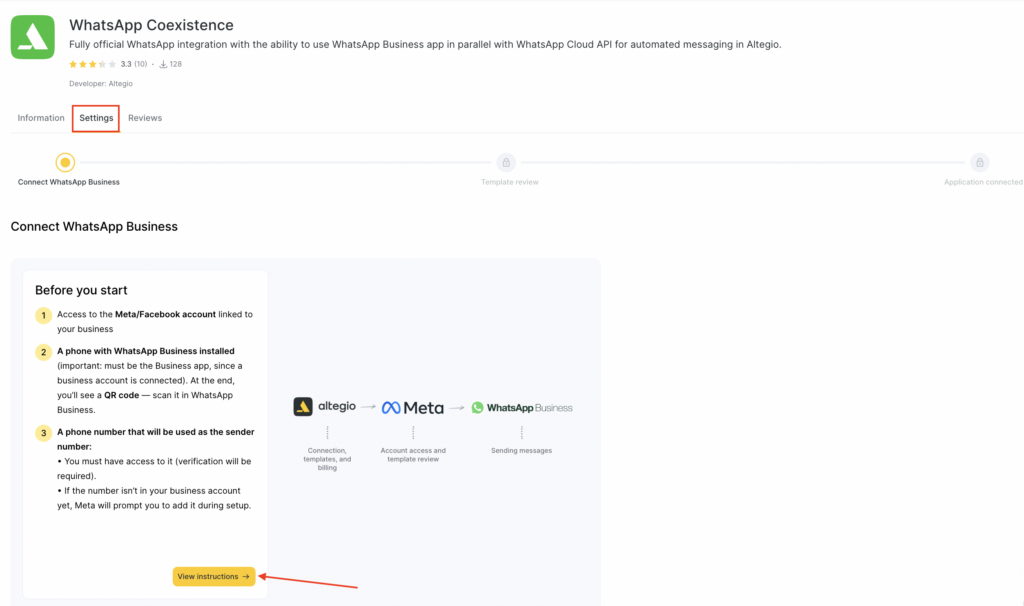
- On the Settings tab, review the Before you start section and make sure you have:
- access to the Meta/Facebook account linked to your business,
- a phone with WhatsApp Business installed,
- the phone number that will be used as the sender number.
- Click View instructions to read a complete guide on the connection steps to proceed.
Log in to Facebook/Meta #
- Log in to the Facebook account that is an admin of your business in Meta and has access to WhatsApp Business. This is usually the same account you use to access Meta Business Suite / Business Manager for your company.
You’ve chosen the right account if, after logging in, you can see:
- your Business Portfolio / Business Manager (your company name), and
- access to WhatsApp Accounts or Business settings.
- If you don’t see your business, try a different Facebook account (often the business owner’s or a marketer’s account).
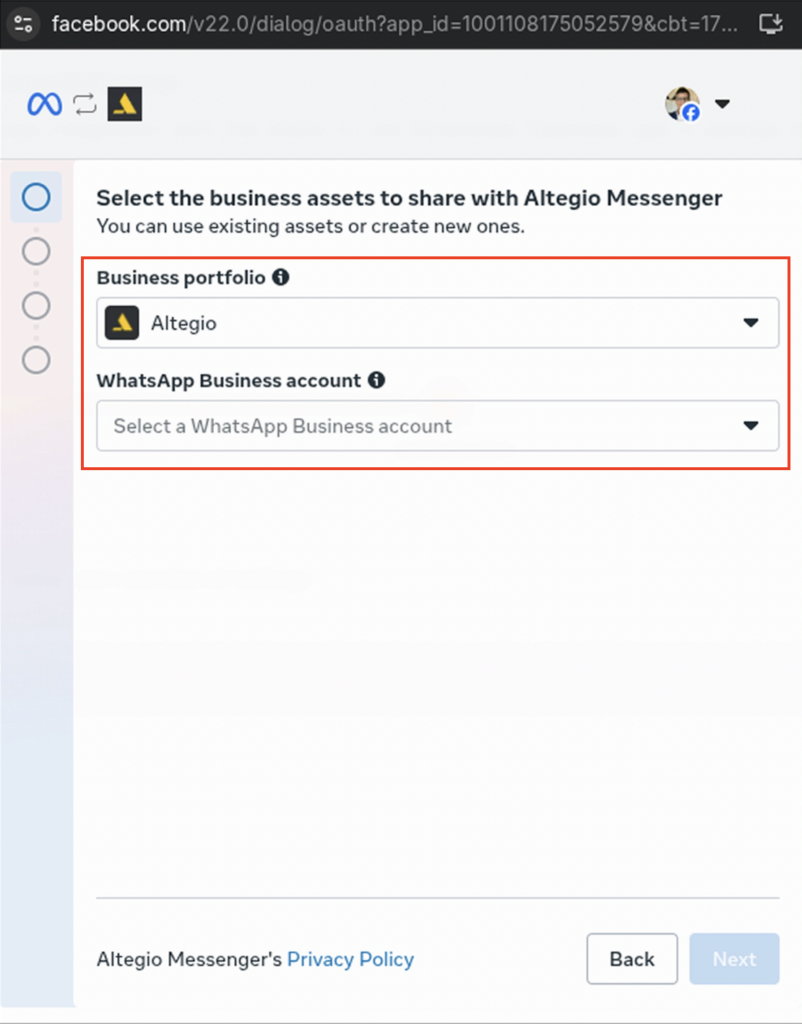
Choose how to connect your WhatsApp Business number #
A WhatsApp Business Account in the WhatsApp Business app is your company’s business profile.
It lets you message clients as a business, not as a personal account.
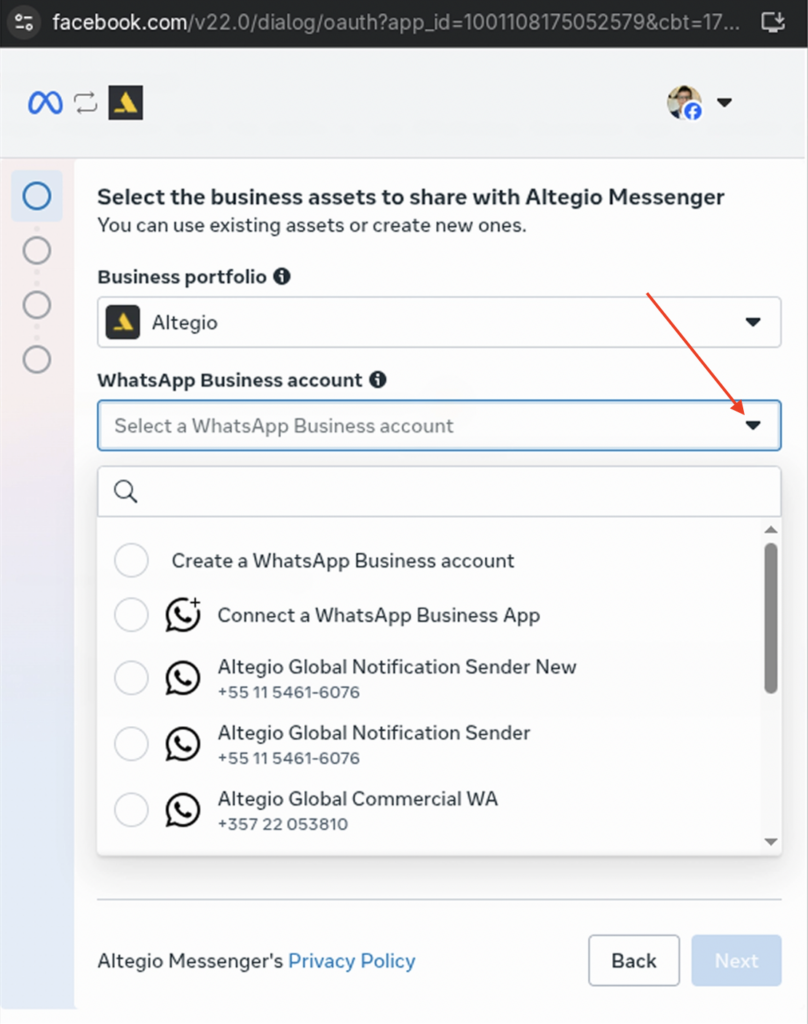
- Create a New WhatsApp Business Account Choose this option if you don’t have a WhatsApp Business Account yet.
- Connect a WhatsApp Business Account Choose this option if you already have a WhatsApp Business Account, but it doesn’t appear in the list below.
- Use an existing WhatsApp Business Account Choose this option if your WhatsApp Business Account is shown with the correct number in the list below.
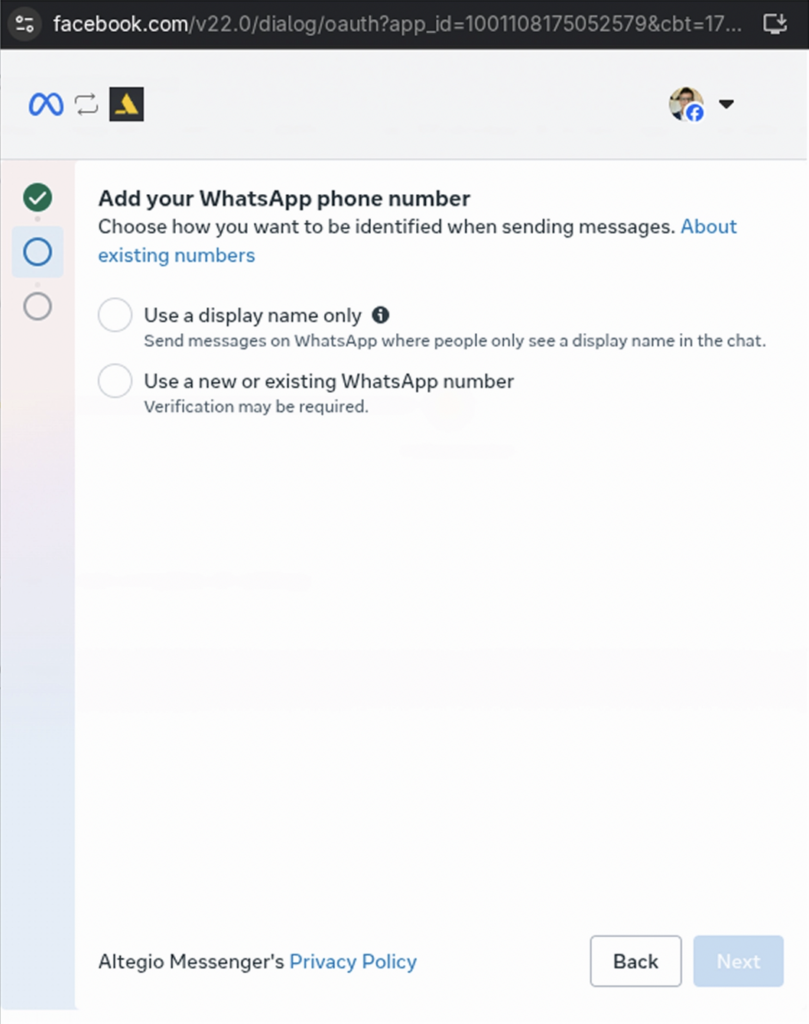
Choose the number to display in WhatsApp Business #
- Choose a display-only number If you choose display-only, Meta will assign a random US number (+1). It’s used for display and testing only.
- Add a new WhatsApp number Connect a new number to WhatsApp Business. Choose this option if you want to use your own number. Meta will ask you to verify it (usually via SMS or a call).
- Use an existing number Select a WhatsApp Business number from the list. Choose this option if the number is already linked to your WhatsApp Business Account and doesn’t need to be added again.
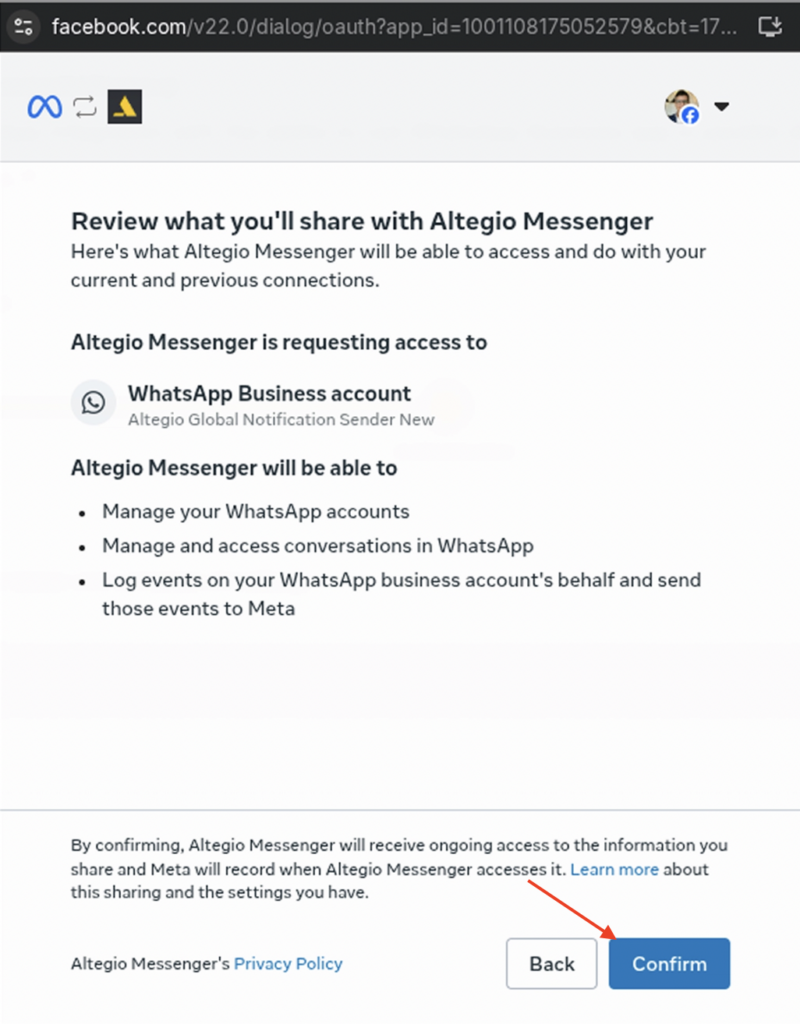
Confirm access permissions #
Meta will show the permissions being requested. Review them and click Confirm. A quick check will follow.
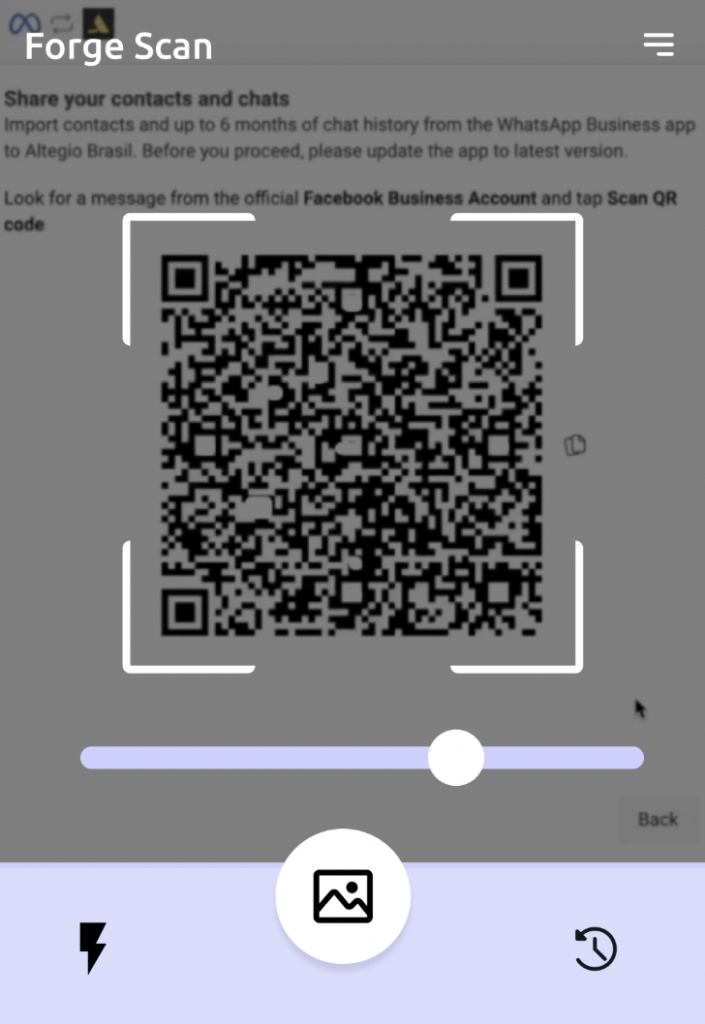
Scan the QR code (If you selected “Connect a WhatsApp Business Account”) #
A QR code will appear on the screen. Open WhatsApp Business on your phone and scan the code. WhatsApp Business will be connected successfully.
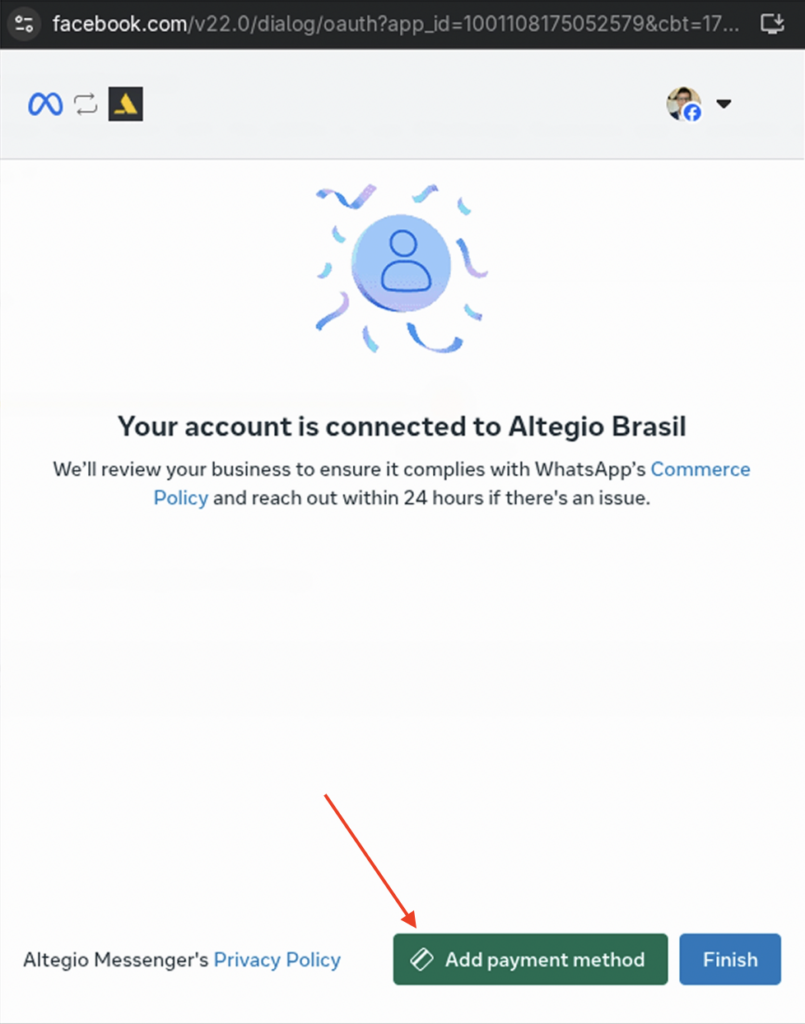
Add a payment method #
To complete the connection, add a payment method and link your bank card. This is required to confirm your account and to cover WhatsApp/Meta charges when using messaging.
How to do it:
- Click Add payment method
- Enter your card details and save
- Click Finish
If you don’t add a payment method, the connection may not be completed.
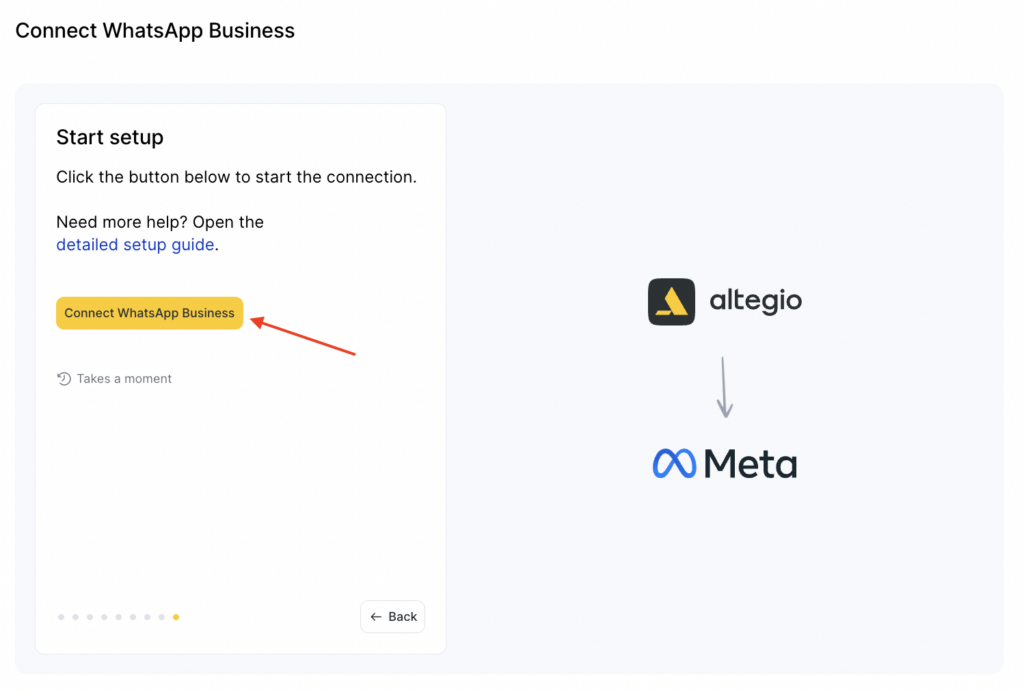
After reviewing these instructions, click the Connect WhatsApp Business button to connect — you’ll be redirected to Meta.
When the integration becomes active #
The integration is activated after approval of the three baseline notification types, which are enabled automatically during setup.
These notification types are:
- Creating an appointment via the online booking widget
- Creating an appointment via the appointment calendar
- Appointment reminder
Once these three notification types are approved, the integration can be activated.
Additional information #
You can input some additional details in the WhatsApp Business integration Settings tab (name and phone number cannot be changed, but you can add text into the “About” and “Description” fields as well as add image.

The integration lets you import your contacts and maximum 6 months of chat history from the WhatsApp Business app. From now on the Coexistence feature will start working in your Altegio account.
If you need assistance with setup or troubleshooting, contact us through the support chat in Altegio or send us a message via WhatsApp or Telegram.
WhatsApp Pricing Information #
We’ve added important details about WhatsApp pricing to help you better understand cost structures when integrating WhatsApp into your communication workflows based on the official Meta documentation.
Please review this section to ensure accurate cost forecasting and compliance with Meta’s updated billing policies. For pricing on the WhatsApp Business Platform please refer to this page.

