
After connecting a partner integration from Integrations > Notifications with chat available in Appointment Calendar and the visit window in Altegio, complete the additional setup. You can read more about chat features and how to connect it here.
Important
Additional settings will be available only after you connect an integration with chat functionality in Altegio. At the moment, chat support has been implemented by our partners — Integrilla; soon it will also be available from Fromni, Flowsell, and Message.Help. You can find the full list of partners in Integrations > Notifications.
Incoming message notification #
Notifications help you avoid missing important messages from clients. After you connect an integration with chat functionality, pop-up notifications for incoming messages will be enabled automatically.
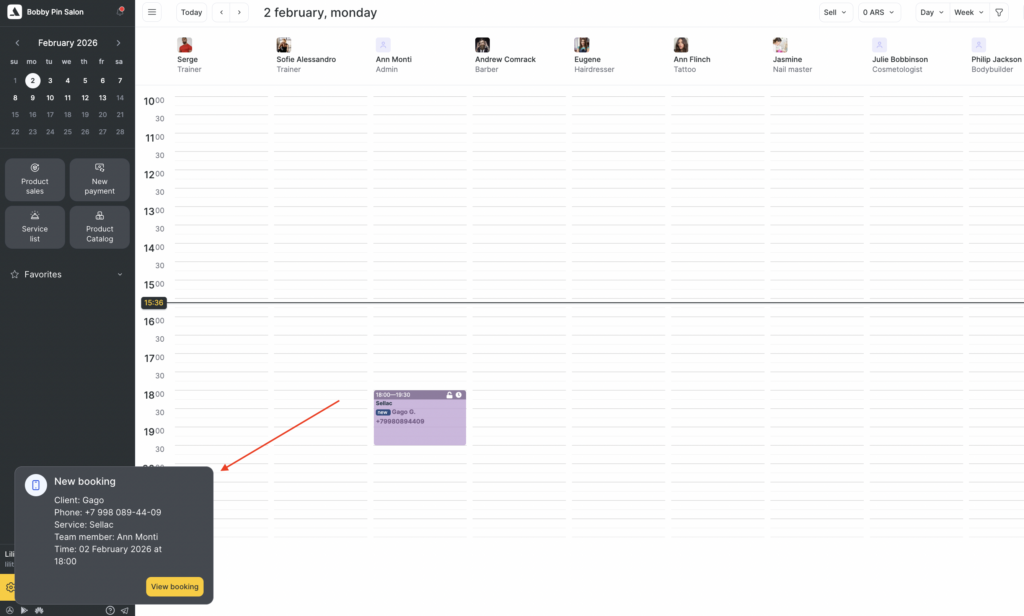
When a client sends a new message in chat, a pop-up notification will appear in the lower-left corner of the screen, showing the following information:
- Name. If the client is new and no name has been provided yet, the message will be labeled as “New client”.
- The phone number the message was sent from.
- The message text.
- A link to the chat — clicking it will open the chat widget in the appointment log.
To disable/enable pop-up notifications: #
- Go to Settings > Main settings block > Appointment Calendar.
- In the window that opens, at the bottom, clear or select the checkbox Show a notification in the web version about a message in chat, then save the settings.
Note
New messages are also marked with red dots on the additional options button and on the Chat tab in the appointment log. If you disable pop-up notifications, new messages in the appointment log will still be marked with red dots.
In addition to pop-up notifications, you can enable automatic saving of new clients from chat. Read more about the setup in the article.

