
In the Altegio.me mobile app, online sale of memberships and gift cards is available. Clients can quickly renew their membership, and the app will remind them when their membership is ending. Also, clients can purchase a new membership or gift card without leaving the app.
How it Works? #
The online sales widget allows clients to purchase memberships and gift cards on their own online. To accept payment for purchases, you can connect a payment processing service, or sell memberships and gift cards using an alternative method—for example, via a bank transfer using your payment details.
After you set up the online sales widget, buying memberships and gift cards will also be available to clients in the Altegio.me app. More details on how to configure the sales widget and add it to the app are described later in this article.
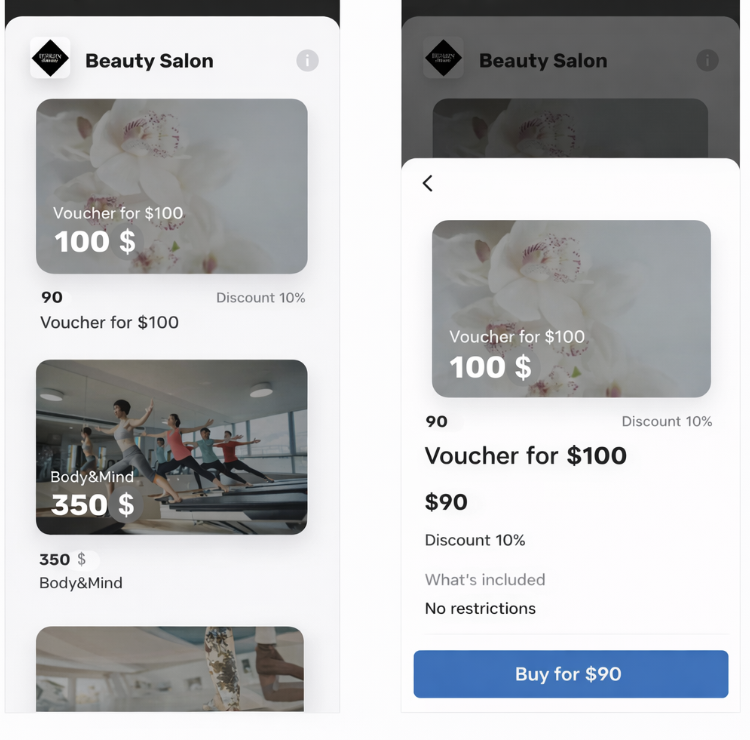
Purchasing subscriptions and gift cards is available on various screens of the Altegio.me app.
For gift cards:
- In the online booking widget.
- In the Purchases section on the company’s card.
For memberships:
- In the online booking widget.
- In the Purchases section on the company’s card.
- On the membership card.
- In the reminder about an expiring membership.
Online sale button in the widget #
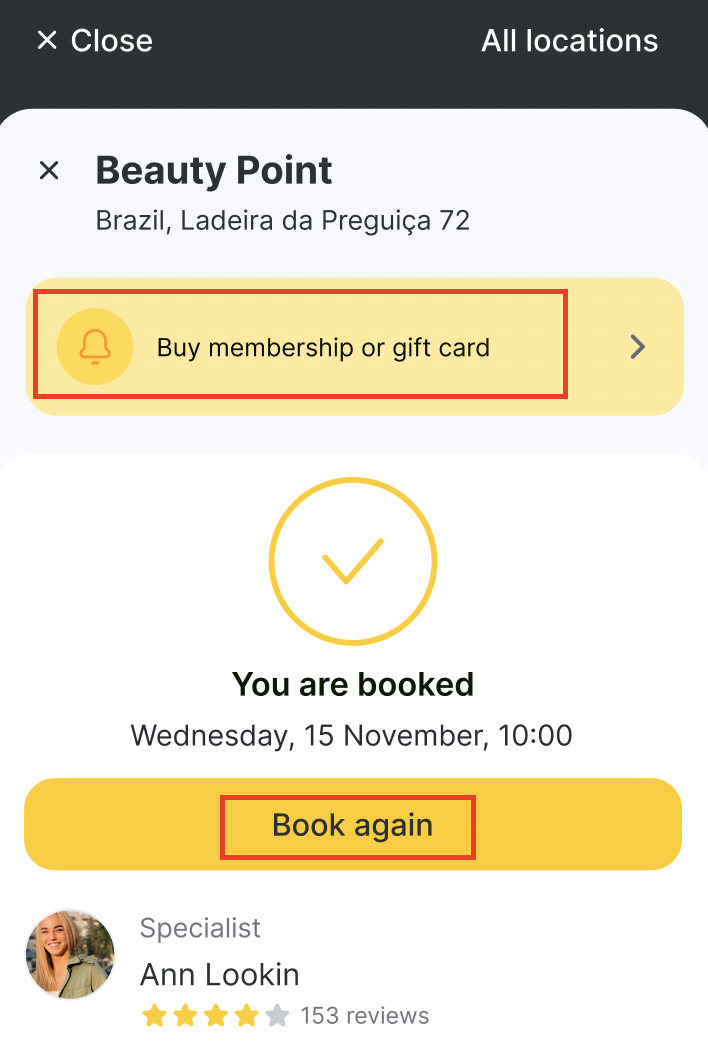
If the online sale button for memberships and gift cards is added to the main link for online booking, it will also be displayed when booking through the Altegio.me app.
The online booking widget with the online sale button in the app opens when pressing the Book or Book again buttons.
Purchases Section on the Location Card #
To proceed to purchase from the location’s card, you need to:
- Go to the Places section on the main page of the app. In the Places section, all companies where the visitor has ever made an appointment using the number with which they are authorized in the app are displayed.
The company cards are arranged in a carousel, which can be scrolled. You can also go to the page with all companies through the All button.
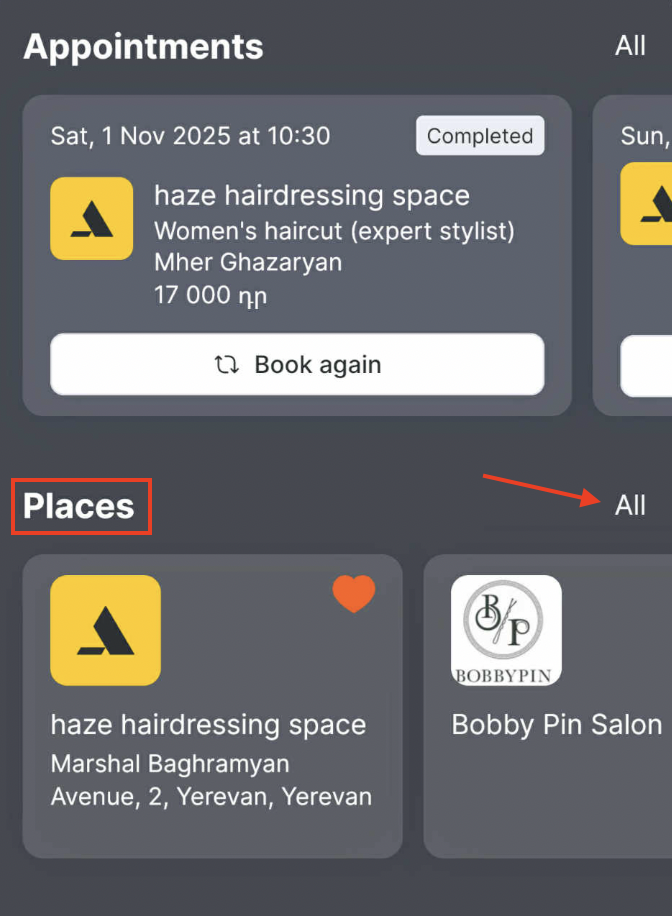
- Open the company card.
- Navigate to the Purchases section, which will then open the online sales widget for memberships and gift cards.
Renew Membership Button on the Membership Card #
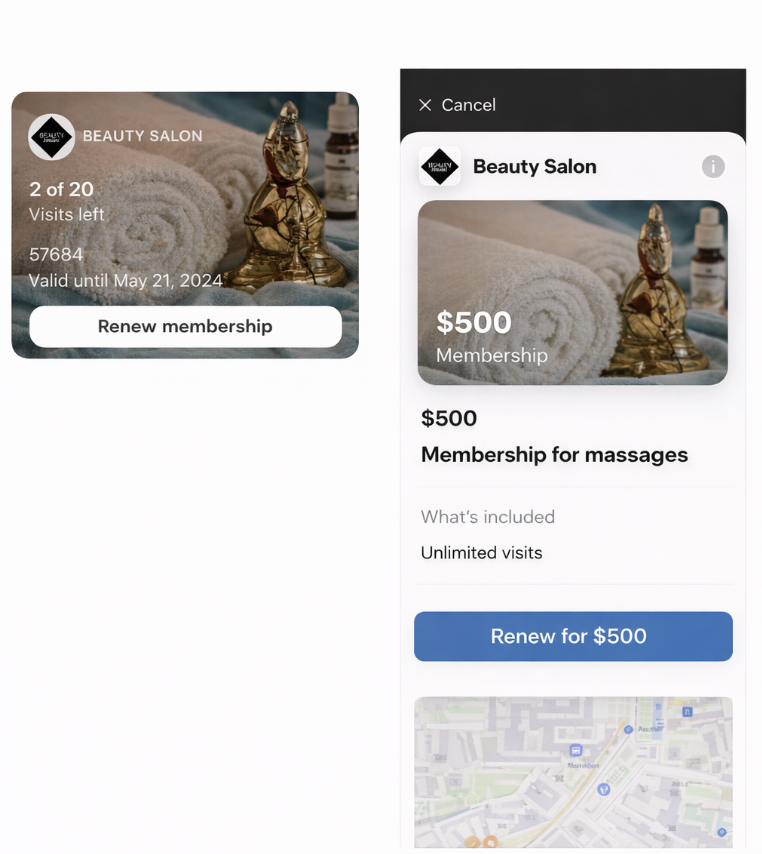
The Renew membership button is available only for memberships that have been previously purchased. The button will be displayed regardless of how many visits remain on the membership. To renew a membership, you need to:
- Go to the Memberships section on the main page of the app.
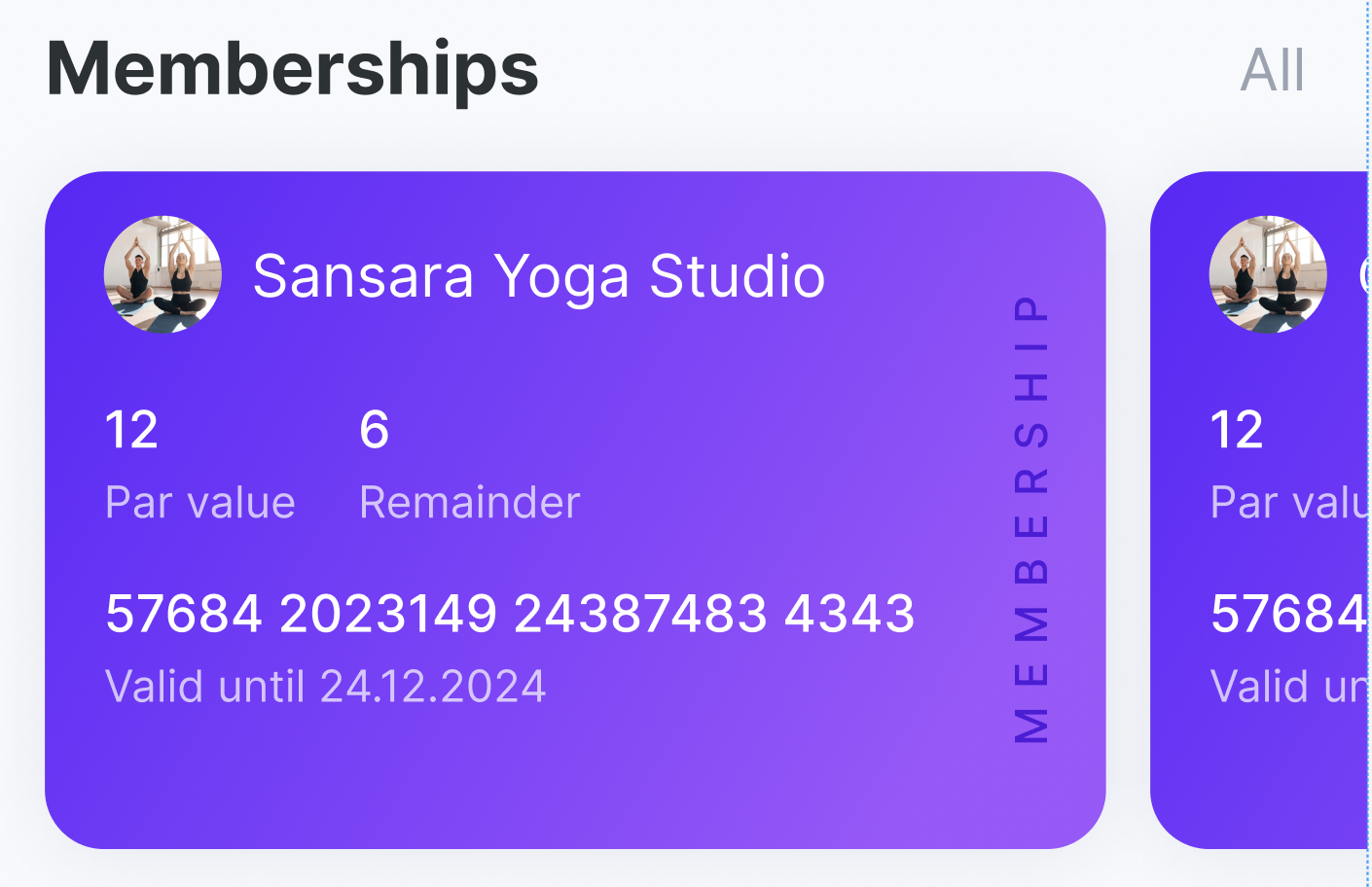
- Tap on the card of the desired membership. The cards are arranged in a carousel format, which you can scroll through. You can also go to the memberships page through the All button.
- Within the membership, a Renew membership button will be displayed. Pressing this button will directly open the selected membership in the online sales widget. If the membership is no longer for sale, the main screen of the online sales widget will open instead.
Reminder of an Expiring Membership #
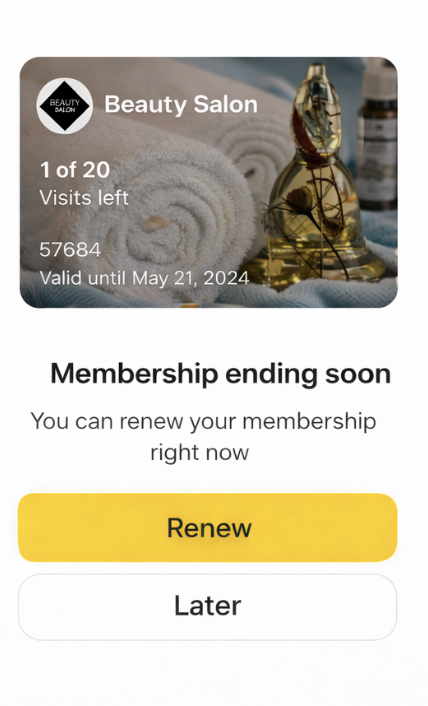
If a client’s membership is about to expire, the app will remind the client about it and offer to extend the membership. The reminder is displayed if there are less than 5 days (inclusive) left until the membership expires or if there is only one visit left on the membership.
After pressing the “Renew” button, the selected membership will immediately open in the online sales widget. If the membership is no longer for sale, then the main screen of the online sales widget will open.
Important
A client will see a reminder for a membership only once. The client will see a reminder again only if another membership is nearing its end.
If several memberships are expiring at the same time, the reminders will be displayed one after the other.
Reminders are displayed automatically, no additional setup is required.
Membership and Gift Cards Online Sales Setup #
To set up the online sales widget for memberships and gift cards, you need to:
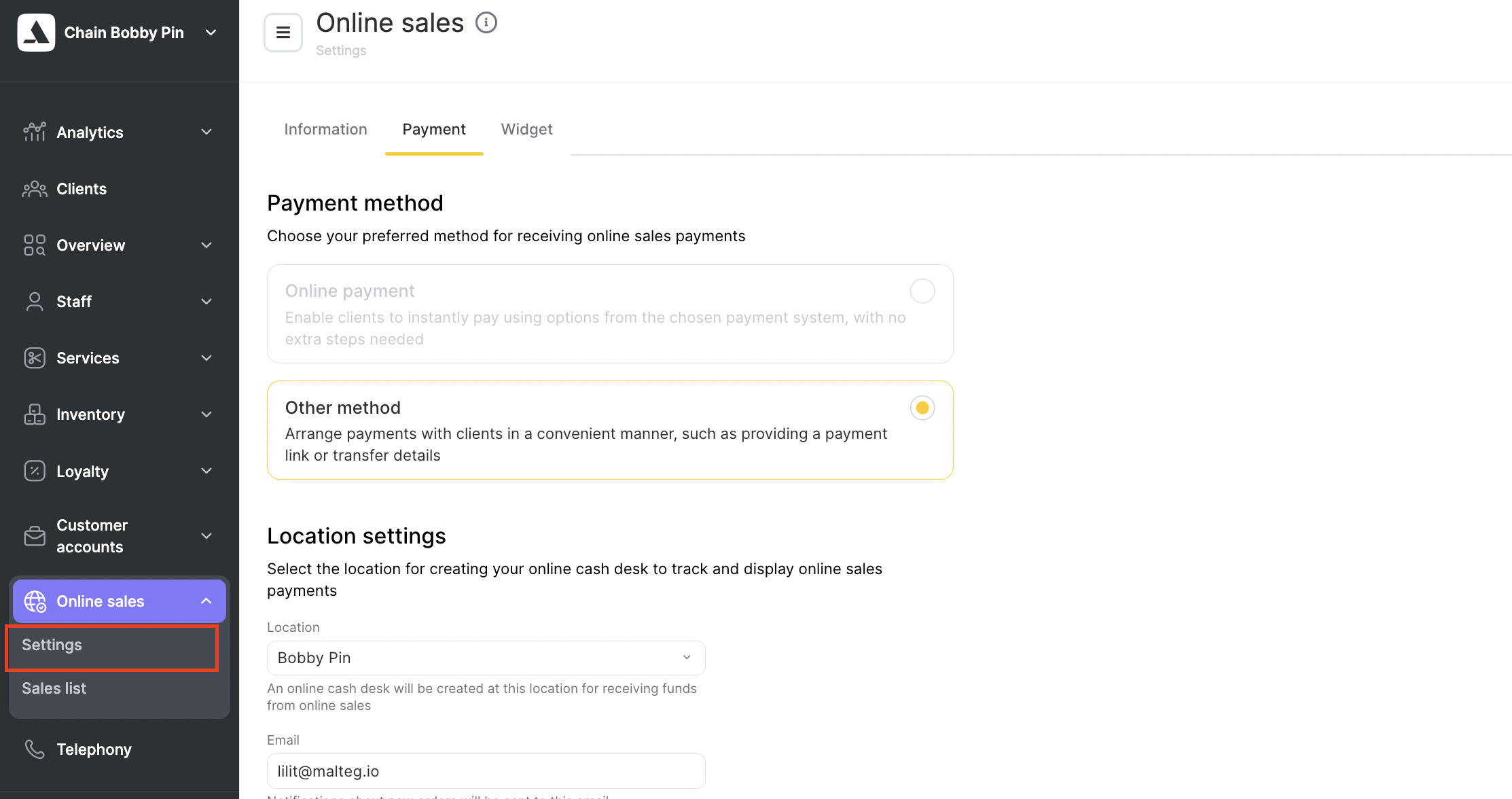
- Configure online sales in the chain interface with a payment processing service or without one.
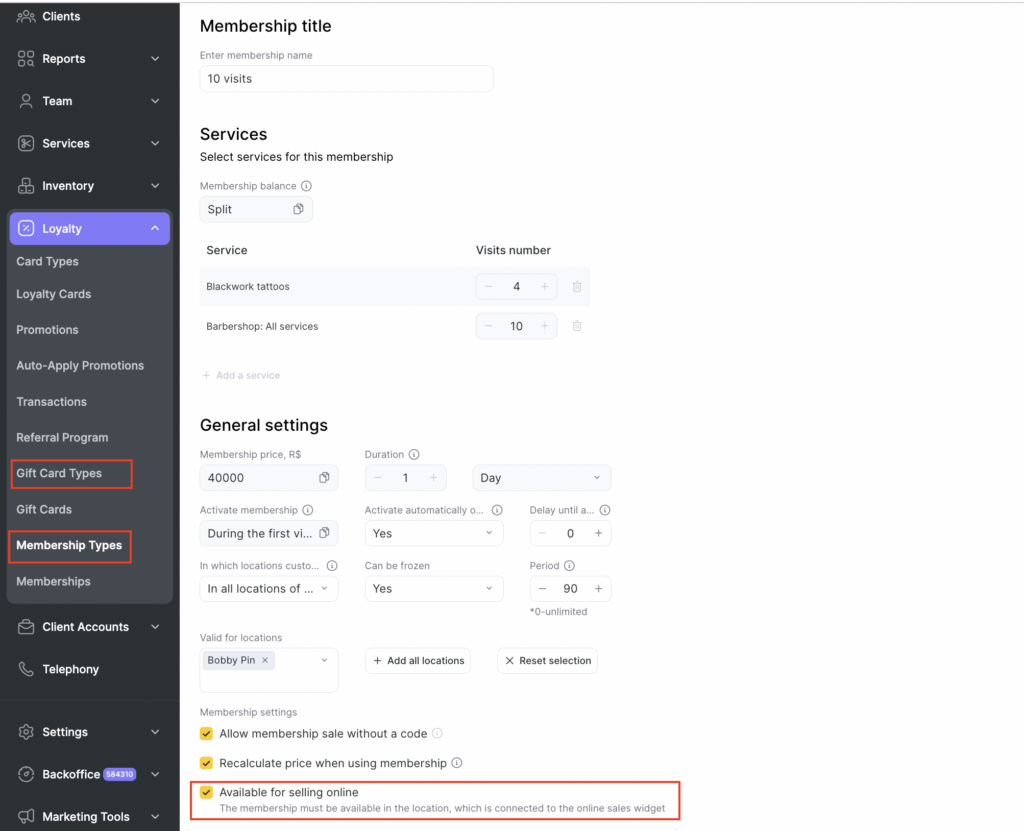
- Create and configure membership types and/or gift cards, and include the option for online sales availability. If the types of memberships and/or gift cards have already been created, it is sufficient to simply enable the option for online sales within them; creating new ones is not necessary.
Important
If an image is uploaded for a membership type and/or gift card, it will also be displayed in the Altegio.me app. Moreover, if the option for online sales is disabled for a type of membership/gift card but the image is not removed, it will still be displayed in the app for the client if they have purchased this membership or gift card by any means—online or by visiting the company.
- Configure and enable the online sales widget.
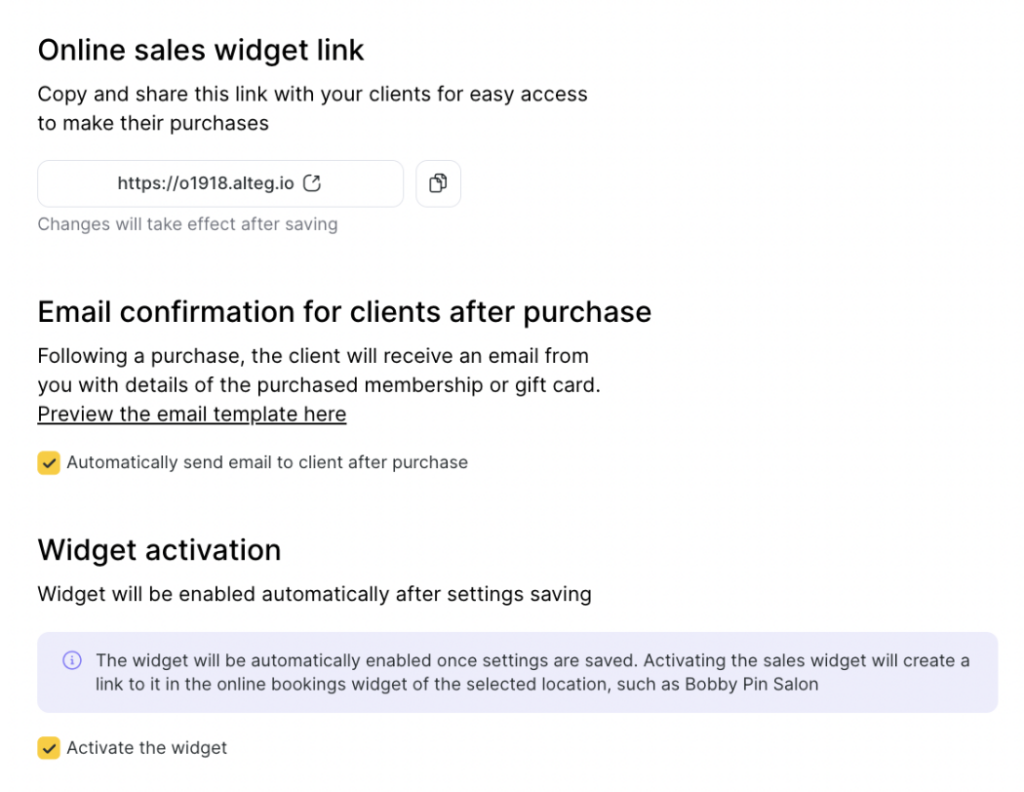
All the settings are described in detail in the article.
Adding Online Sales Widget in App #
To make the online sales widget appear in the Altegio.me app:
- You need to add your company to the Altegio.me app (a detailed guide is available here; activation is free).
- The location added to the app must belong to the same chain where online sales are configured.
- The online sales widget must have memberships and/or gift cards available for purchase.


