
With Payment links, you can send clients a short payment link directly from the visit window. The link can be delivered via Email, SMS, or WhatsApp, or paid using a QR code.
This helps you:
- Take prepayments or full payments remotely
- Get faster confirmation for online/phone bookings
- Reduce manual work for receptionists (no need to copy and paste links)
Before you start #
Please make sure you have:
- Online payments connected.
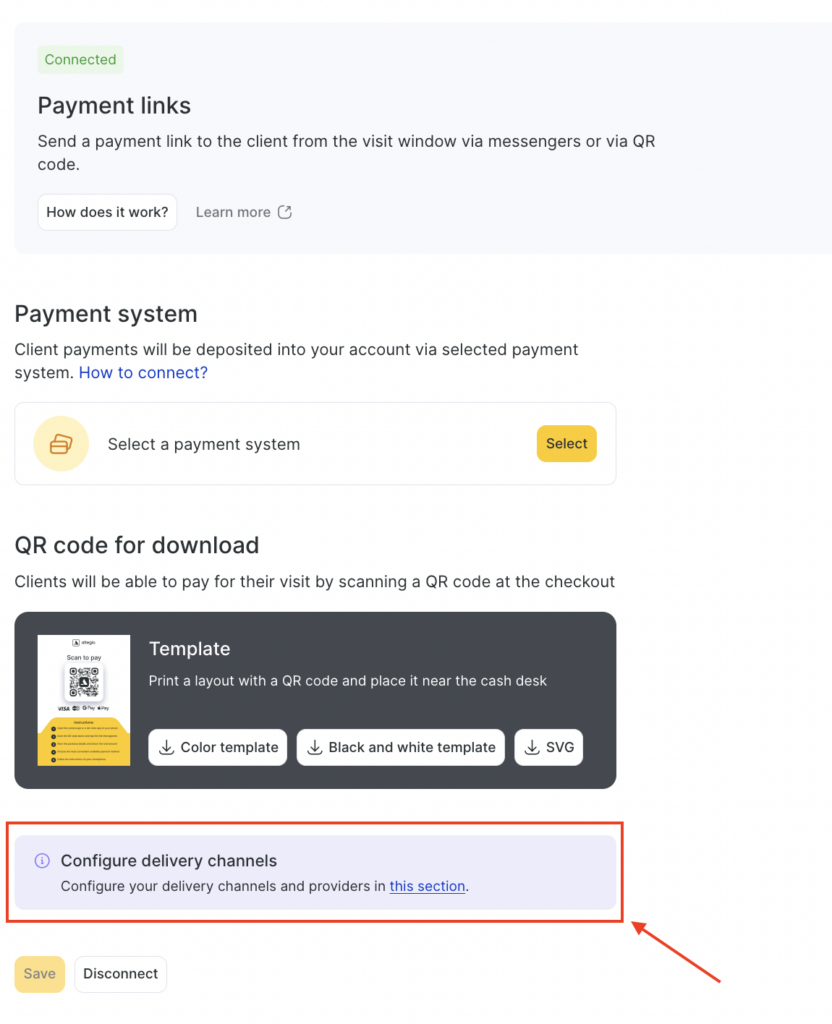
To do this go to Finance> Online Payments > Payment links and click the Set up button.
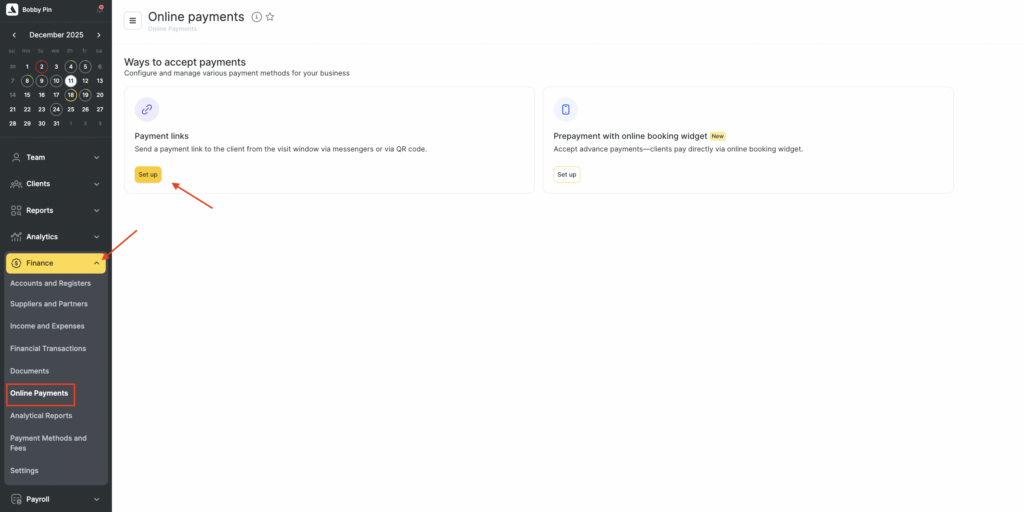
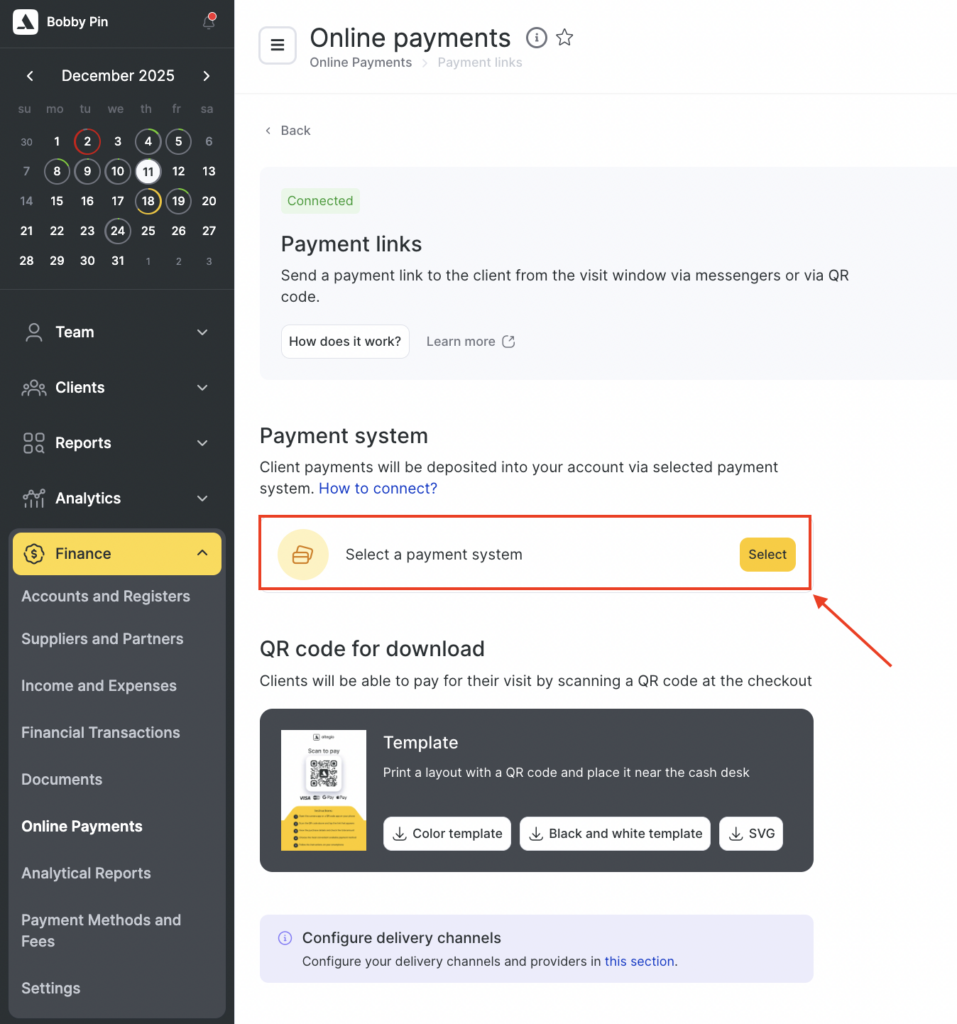
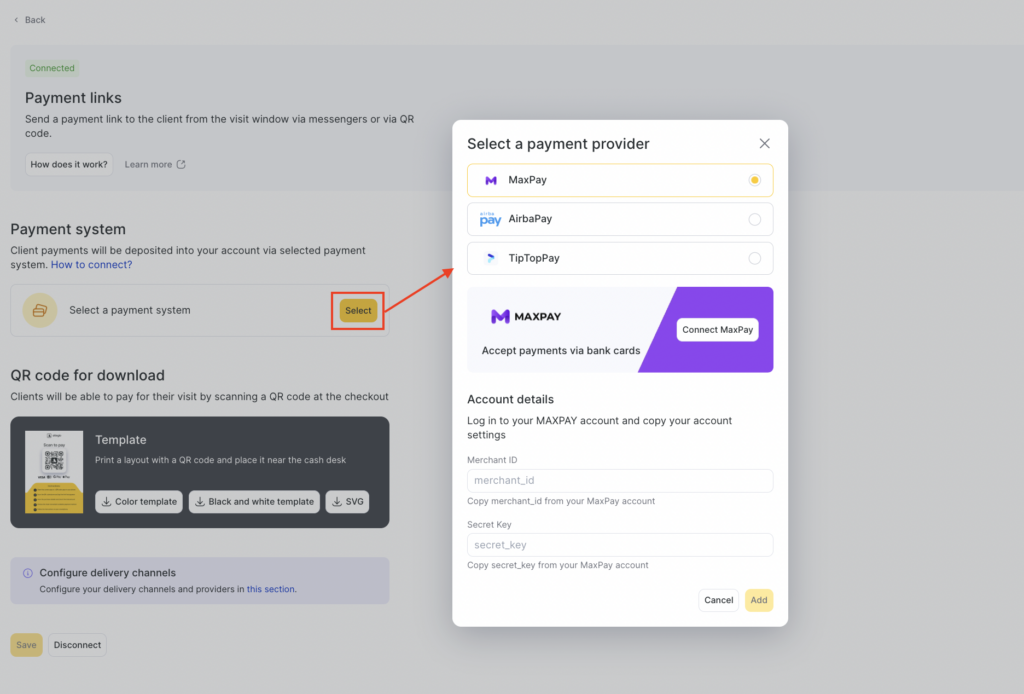
In the Payment system section click Select and choose a connected payment system that will receive the funds.
- Notification type and channels connected.
Go to Settings > System Settings > Notifications.
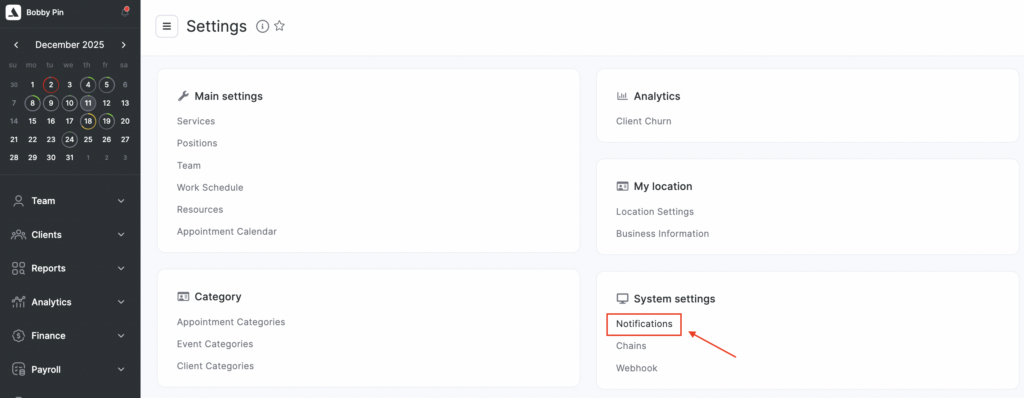
Within Notification types enable the Client notification with a payment link type.

Connect and activate the channels you plan to use:
- SMS
You can also open this settings from Online Payments > Payment links using the Configure delivery channels section.
In the Notification templates tab you can preview and configure the messages that will be sent to your clients.
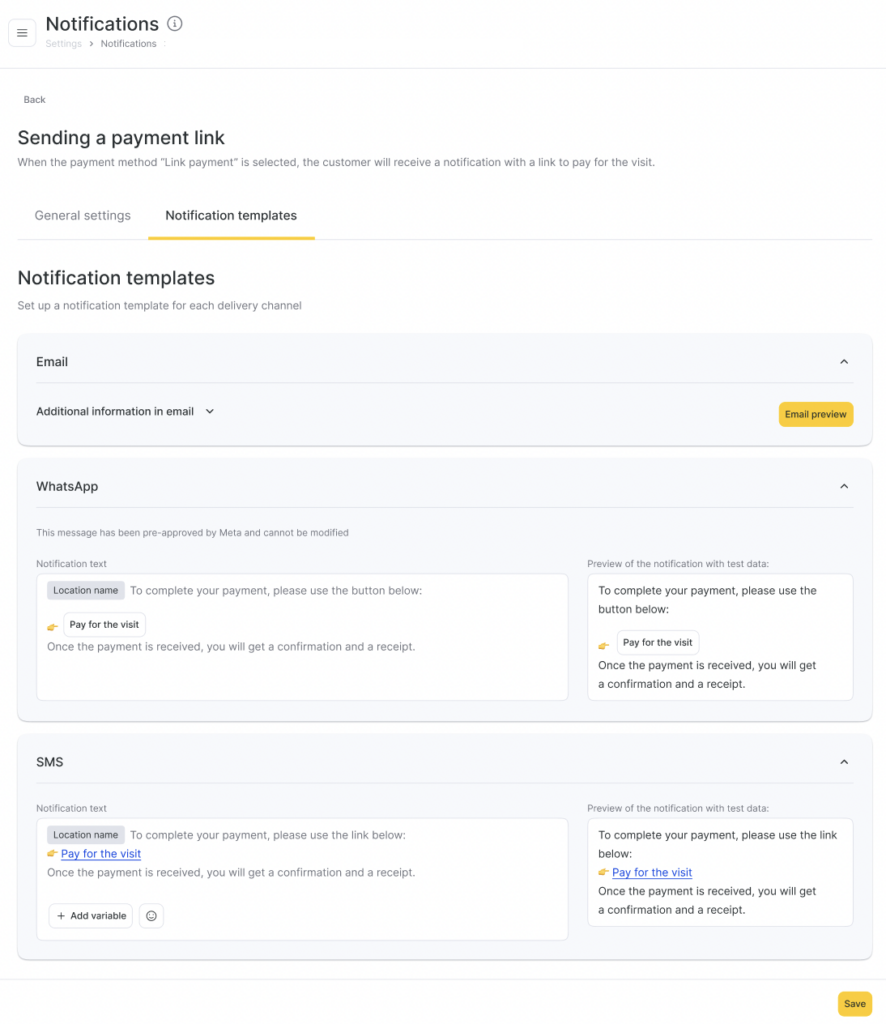
Select which channels you want to use for this notification: Email, SMS, and/or WhatsApp. From now on, this notification type will be used when you send a payment link from the visit window.
Using Payment links in the visit window #
When you are working with a visit, you can send a payment link directly from the visit window.
- Open the visit.
- Choose the payment method Payment links (if available for your payment system).
- In the Payment links block you will see the following options:
Send Link #
- Sends a notification with the payment link through all selected and available channels for this client:
- Email (if an email is specified in the client card and the channel is active)
- SMS (if a phone number is specified and SMS is active)
- WhatsApp (if integrated and available for this number)
- The client receives a message with a button or link to pay for the visit.
- After successful payment, the visit will be marked as paid according to the payment system data.
Copy Link #
- Copies the payment link to your clipboard.
- You can paste it into any messenger or send it manually if needed.
Show QR #
- Displays a QR code with the payment link on the screen.
- The client can scan the QR code and pay from their phone.
Printing a QR template for on-site payments #
If you want to accept payments in the salon via a static QR:
- Go to Online Payments > Payment links.
- In the QR code payment block, download a template:
- Color template
- Black and white template
- SVG (for custom printing/design)
- Print the layout and place it at the reception desk or near the cash desk.
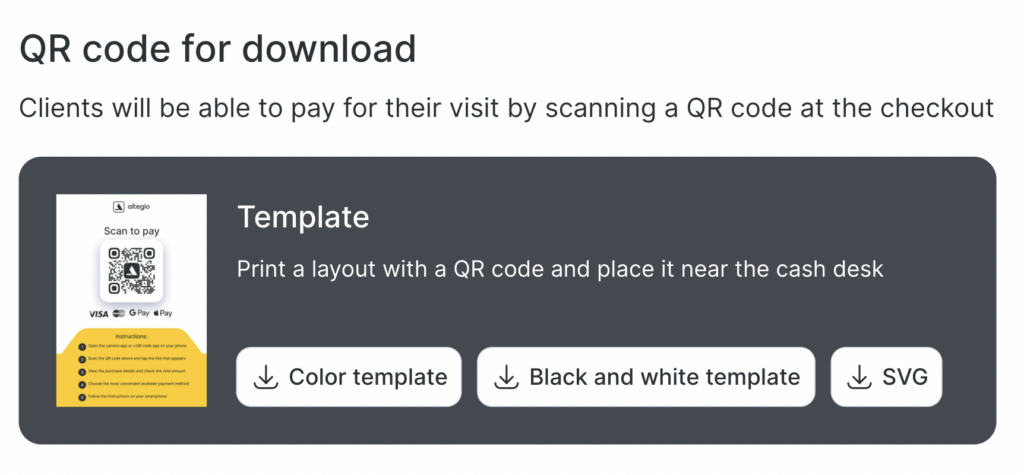
Clients can scan this QR code to open the payment link and pay for their visit in a convenient way.
How it works for the client #
- The receptionist sends a payment link from the visit window or the client scans the QR code.
- The client follows the link, checks the visit details, and pays online.
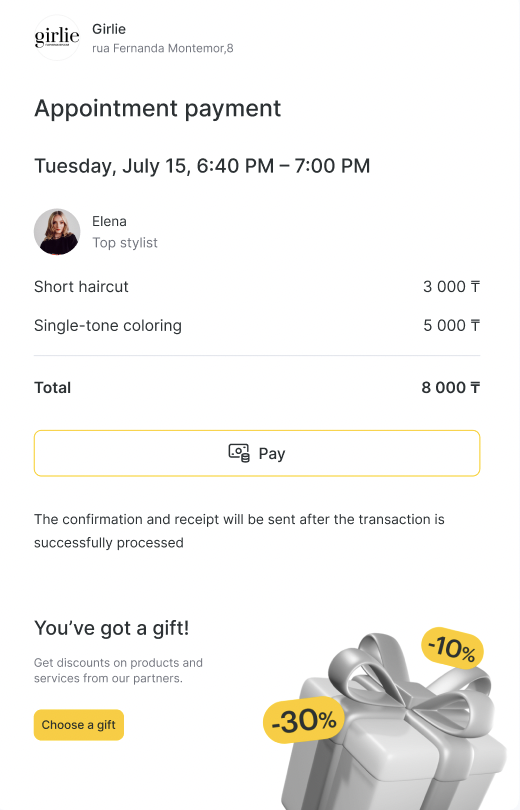
- Once the payment is completed:
- The client receives a confirmation and receipt.
- The payment is reflected in Altegio in the selected payment system.


