
Altegio now allows you to set service prices per team member. With this new setting, you can assign different individual prices for different professionals for the same service. This helps reduce the number of services and avoid creating separate identical services for professionals with different prices.
You can set different prices for team members in two ways: through service settings and through team member settings. Both options are described in this article.
Setting individual prices via service settings #
This method is more convenient if you need to edit prices for several team members at once.
- Go to the Settings section > Main settings > Services.
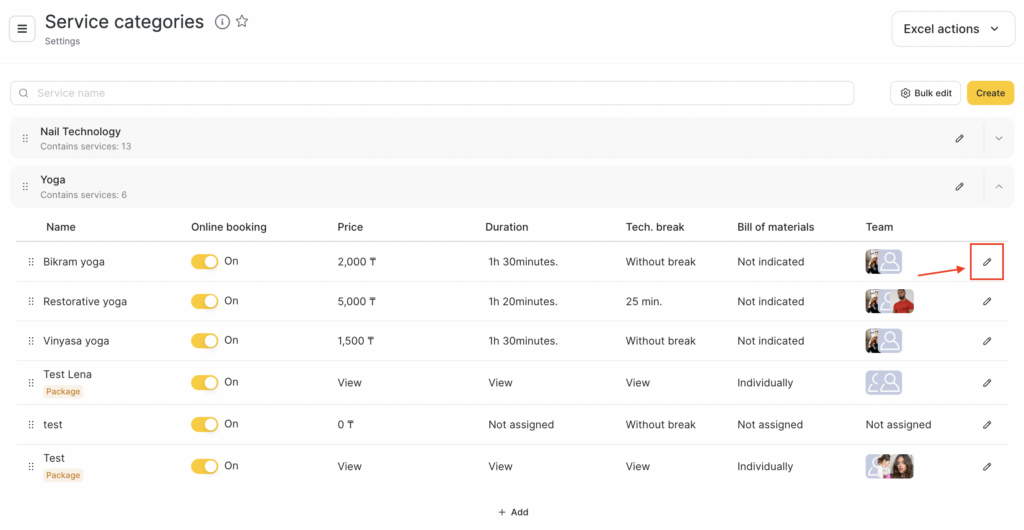
- Expand the required category and click the service name or the edit button with the pencil icon next to the service.
- The Main settings tab will open.
- In the Base price field, it is better to specify the price that is most commonly used for this service among team members. This price will be applied to all team members assigned to the service who do not have individual prices set. You can also specify a base range price; for more details, see the section Setting range prices later in this article.
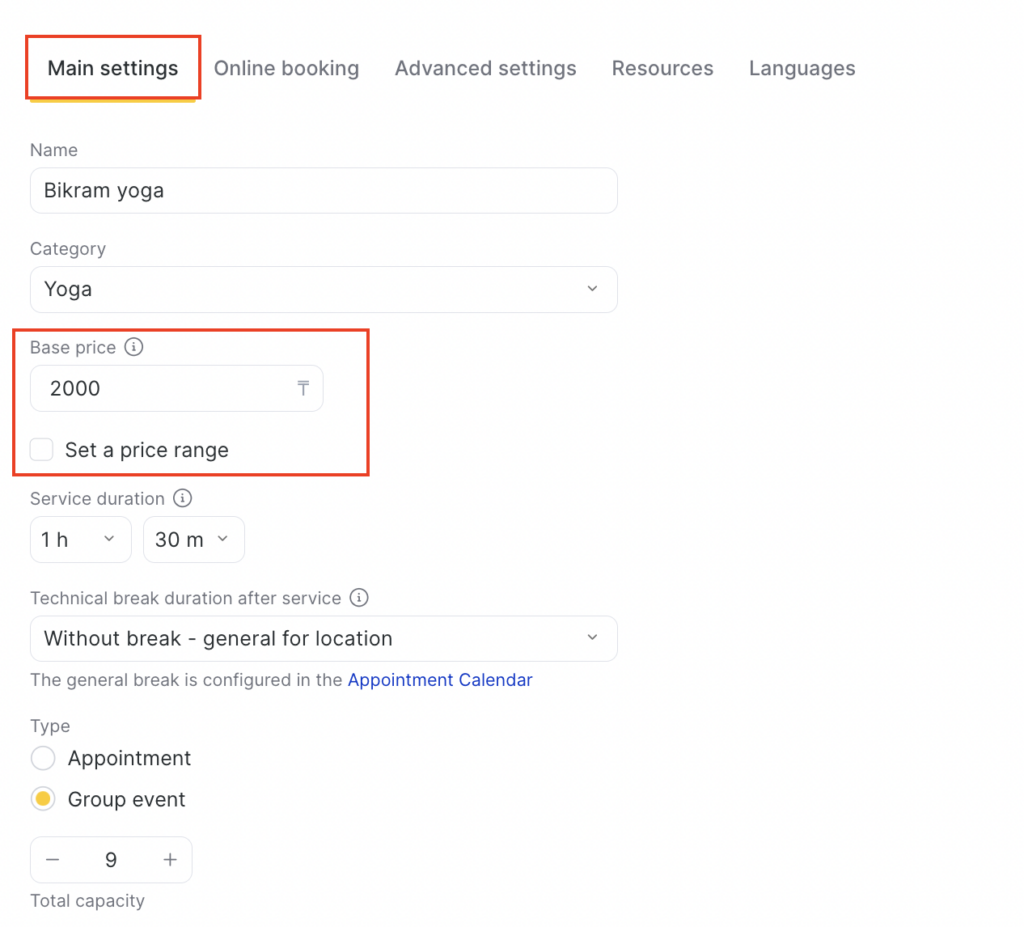
When you change the price in the Base price field, it will be updated for all team members who do not have individual prices set (different from the base price) in the Price field. When you assign a new team member to the service, the default price will also be assigned to them automatically.
The base price helps you quickly update the service price for team members when needed.
For example, the price for the “Haircut” service increased by 200 tenge. Initially, the service cost 1200 for four specialists and 1400 for a top specialist. In the service settings, the following is already configured: the Base price field is filled with 1200, the “Price” field for four specialists is empty (meaning the Default price is used there), and for the top specialist the Price field is filled with 1400. In this case, to increase the cost, you just need to update the “Base price” to 1400 — then the price for the four specialists will update automatically, and for the top specialist with an individual price you will need to manually change the Price field to 1600.
Important
If you only need to assign different prices for team members without a range, then there is no need to set a range in the base price.
- Scroll down to the Team providing this service section. If team members are not yet assigned to the service, add them using the Assign team member button.
- In the Price column, specify the individual service price for each team member according to their price list.
- Click the Save button.
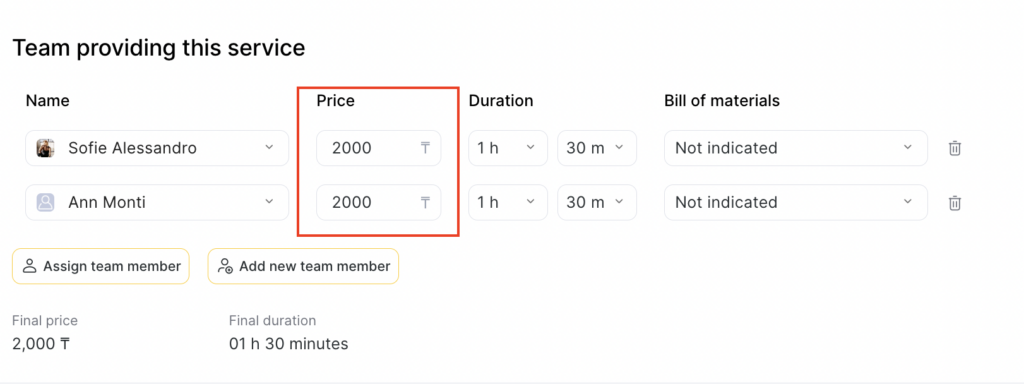
After saving the settings, the individual prices you set will be displayed in the Appointment Calendar and in the online booking widget. In this case, the service price itself will not be used; the cost of services will be taken from the Price field.
Important
If you do not want to set different prices per team member, you can leave the “Price” field unchanged — in this case, the base service price will be used there.If you have already set different prices per team member but want to revert to the previous behavior and have a single price for all team members, delete the previously entered prices from the “Price” field for all team members assigned to the service. After deletion, the value from the “Base price” field will be used, and the service price will be controlled from that field.
If an individual price (different from the base service price) is set in the “Price” field, it will not be updated when the “Base price” field is changed in the service settings.
If individual prices are set for team members for a service, then when exporting services to Excel, such services will be duplicated. This is necessary so that when services are re-imported, the prices are loaded correctly.
Setting range prices #
If a base price range is set in the service settings, you can also set a price range for team members. This is useful if the price for the same service for one team member may differ, for example, depending on the complexity of the work.
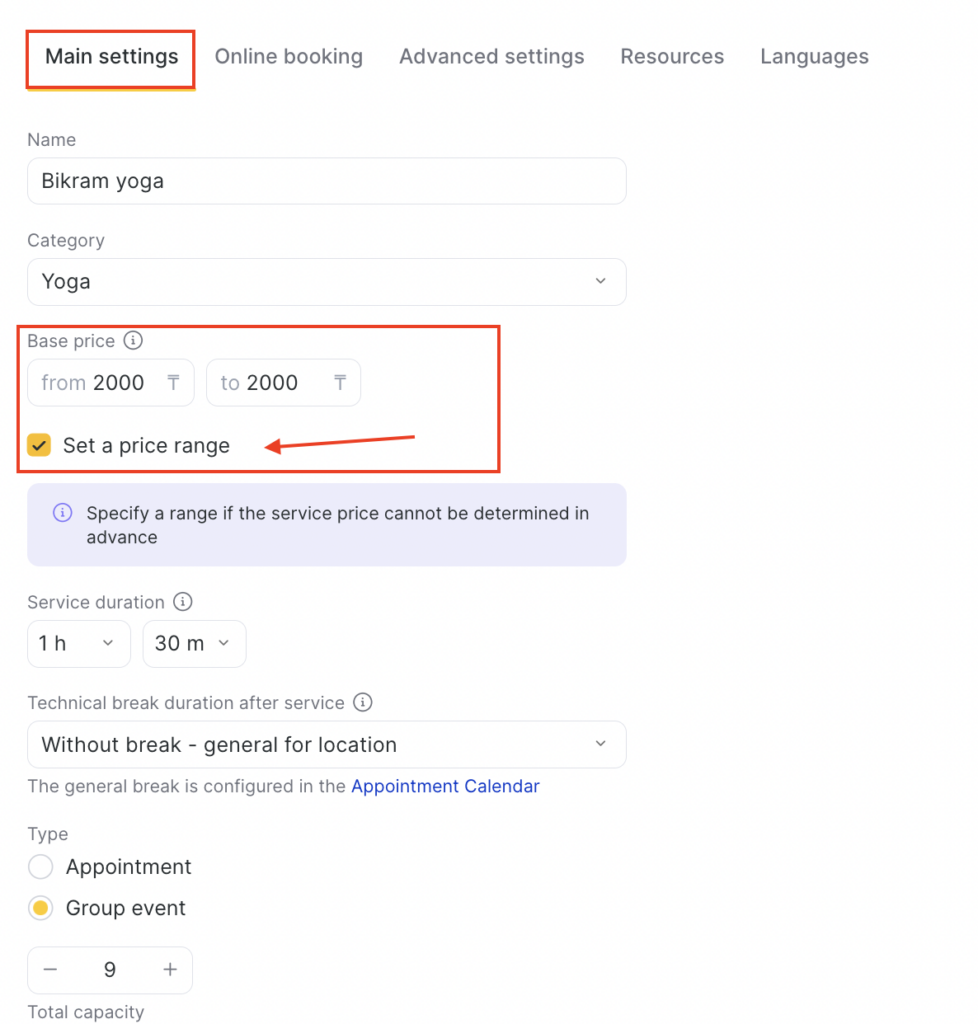
As with a non-range price, the Base price field should contain the price that is used most often. This price will be automatically applied when a team member is assigned to the service. If you need to set a fixed amount for team member, you must specify the same price in both fields of the range.
Setting individual prices via team member settings #
This method is more convenient if you need to edit prices for different services for a specific team member.
Important
At the moment, this method is available only for individual services. To set prices per team member for group services, go to Settings > Services.
- Go to the Settings > Main settings > Team.
- Click the team member’s name or the number in the Services column.
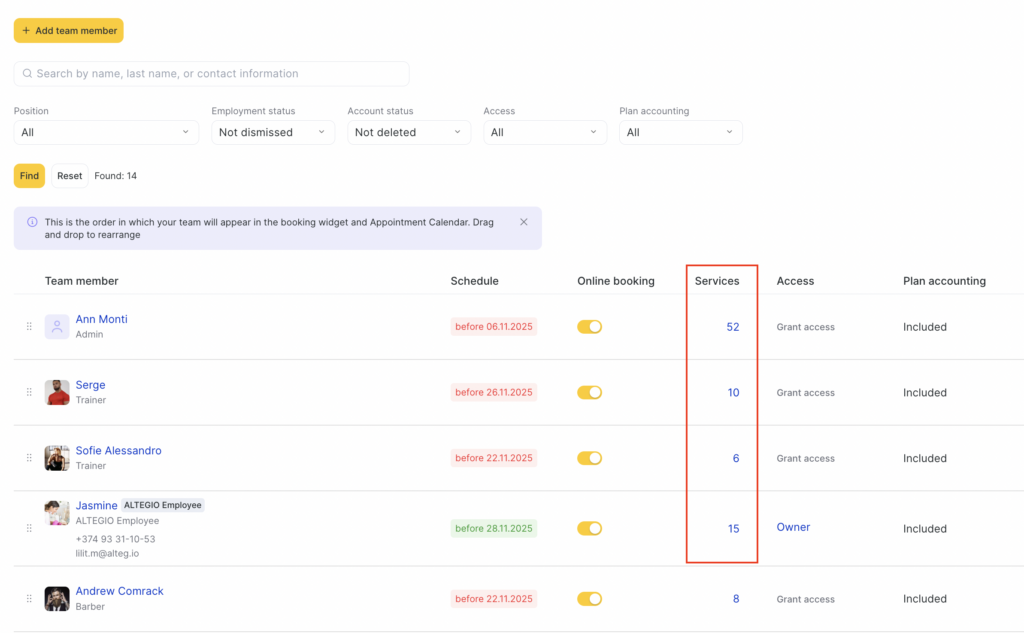
- On the Services tab, expand the required service category and click the service name.
- In the Professional’s price field, enter the required price for the service.
If a default range price is set in the service settings, then the price in the team member settings will also be displayed as a range. In this case, if you need to specify a fixed amount, set the same price in both the from and to fields.
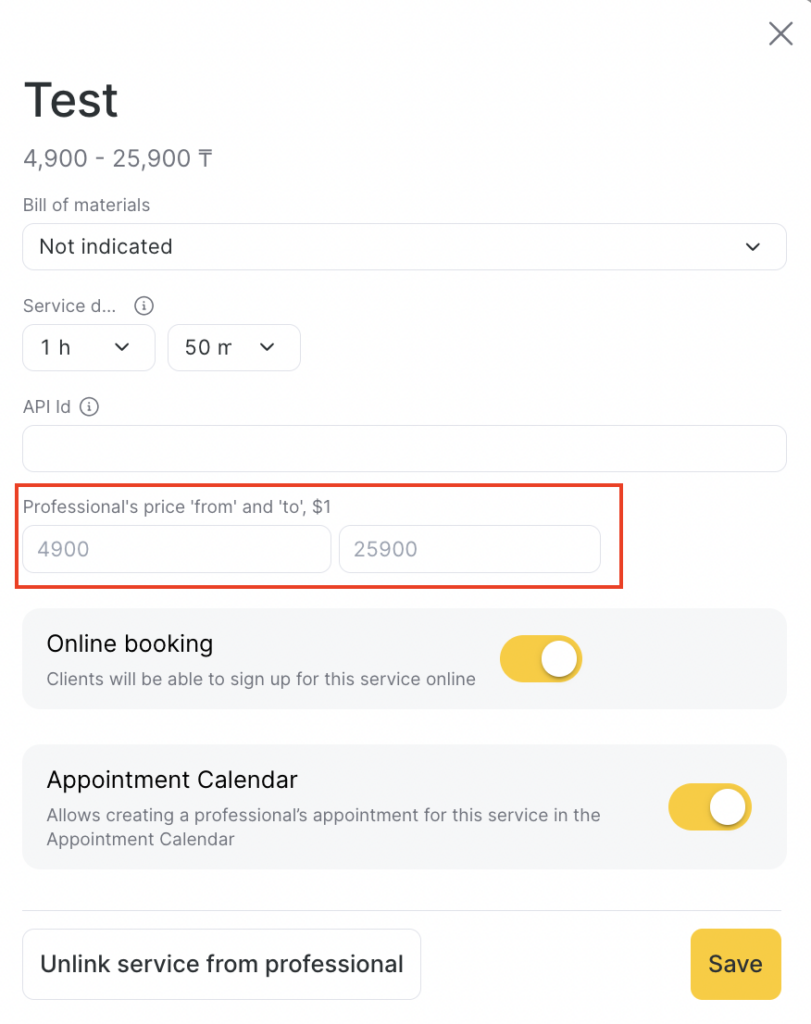
- Click the Save button.
Displaying team member prices in the Appointment Calendar #
If team members have different prices for a service, the visit window will also show different prices. When moving an appointment from one team member to another who has a different price for the service, a warning will appear indicating that the service prices are different. To move the appointment in this case, you must additionally confirm the move.
Important
When you move a service to a team member who has a different price for it, the price will not change automatically! In this case, you must manually change the payment amount if a different price is needed.


