
The system lets you use assistants when providing services during appointments. You can assign one or several assistants to a single appointment — they will work together with the main staff member.
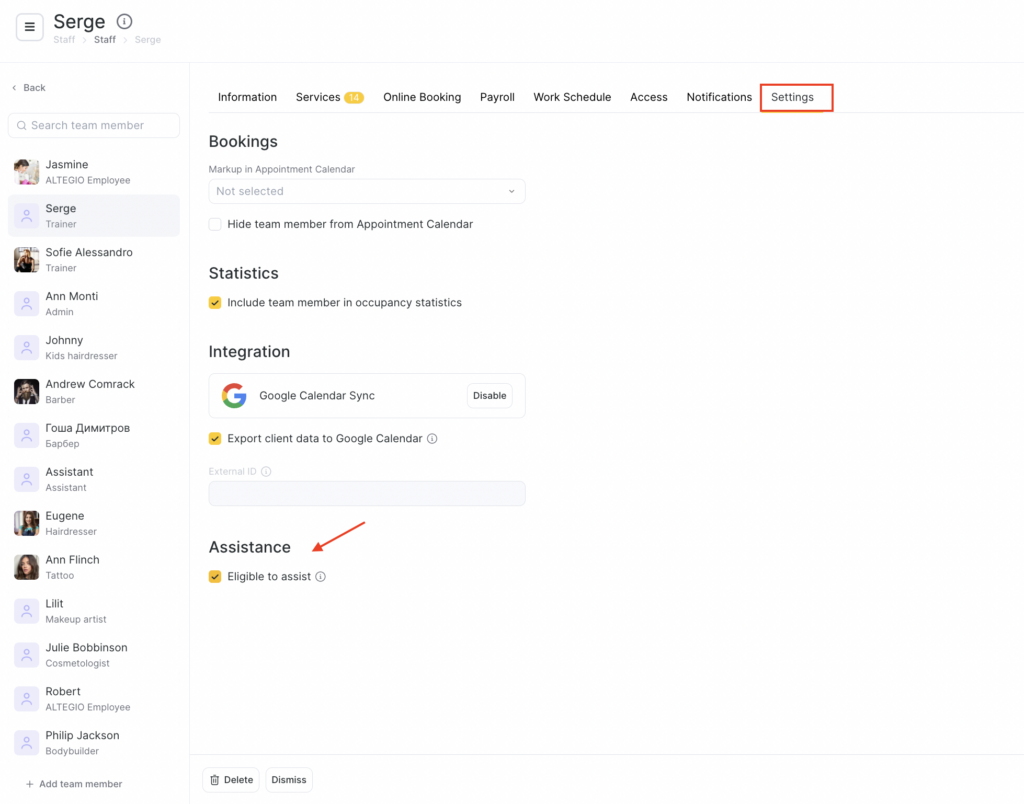
Before you start, you need to enable assisting for the required team members.
You can enable assisting in the team member profile on the Settings tab.
How to add assistants to an appointment #
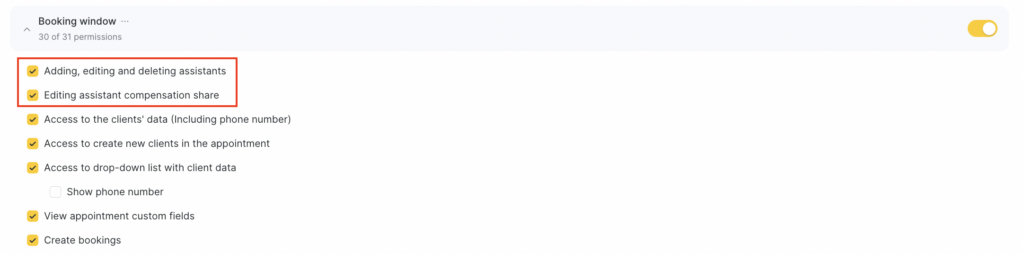
- Before adding an assistant, make sure the team member has the permissions to add, edit, and remove assistants / change assistants’ reward share enabled. More details on how to configure these permissions in the booking window are provided in the article.
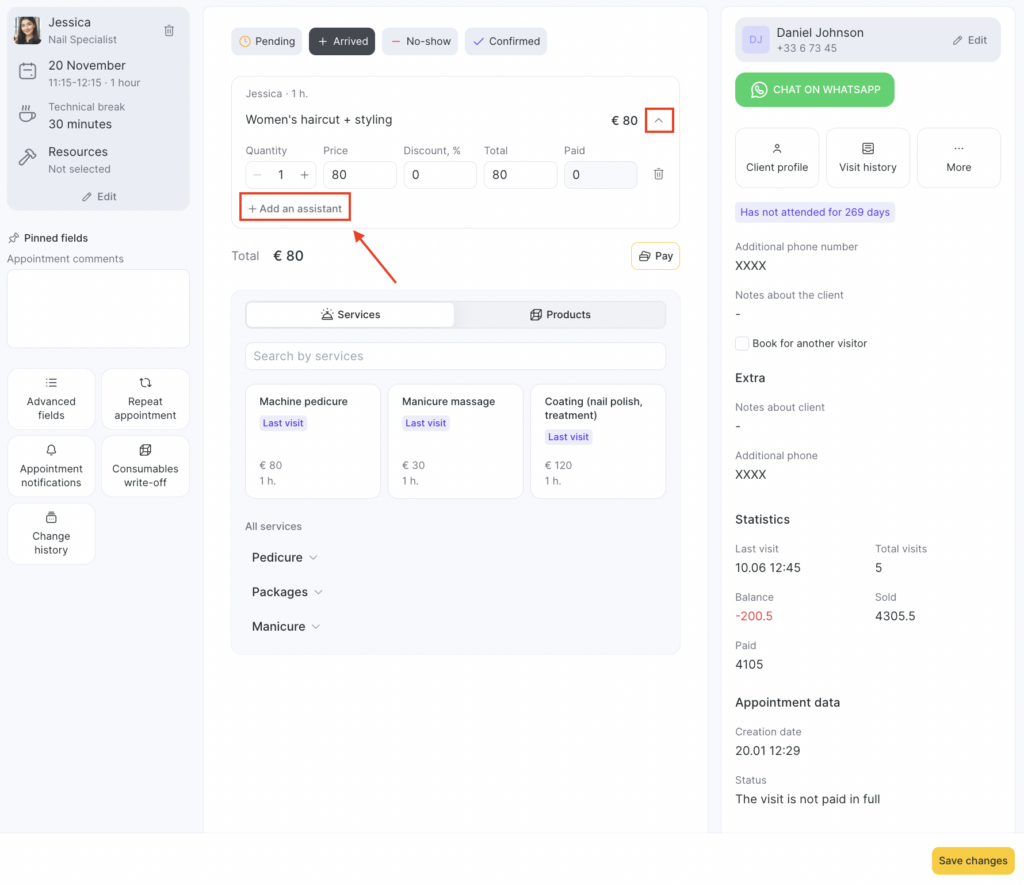
- Open the appointment. In the center of the window, click the arrow, then select + Add assistant.
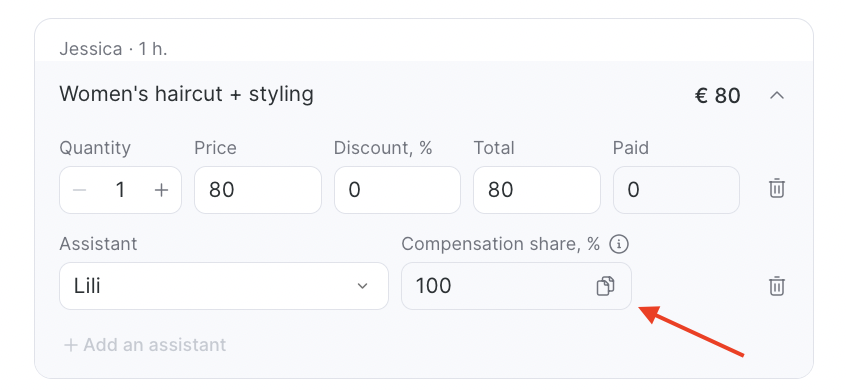
- In the Assistant field, select the team member who will act as an assistant, and specify the Assistant compensation share (the percentage of the assistant’s reward they will receive for providing this service).
If two or more assistants are involved in the service, add multiple team member.
Note
If in the General payroll settings (Payroll calculation > General settings) you set that each assistant receives the full commission amount specified in the service settings regardless of the number of participants, then 100% will be set by default in the booking window. You can change it manually.
If you set that each assistant receives only a portion of their commission, the system will distribute the commission proportionally among all assistants added to the service. With this setting, you can’t change the reward share in the booking window.
How to configure payroll accrual for assistants is described in the article Assistant commission settings.


