
In the simplified setup, payroll is configured in a specific team member’s profile, not in the general section Payroll calculation > Calculation rules. For more details on configuring payroll in the general section, see the article.
In the simplified setup, payroll is also calculated based on actual received payments, not on sales amounts.
Along with the simplified functionality, the section Payroll calculation > General settings is used. These settings are a required part of the setup.
If the salon previously calculated payroll based on partially paid visits, the new mechanism may be unavailable.
Simplified payroll setup is available to companies that have not previously used payroll calculation criteria. If you have already configured payroll in the system before and used a planned calculation scheme, the previous setup principle is available to you in the Payroll section.
In the simplified payroll setup, assistant commission settings are also available.
If the company has not been switched to the new mechanism (simplified or general), payroll calculation with assistants will be unavailable.
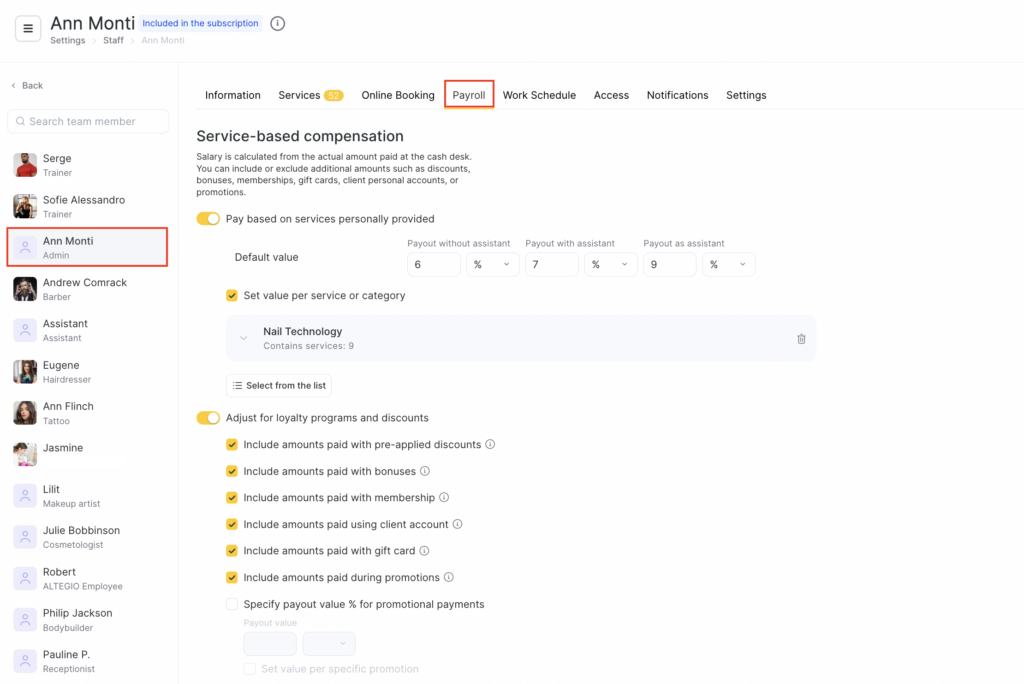
Setup #
After you configure the General payroll calculation settings, proceed to setting up individual calculation rules for team members.
To do this, go to Settings > Team > team member name and open the Payroll calculation tab.
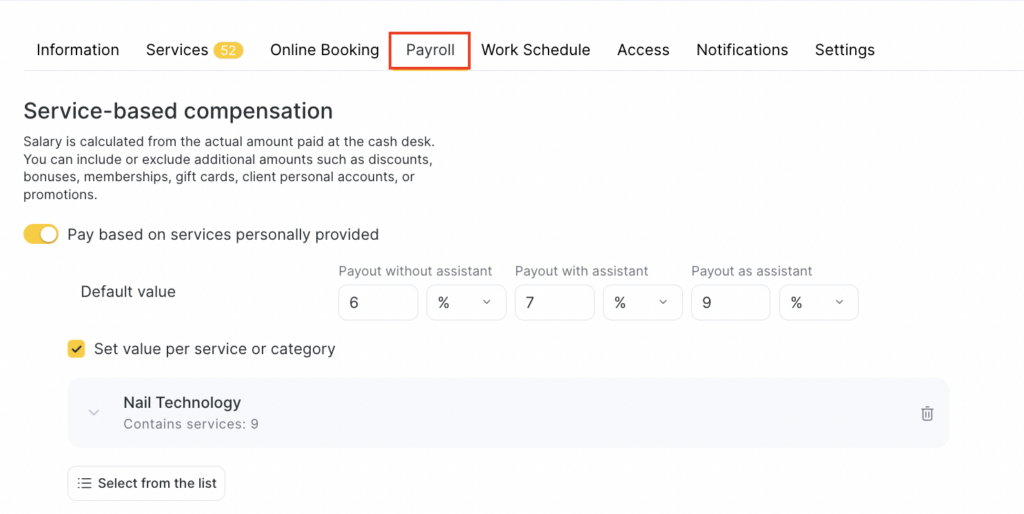
Here you define how payments are calculated based on provided services, assisting, shifts, sales, and other parameters.
Payment for personally provided services #
In this section, configure how the team member will be paid for services they performed personally or participated in as an assistant. Payroll is calculated based on the actual amount paid by the client at the cash desk. You can choose whether to include additional amounts (such as discounts, bonuses, memberships, gift cards, client balance, or promotions).
- Enable Pay for personally provided services if you want the team member to receive compensation for participating in service delivery.
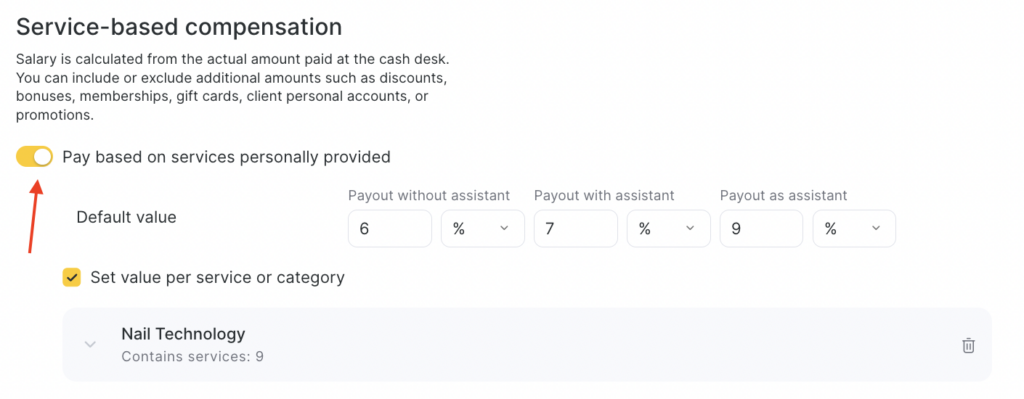
When this setting is enabled, you can define three payment types:
- Payment without an assistant
Compensation when the team member performs the service independently, without assistants.
- Payment with an assistant
Compensation when the team member is the main provider, but one or more assistants participate.
- Payment as an assistant
Compensation when the team member participates only as an assistant.
For each field, specify how the payment should be calculated in the relevant case. You can choose:
- Percentage (%) — the team member receives a percentage of the service price.
- Fixed amount — the team member receives a fixed amount for the service.
Example
Payment without an assistant: 10%
Payment with an assistant: 8%
Payment as an assistant: 5 R$This means:
If the team member performs the service independently, they receive 10% of its price.
If they are the main provider but work with an assistant, they receive 8%.
If they participate only as an assistant, they receive a fixed 5 R$.
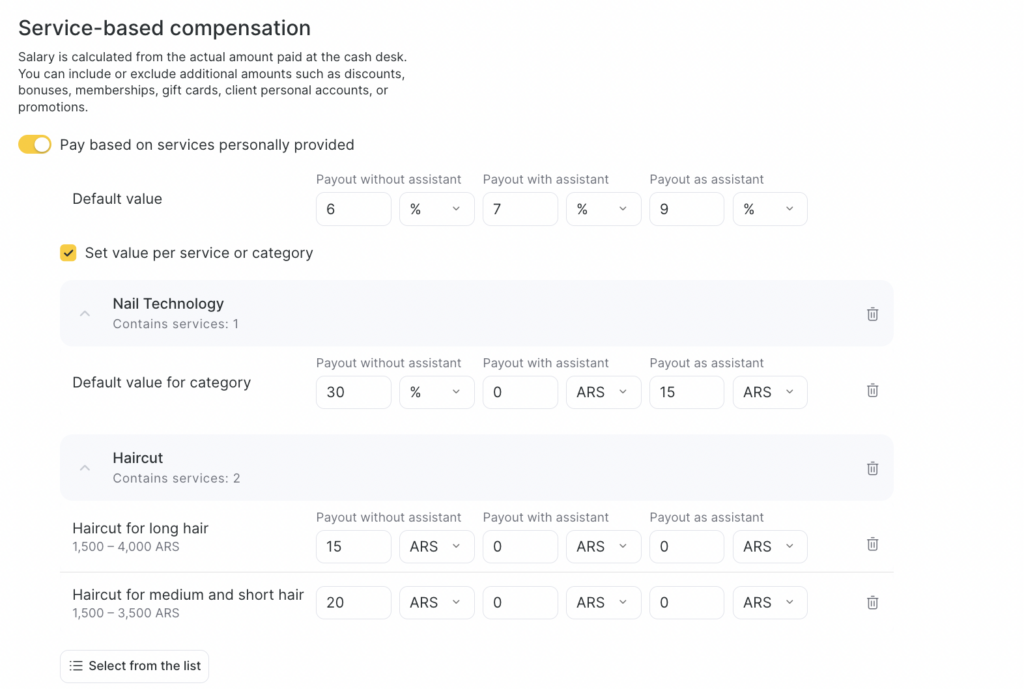
- If the team member needs a different percentage for specific services, enable Set individual values for services or categories.
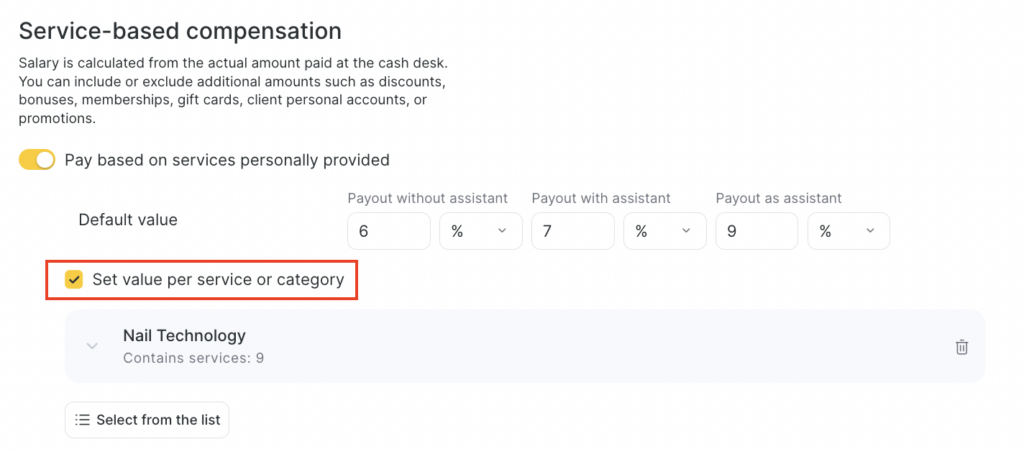
This setting allows you to set a separate percentage (or fixed amount) for a specific service or category. For all other services, the percentage specified in the Default value will be applied.
To assign a separate value for an entire service category, click Select from list, then choose the required category and tick All services. After that, a field will appear where you can specify a percentage or fixed amount — this value will apply to all services within the selected category.
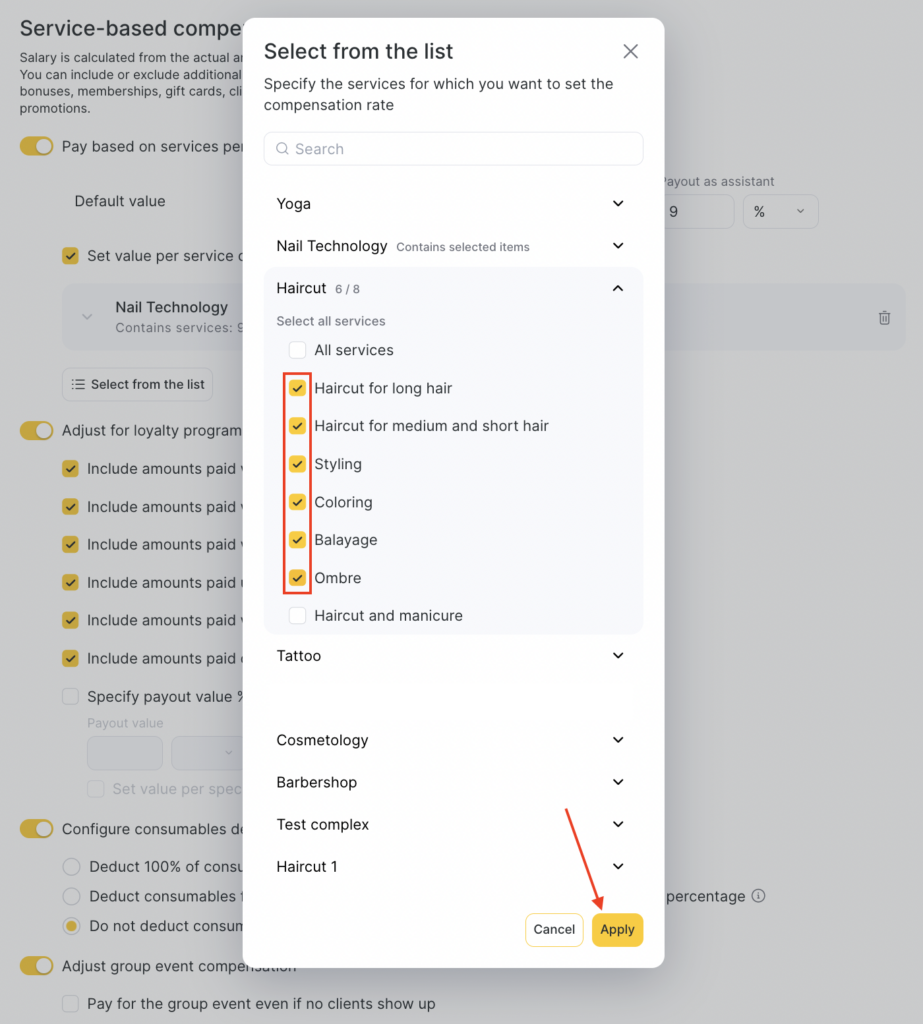
If you need different values for individual services within one category, select each service separately.
Adjustments for loyalty programs and discounts #
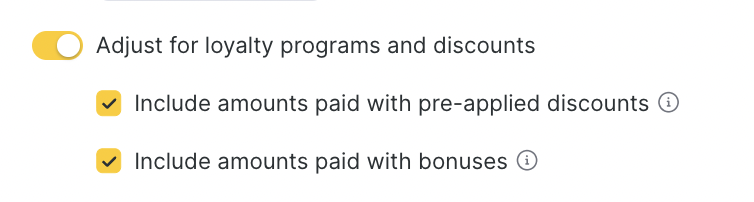
This block allows you to configure which amounts should be considered when calculating the team member’s compensation if the client uses discounts, bonuses, memberships, or participates in promotions.
If you enable the adjustment, the full service price will be used for payroll calculation, without reducing it by client discounts or payments made with bonuses, gift cards, promotions, or memberships.
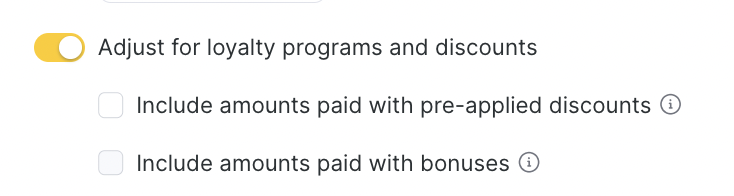
If the adjustment is not enabled, the discount amount, as well as the portion paid with bonuses, gift cards, or memberships, is deducted from the payroll calculation base.
Example
Service price (Haircut) — 100 €.
The client received a 10% discount and paid 90 €.The team member receives 40% of the service price:
if the adjustment is disabled, the team member gets 40% of the discounted amount — 36 €;
if the adjustment is enabled, the team member gets 40% of the full service price — 40 €.
You can include or exclude the following payment types from the calculation:
- Pre-applied client discount — whether to include the amount reduced due to the discount.
- Bonus payment — whether the bonus-paid portion should be included in the payout calculation.
- Membership payment — whether to include the service value paid by membership.
- Client account payment — whether to include payment from the client’s personal balance.
- Gift card payment — whether to include the amount paid with a gift card.
- Promotion payment — whether to include the amount paid under a promotion.
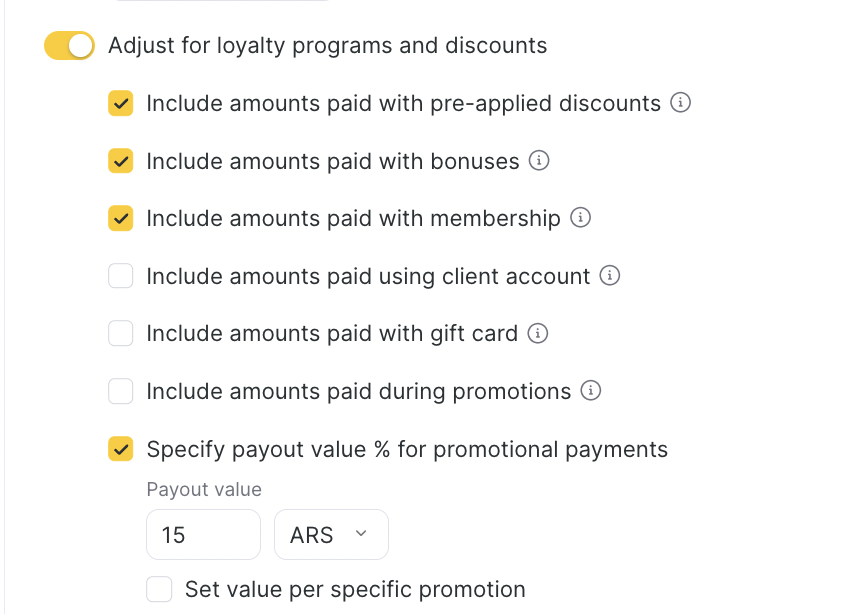
- Set payout value for the amount paid under a promotion.
If the service was provided as part of a promotion, you can set special compensation rules.
For example, if the client pays less under the promotion, the team member can receive a percentage of the actual paid amount or a fixed amount.
You can also set separate payouts for each promotion from the list. To do this, tick Set value for a specific promotion, click Select from list, choose the promotion, and set a percentage of the actual amount or a fixed amount.
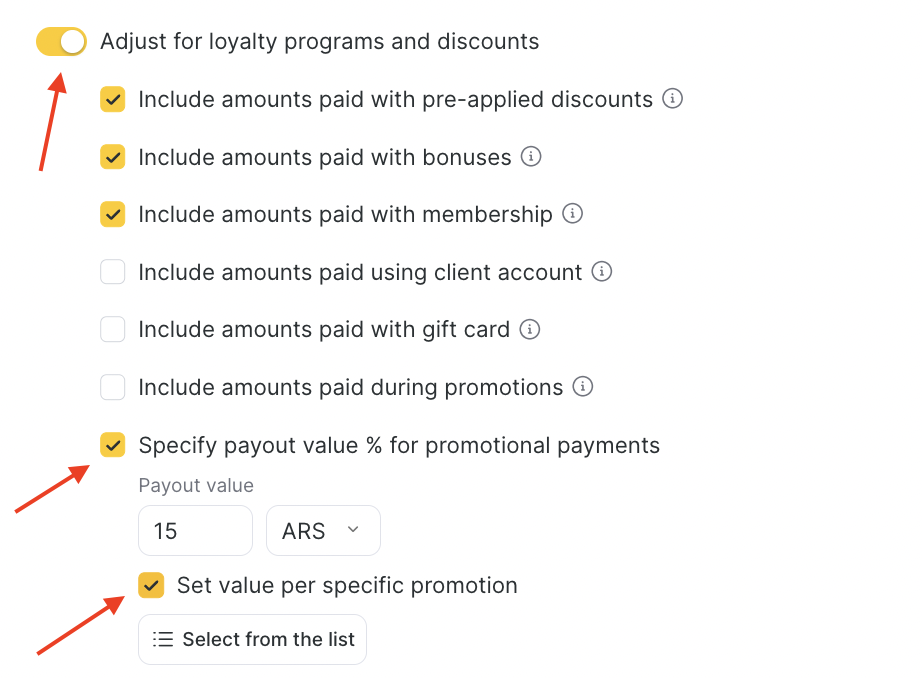
For more details on payroll formulas when paying with loyalty, see the article.
Cost price accounting #
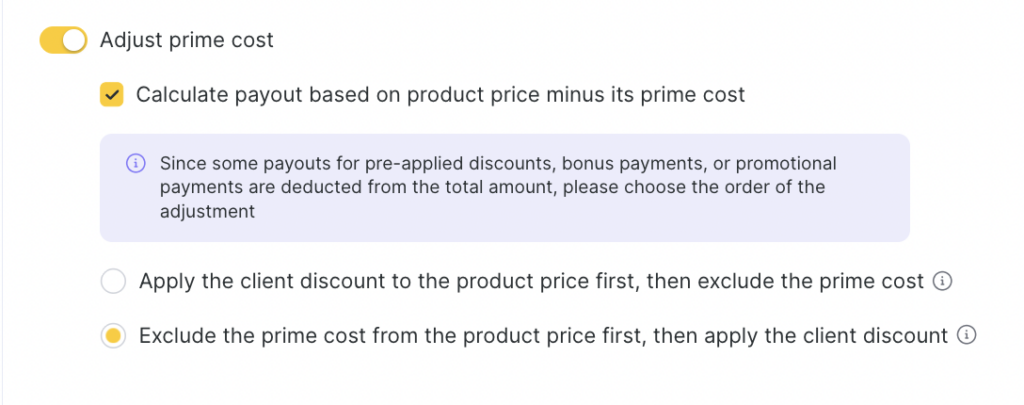
Enable Cost price accounting so the payout is calculated from the service price minus the cost price (for example, material costs).
The system also allows you to choose the application order. To do this, enable Calculate payout as the difference between the service price and its cost price and choose the order:
- First apply the client discount, then subtract the cost price.
- Or vice versa — first subtract the cost price, then apply the discount.
This is important for accurate profit accounting and fair commissions.
Payment for group events #
For details on setting up accrual rules for group events, see the article.
Payment for product sales #
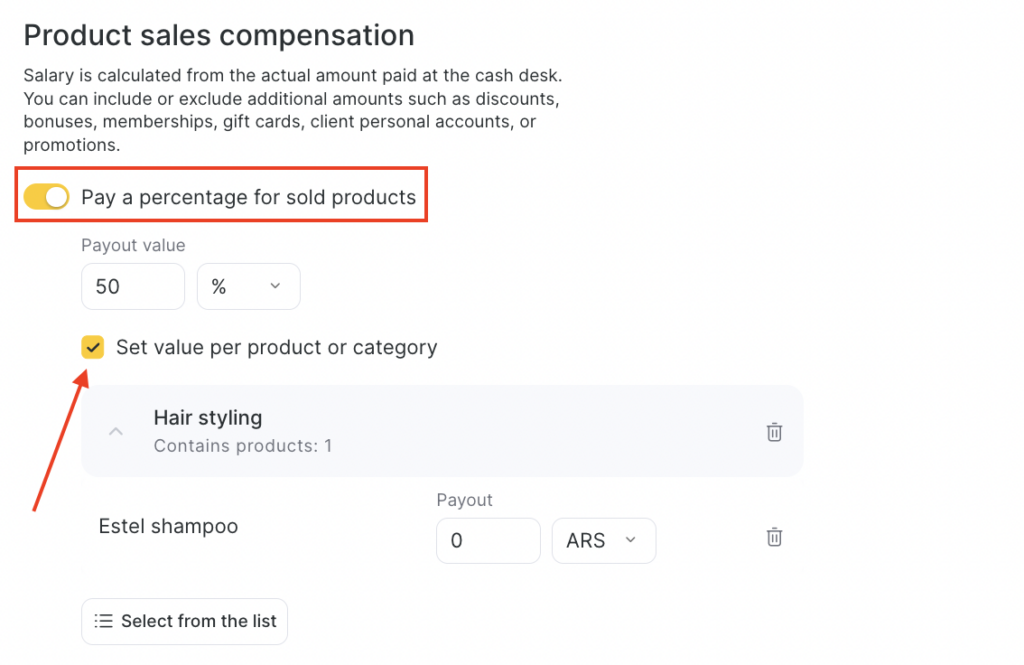
Payroll for product sales is calculated based on the actual amount paid at the cash desk. If needed, you can include or exclude additional amounts: discounts, bonuses, memberships, certificates, deposits, and promotions.
- Enable Pay for sold products if team member receive a commission from retail product sales.
- Set a percentage of the product price (%) or a fixed payout amount. As with service settings, you can set one percentage/amount for all products or set separate values for specific categories or specific products.
Adjustments for loyalty programs and discounts #
Configured similarly to service adjustments.
For more details, see the article.
Cost price accounting #
Configured similarly to cost price accounting for services. For more details, see the article.
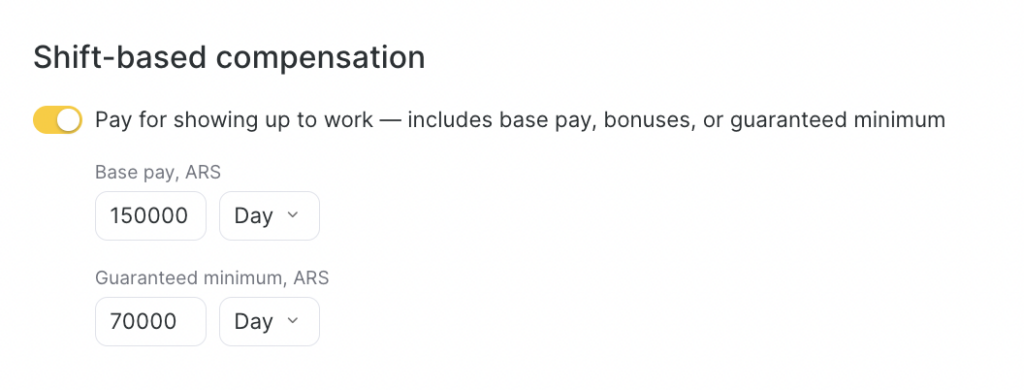
Payment for a workday #
For team member whose work is paid per shift (for example, administrators):
Enable Payment for coming to work includes base pay, additional compensation, or guaranteed minimum.
Set the base pay per hour/day/month.
To accrue a monthly salary, 3 conditions must be met:
- A monthly salary is always accrued on the first day of the month following the calculated month. To accrue a salary for January, the calculation period must include February 1.
- The team member must have at least 1 working hour/day in that month. To accrue a salary for January, the team member must have working hours in January.
- The validity period of the calculation scheme that includes the rule for monthly salary accrual must include the calculated month. For example, to accrue a salary for January, the scheme must be active for the team member starting from January 1.
Example
If you select the calculation period 1.09–30.09, then (if other conditions are met) the salary for August will be accrued, but the salary for September will not. At the same time, if you select the period 2.09–1.10, the salary for August will not be accrued, and the salary for September will be accrued.
- Specify the guaranteed minimum per day/month — the amount the team member will receive in any case, even if the base salary and percentages are less than the minimum. This is useful during periods of low workload.
To accrue the Guaranteed minimum for a month, the calculation period must fully include the month being calculated.
Payment for working with appointments #
If the team member works with client appointments (creating, changing, confirming visits), this setting is especially relevant for administrators and managers who manage schedules and interact with clients.
- Enable Reward for appointment management.
- Set payouts for:
- A created appointment (in currency). In this case, accruals go to the administrator who created the appointment.
- A service in a created appointment (in % or currency). In this case, accruals go to the administrator who created the appointment.
- A service in a closed appointment created via the online widget (in % or currency). In this case, accruals go to the administrator who created the appointment.
- A closed online appointment is an appointment with the status Arrived. In this case, the system uses the administrator who first changed the appointment status to Arrived. Regardless of who created the appointment and when, the calculation is made for the person who first changed the status, i.e., closed the appointment.
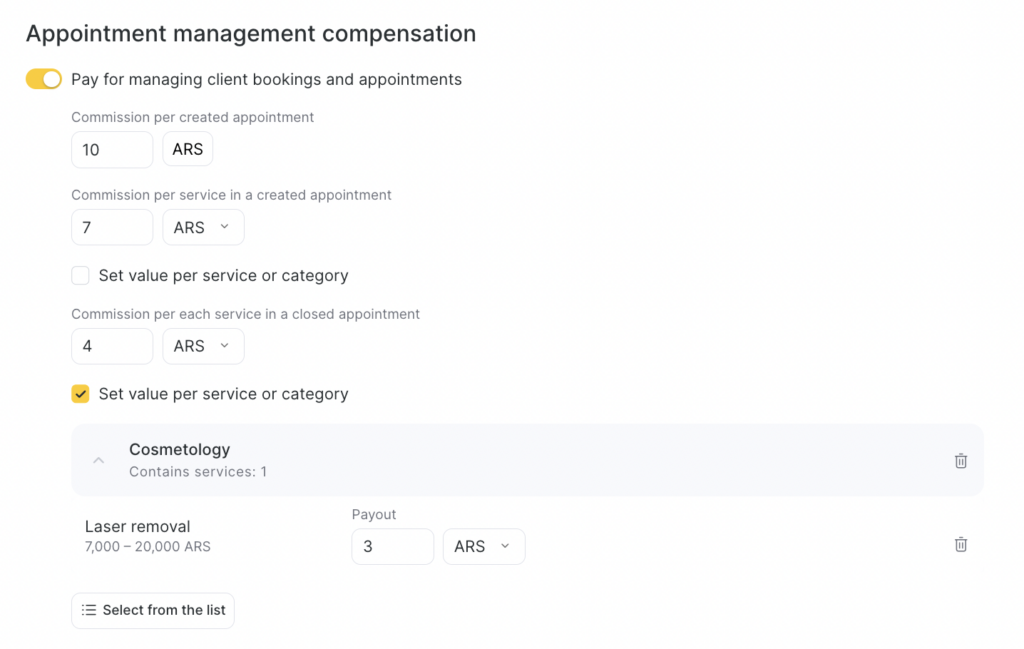
Set individual values for different services or categories. To select categories or services, click Select from list.
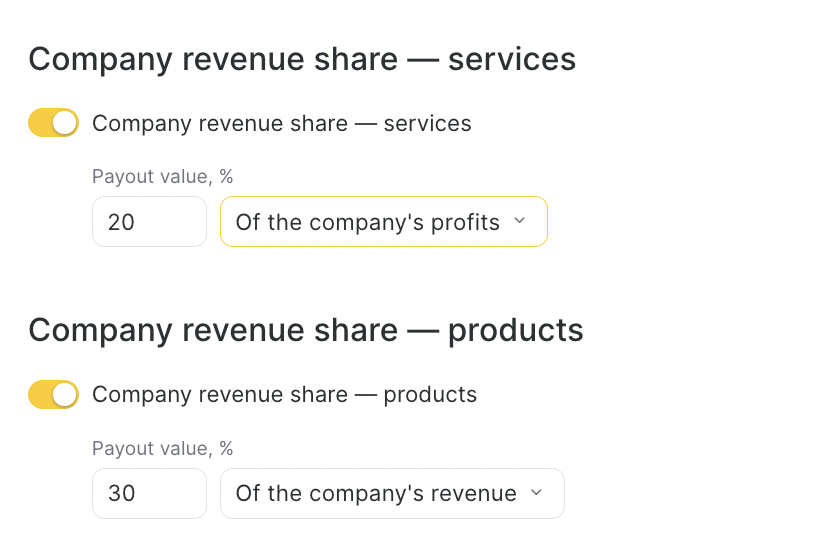
Additional reward for provided services and product sales #
If you want to reward team members based on the overall success of the company in providing services or selling products:
Enable Additional reward for provided services or for product sales.
Specify the payout percentage:
- From the company daily revenue
- From the company daily profit
Example
Revenue: R$10,000
Expenses: R$7,000
Profit: R$3,000
5% of turnover = R$500
5% of profit = R$150
Revenue = fixed payout when sales happen.
Profit = a fair share only when there is actual income.
To save all configured parameters on the page, click Save at the bottom left.
Additionally, you can configure bonuses and deductions in Altegio. For more details, see the article.


