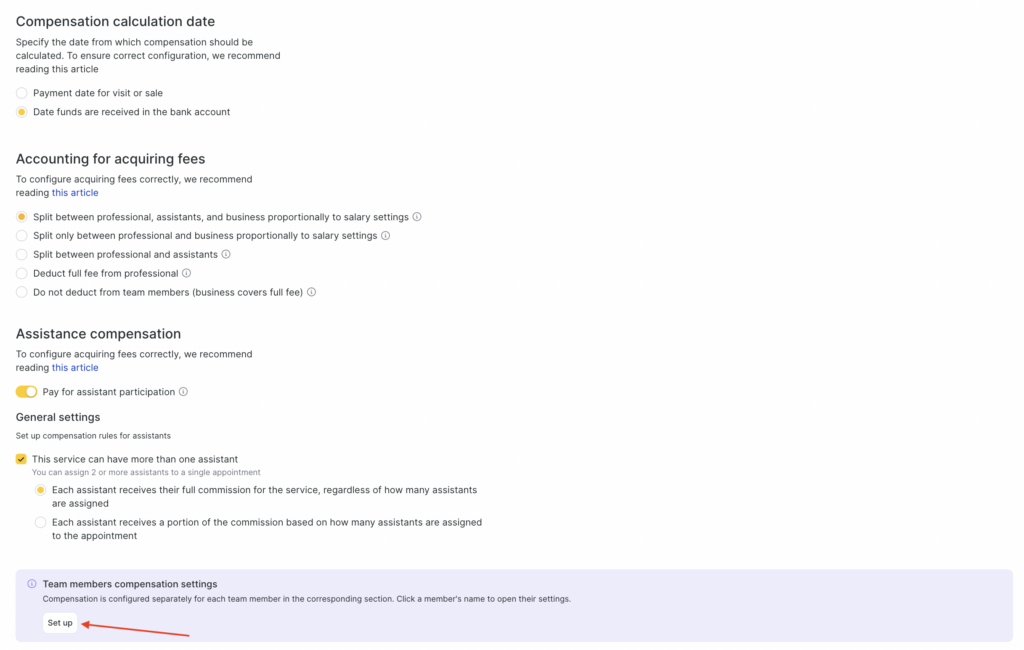
To start setting up employee payroll calculation, go to Payroll > General settings.
In this section, you can define the general rules for calculating employee payroll in the system, namely:
- Reward accrual date
- Acquiring fee deduction
- Assistant compensation
Correct configuration of these parameters helps accurately account for revenue and fairly начислять compensation to staff.
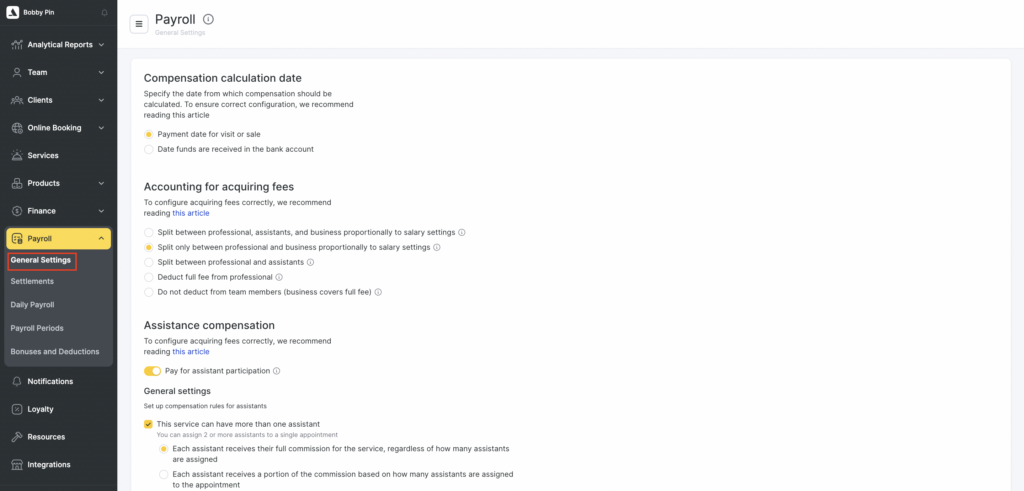
How to access the section #
- In the main menu, open Payroll.
- Go to General settings.
Compensation accrual date #
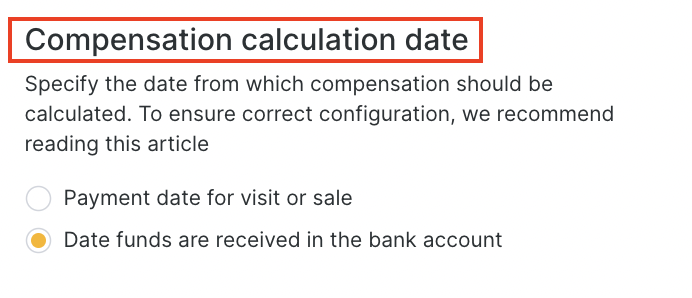
Choose which date the system will use to account for revenue when calculating payroll:
- Payment date for visit or sale— used if it is important to account for the moment when payment was actually made (cash or card).
- Date funds are received in the bank account — useful if payroll settlements depend on when money is actually credited to the company’s account (for example, when using acquiring with delayed settlements).
Selecting this option affects which transactions will be included in payroll calculation for a specific period.
Acquiring fee deduction #
An acquiring fee is the commission charged by a bank or payment service for card payments. You can choose to account for or ignore this fee when calculating employee compensation.
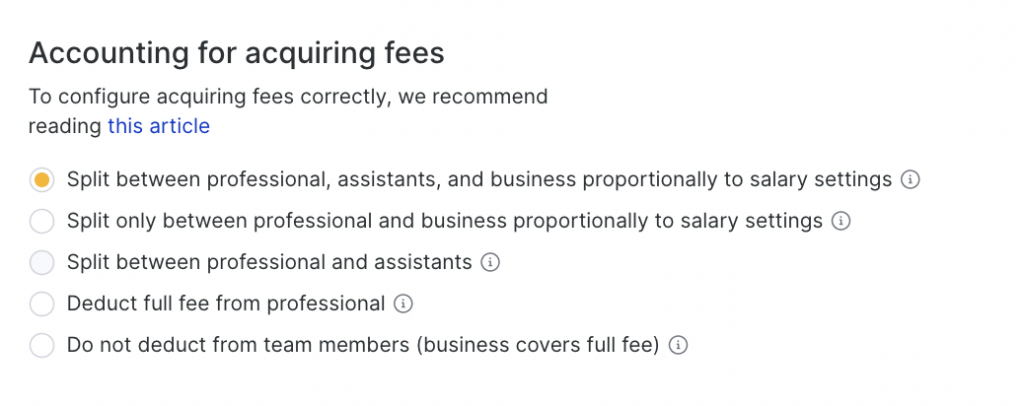
This section defines who bears the acquiring fee for a paid visit and how it is distributed when calculating team member payroll.
- The fee is split between the professional, assistants, and the business proportionally to payroll settings
The fee is distributed among all participants of the visit — the primary professional, assistants, and the business — in the same proportions set in payroll settings.
Each participant pays their share of the fee.
Example
The acquiring fee is $10. According to payroll settings, the specialist pays 40% of the fee and the assistant pays 10%. In this case, $4 is deducted from the specialist’s payroll, $1 from the assistant’s payroll, and the remaining $5 is paid by the business.
- The fee is split only between the professional and the business proportionally to payroll settings
The fee is distributed between the professional and the business according to payroll settings.
Assistants do not participate in fee distribution — their payroll is calculated without considering the acquiring fee.
Example
Fee: $10. Specialist pays 60%, assistant pays 20%.
Result: $6 is deducted from the specialist’s payroll, $0 from the assistant’s payroll, and $4 is paid by the business.
- The fee is split between the specialist and assistants
The fee is fully distributed among the employees participating in the visit — the specialist and assistants. The business does not participate in paying the fee.
Example
Fee: $10. Specialist — 40%, assistant — 10% →
$4 is deducted from the specialist’s payroll, $1 from the assistant’s payroll, $5 is paid by the business.
If there are several assistants, their share is distributed among them proportionally to payroll settings.
- The fee is fully paid by the specialist
The full acquiring fee amount is deducted from the primary specialist’s payroll. Assistants and the business do not pay the fee.
Example
Fee: $10. $10 is deducted from the specialist’s payroll.
The assistant and the business do not pay the fee.
- The fee is not deducted from employee payroll (paid by the business)
The acquiring fee does not affect employee payroll and is fully paid by the business.
Example
Fee: $10. The fee is not deducted from employee payroll. The business pays $10.
If fees are not configured yet, you can proceed to configuration by clicking Configure, or by selecting Finance > Payment Methods and Fees in the menu. More details on configuring fees are provided in this article.
Assistant compensation #
Use assistant compensation settings to define how participation by assistants in service delivery is paid. This feature helps salons, clinics, and other service businesses fairly reward team members who assist with providing a service.
In this section, you can:
- Enable payment for an assistant’s participation in a service.
- Allow assigning multiple assistants to one service.
- Define whether each assistant receives the full payout or a share of it.
- Configure reward parameters separately for each team member.
- Enable Pay extra for assisting in service delivery (individual bookings only).
After enabling it, assistants assigned to an appointment can receive compensation according to your rules. - Set up compensation rules for assistants.
Check I have services where I use more than one assistant to add two or more assistants to one booking.
This is useful for complex services that require multiple specialists at the same time. - Choose the commission accrual rule.
- Each assistant receives the full commission specified for the service, regardless of the number of assistants
In this case, each assistant receives the full commission amount specified for the service — regardless of how many assistants are added to the booking.
Suitable when each assistant performs the full scope of work for the service.
- The commission specified for the service is split among all assistants assigned to the booking
The commission is split among assistants proportionally: each receives a part of their commission depending on the number of assistants involved in the service.
Suitable when multiple assistants share the work.
After configuring the general settings, you can move on to individual payroll settings.