
The Analytical Reports section now is located in a single place where you can browse every report available in Altegio grouped by category and quickly open the one you need.
Note
The reports themselves didn’t necessarily change — this update is mainly about navigation and access.
How to open Analytical Reports #
- Open the left-side menu within Administration mode.
- Select Analytical Reports.
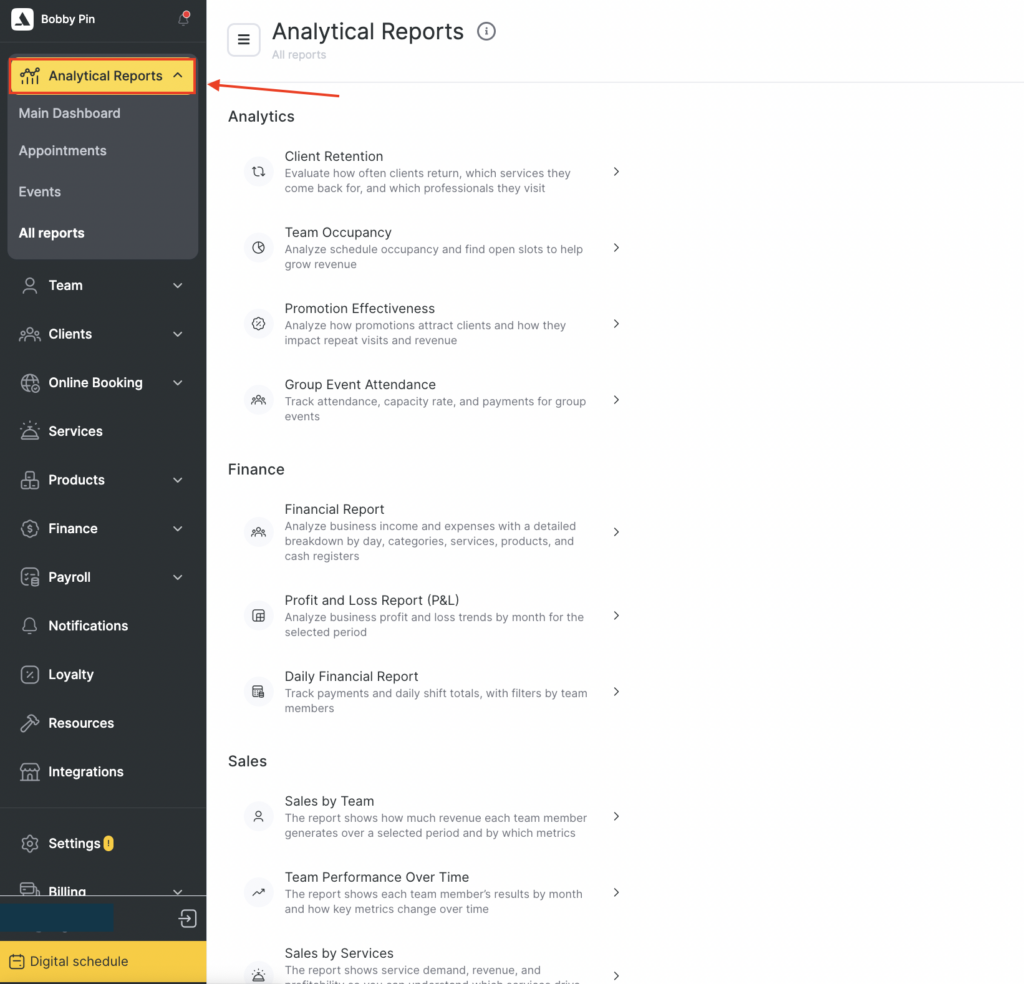
- Choose one of the sections:
- Main Dashboard
- Appointments
- Events
- All reports (read in more detail on what reports you can access here in this article below)
Important
Access to reports depends on your role and permissions. If you don’t see a report (or the whole section), contact your manager.
All reports section #
All reports section is a list of all report types, grouped into categories (for example, Analytics, Finance, Sales, Inventory, and Overview).
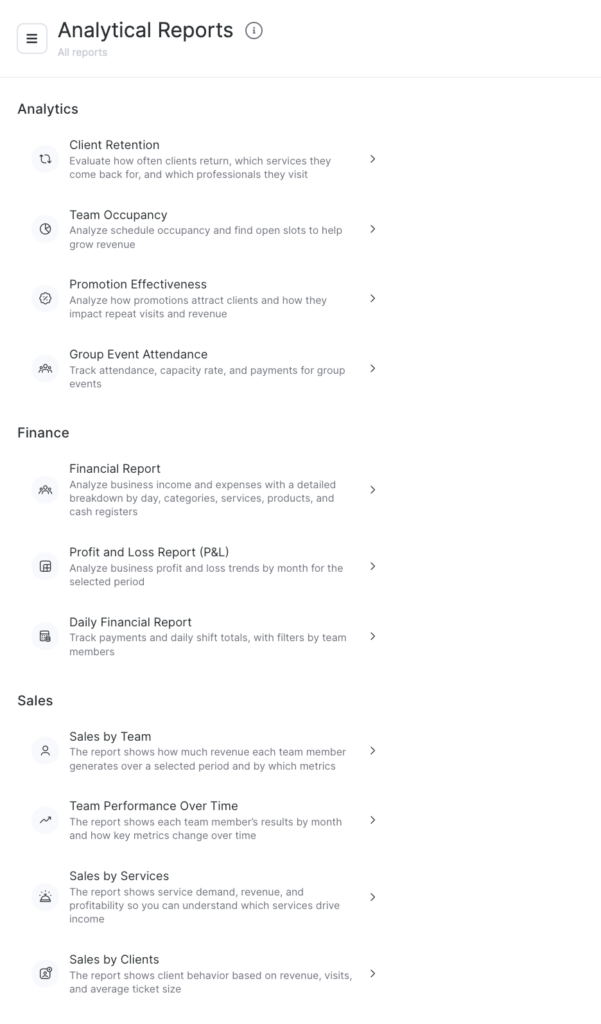
Report categories in All reports #
Analytics #
Use these reports to understand client behavior, workload, and promotions impact.
- Client Retention — track return frequency, popular services, and which professionals clients visit. Read in more detail about this section here.
- Team Occupancy — analyze team members schedule occupancy and identify open slots to grow revenue. Read in more detail about this report here.
- Promotion Effectiveness — see how promotions attract clients and affect repeat visits and revenue. Get more information about this report in this article.
- Group Event Attendance — track attendance, capacity rate, and payments for group events. Learn more about this report here.
Finance #
Use these reports to monitor business performance, income/expenses, and daily totals.
- Financial Report — view income and expenses with breakdown by day, categories, services, products, and cash registers. Read more about this report in the article.
- Profit and Loss Report (P&L) — track profit/loss trends by month for the selected period. To learn how to work with the report check this guide.
- Daily Financial Report — monitor daily payments and shift totals with filters by team members. Read about this report in detail here.
Sales #
Use these reports to understand revenue drivers and performance across team members, services, and clients.
- Sales by Team — check revenue by team member and performance metrics with this report. Read about it in detail here.
- Team Performance Over Time — view results by month and how key metrics change over time. Read about it in detail in this article.
- Sales by Services — monitor service demand, revenue, and profitability of your company via this report. You can read about it in detail in this article.
- Sales by Clients — client behavior by revenue, visits, and average ticket size. Read in detail about this type of report in this article.
Inventory #
Use these reports to manage stock, usage, write-offs, and product turnover.
- Inventory Balance — stock levels of products/materials across inventories, remaining balances over time. Read in more detail about this report here.
- Product Orders — plan purchases based on critical stock levels and target inventory amount. Read about this report more in this article.
- Sales Analysis — monitor product sales: quantities, revenue, and markup. Learn in detail about this report here.
- Consumable Usage Analysis — compare actual vs calculated material usage and identify variances. View detailed guide on this report here.
- Write-off Analysis — check product write-offs and their impact on inventory balances. Read about this report in detail in this guide.
- Turnover Analysis — view how quickly products sell and how fast they recoup invested costs. Read more in this article.
Overview #
Use these reports for tracking core operational logs and high-level insights.
- Summary — have at glance manager contacts, location ID, upcoming and most recent appointments. Read about this section in this article.
- Appointments — manage client appointments and filter by the parameters you need. On how to do this read in detail in this article.
- Group Events — track effectiveness of group events using key metrics. Read about this section in this article.
- Reviews — collect feedback and improve the client experience. Read more about this section in this article.
- Messages — see which notifications were sent and through which channels. Read more about this section here.
- Call Logs — view history of incoming and outgoing calls for easier communication tracking. Find more details about this section in this article.
- Activity Logs — check exports of the client list and reports in one place. Read more about this section here.
- Change Logs — monitor created/updated/deleted records across appointments, finance, and inventory. Read in more detail here.


