
Altegio has updated how team member access works.
Now, whether a team member is billable depends on their access rights, not on the role name.
Billable rights #
Billable rights include any actions that change data in the system, such as:
- create
- edit
- delete
- modify
If a team member has at least one of these rights anywhere in the system, they are considered billable.
A team member who provides services but does not have system access permissions is considered paid.
Non-billable rights #
Non-billable rights are view/read-only access (with no ability to make changes).
Two new non-billable access levels #
Two new non-billable access levels have been added to help businesses set up their teams more flexibly:
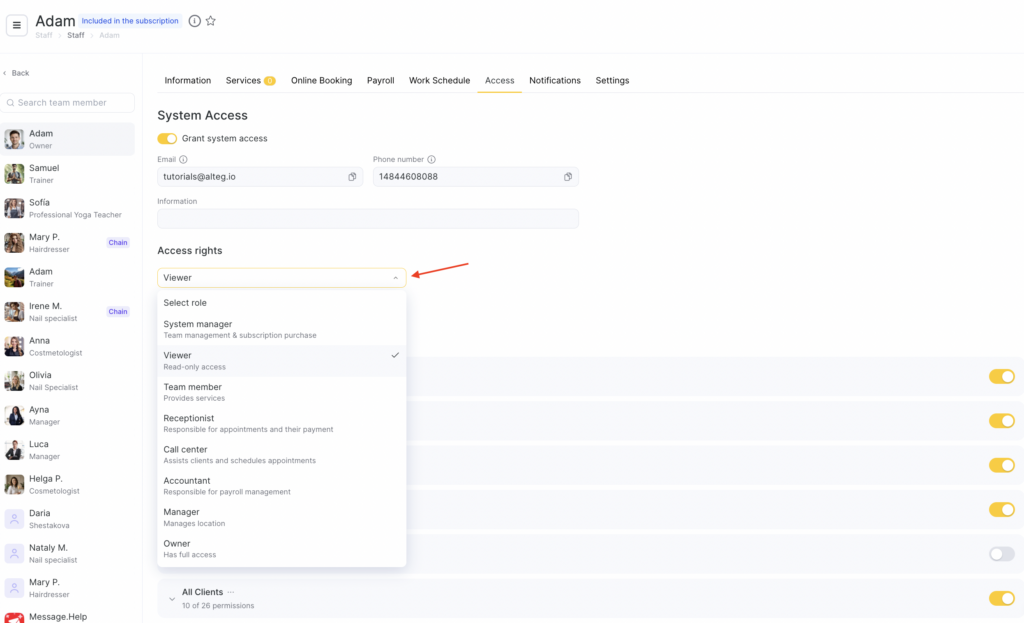
1) Viewer — safe read-only access #
- view/read rights only
- no rights to edit/create/delete
- no schedule (the team member does not participate in scheduling)
2) System Manager — team and subscription management #
- full view rights
- can manage team (create/edit/invite team members)
- access to subscription payment / billing
- no schedule (the team member does not participate in scheduling)
This article will help you prepare in advance for the changes, set up access correctly, and avoid unnecessary costs after switching to the new terms.
When the changes apply
The changes apply only when you purchase a new subscription / switch to a new subscription.Auto-renewal counts as purchasing a new subscription, so the new terms will take effect starting with the next charge.
Your current subscription will continue to work under the old rules until you switch.
Buying additional team subscriptions within your current subscription does not switch you to the new terms.
Why it’s important to prepare in advance #
After switching to a new subscription, some companies may notice that:
- the “non-billable owner” no longer remains non-billable
- team members who used to be considered non-billable but had edit rights become billable
- the billable team member limit may be exceeded
To avoid this, it’s important to:
- remove unnecessary editing rights
- move team members to non-billable roles
- reduce the number of owners to the real minimum
Scenarios where billable rights are not needed (you can make the team member non-billable) #
1) Owner/partner who only monitors performance #
Situation: views reports, finances, analytics, but does not make changes.
Best fit: View-only
2) Analyst / marketer who only needs to view data #
Situation: analyzes reports, monitors metrics, but doesn’t change appointments/clients.
Best fit: View-only
3) Owner’s assistant / manager who handles staff and billing (no schedule) #
Situation: adds team members, manages access rights, tracks subscription payments.
Best fit: System Manager
4) Chain director / investor / observer #
Situation: needs access to “see how the business is doing,” without management.
Best fit: View-only
5) HR / staffing specialist who manages the team in the system #
Situation: the company has an HR/office manager responsible for staff, but they don’t participate in salon operations and don’t work with appointments.
Best fit: System Manager
Scenarios where a team member needs billable rights #
1) Professional/provider who is booked by clients #
Situation: the team member is on the schedule and clients can book them.
Even with minimal rights, being in the schedule makes them billable.
2) Owner who also provides services #
Situation: the team member is the company owner but also provides services and is on the schedule (clients book them).
Access will be billable because they participate in scheduling.
If a team member is on the schedule, they are billable regardless of rights set or role chosen.
3) Front desk receptionist #
Situation: creates/reschedules/cancels appointments, edits services/visits, sells products, updates service pricing.
This team member has billable rights (create/edit) and will count toward the subscription.
4) Inventory manager #
Situation: writes off stock, processes sales, changes balances, edits items.
They have editing rights in Inventory, so they are billable.
5) Salon manager with rights to edit module settings #
Situation: changes system settings, edits team member schedules, processes supplier transactions, etc.
They are billable because they can make changes in system settings.
How to change a role and edit access rights #
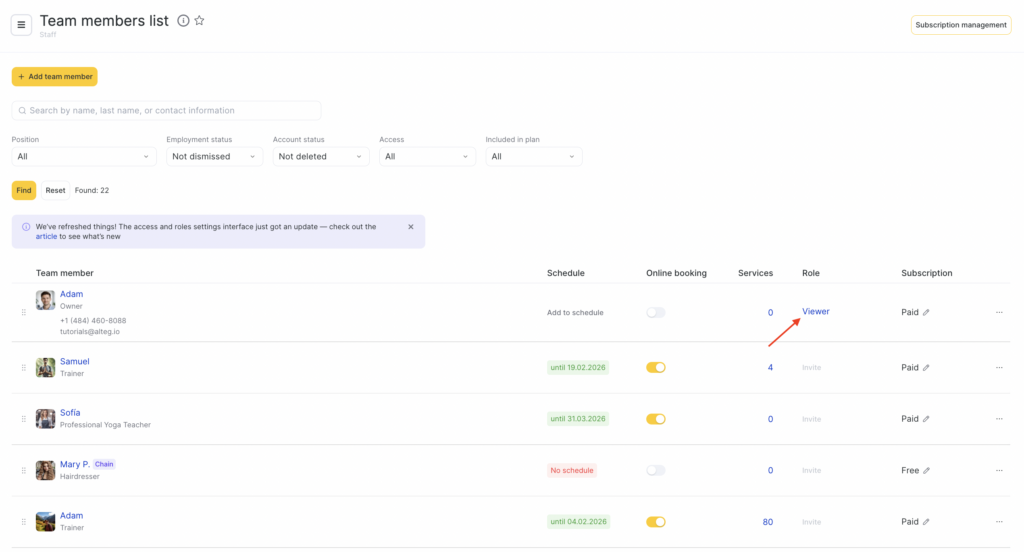
- Go to Settings > Team.
- In the Role column, click the team member’s role.
- Choose a non-billable role from the list: System Manager or Viewer.
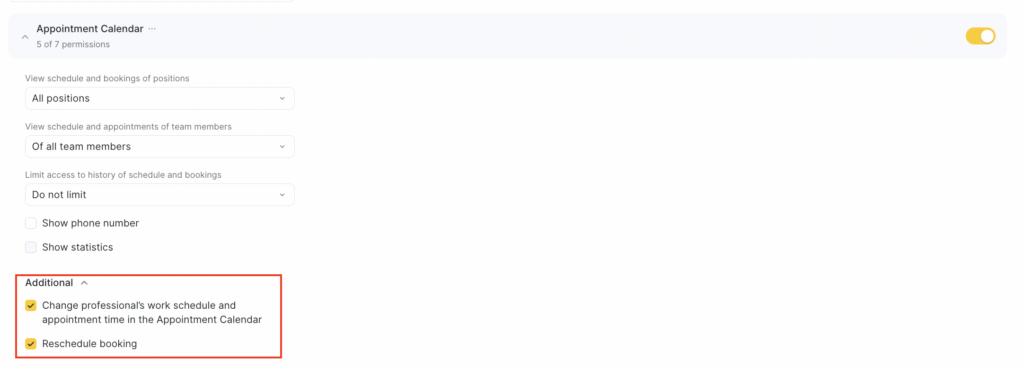
Or adjust billable rights by removing the checkmarks.
Remember: all create / edit / delete rights are billable.
- Click Save in the bottom-right corner.
- After that, go to the Team member list and change the employee’s subscription to Free.
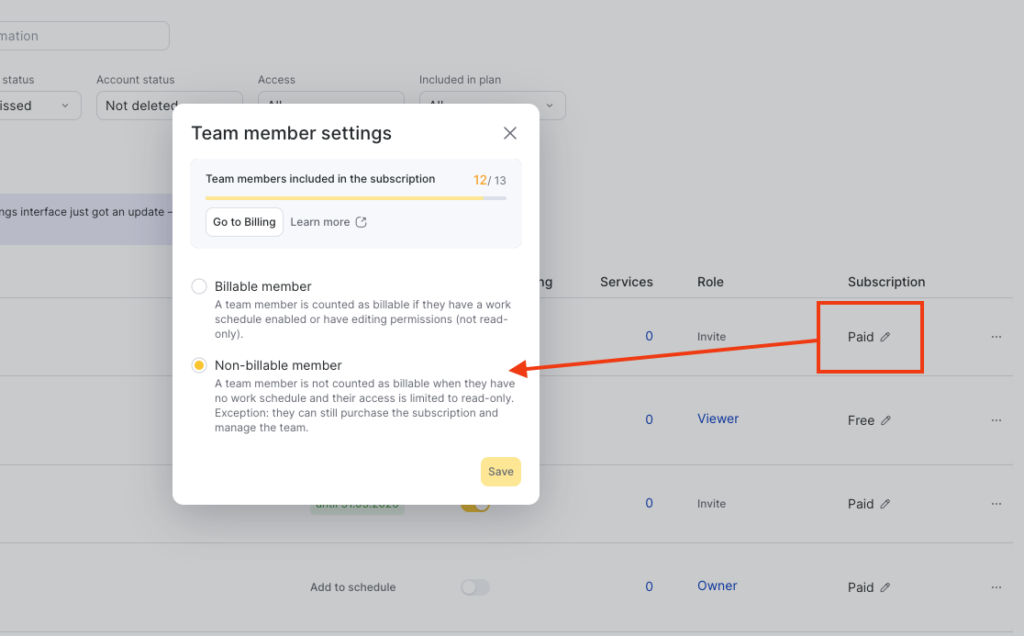
The system will recalculate the number of billable team members, and the limit will go down. In Billing > Subscription you may then see a plan available with fewer team members.
If you need help #
If you’re unsure how to set up rights properly, contact your personal manager at Altegio. Their contact details are available in Reports > Upcoming Visits.

