Setup #
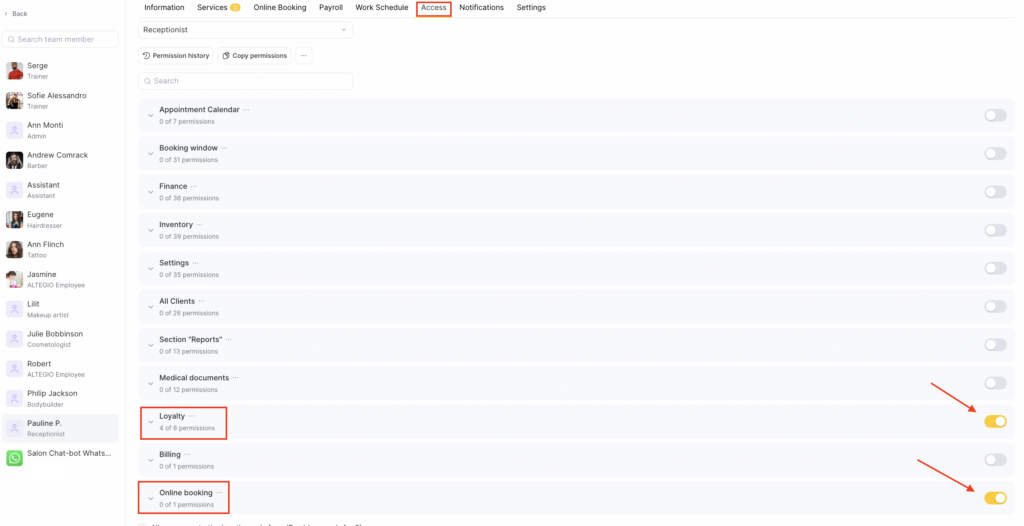
- Go to Team > Team members list (Administration mode), select the required team member, and open the Access tab.
- Find the required permission block and enable it using the toggle, then click the section name and enable the specific permissions you want to grant the team member.
- To save changes, click Save in the bottom-right corner.
Access to the Loyalty section #
Access to the Loyalty section allows you to issue and delete client loyalty cards, manually top up or write off from loyalty cards, edit the balance and validity period of memberships, and also process payments with certificates and memberships without a code in situations not covered by the loyalty program or in case of incorrect accruals/write-offs.
Access to this section also enables the Apply gift card/ membership/ loyalty card button in a visit, if that gift card /membership/ loyalty card is linked to the client in their profile under Loyalty. In this case, there’s no need to enter a code during visit payment.
When configuring loyalty access rights, keep in mind that the permissions listed below do not work on their own — they depend on other permissions in the system.
For example:
- if a team member doesn’t have access to the booking window, they won’t be able to work with loyalty inside an appointment;
- if they don’t have access to the client profile in the All Clients list, loyalty in the client database will also be unavailable.
Location-level loyalty permissions allow team members to use loyalty that has already been set up, but do not allow changing loyalty program settings. For that, there are separate chain-level permissions configured at the chain level.
Also consider the priority of the loyalty program’s own settings.
If a membership or gift card is configured so that the balance or validity period cannot be changed, then these actions will be unavailable in the location regardless of the granted access rights.
More details about each permission #
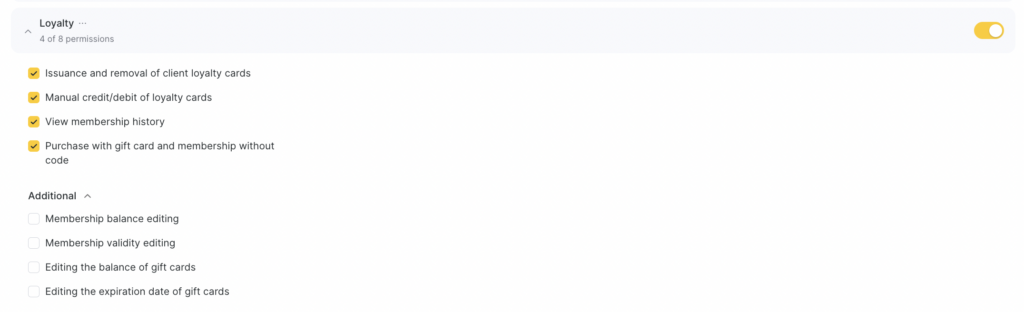
- Issuance and removal of client loyalty cards
Allows issuing a new loyalty card and deleting existing ones in the client profile and in the booking window. - Manual credit /debit of loyalty cards
Grants access to manually topping up or writing off the loyalty card balance in the client profile or in the booking window. - Membership balance editing
Allows manually changing the balance of a sold membership in the client profile or in the booking window. - Membership validity editing
Allows changing the validity period of a sold membership in the client profile or in the booking window. - View membership history
Grants access to viewing the membership transaction history in the client profile or in the booking window. - Editing the balance of gift cards
Allows manually changing the balance of a sold gift card in the client profile or in the booking window. - Editing the expiration date of gift cards
Allows changing the validity period of a sold certificate in the client profile or in the booking window. - Pay with a certificate or membership without a code
Allows using the Apply gift card/membership/loyalty card button when paying for a visit, if the loyalty item is already linked to the client in their profile.
In this case, the team member doesn’t need to enter the code manually during payment.
Access to the Online booking section #
Access in the Online booking section controls all settings related to online booking in the corresponding section. If you enable access to the entire section, the team member will be able to work with almost all online booking parameters.

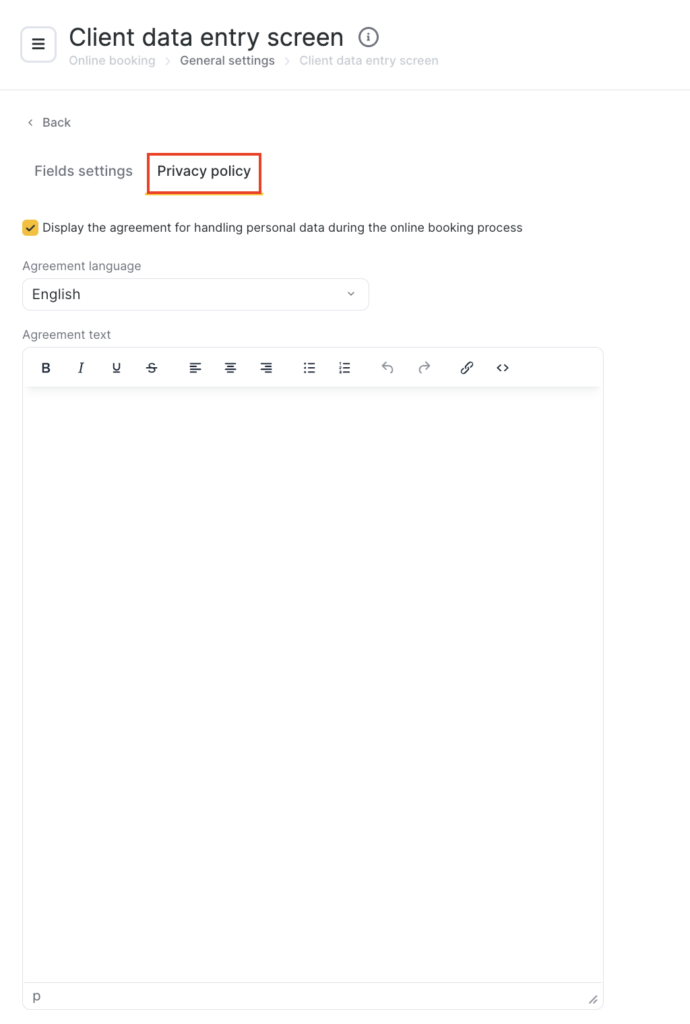
Exception: manage personal data processing is configured separately.
This is a separate permission that grants access to the Personal data processing section.
With this permission, in Online Booking > Settings > Customize client data fields, a team member can:
- edit the agreement text,
- change the document language,
- enable or disable displaying the personal data processing agreement in online booking.