The Finance section contains data on the company’s cash flow. It lets you create, edit, and delete transactions, and manage payroll calculation for the company’s team members.
Access setup means granting/removing permissions for viewing cash flow, working with accounts, cash registers, and counterparties, viewing payment categories and cash register (KKT) operations, payroll calculation, and working with reports.
For example, an administrator is responsible for the main cash register and handles purchasing goods and materials, selling products and memberships.
Give them access to the main cash register, hide viewing of cash movements for previous days (payments processed by the previous administrator), and allow creating, editing, and exporting transactions for purchasing materials and goods, provided services, and selling products and memberships.
Setup #
- Go to Settings > Team, select the required team member, and open the Access tab.
- Find the required permission block and enable it using the toggle, then click the Finance section name and turn on the specific permissions you want to grant to the team member.
- To save changes, click Save in the bottom-right corner.

More about each permission #
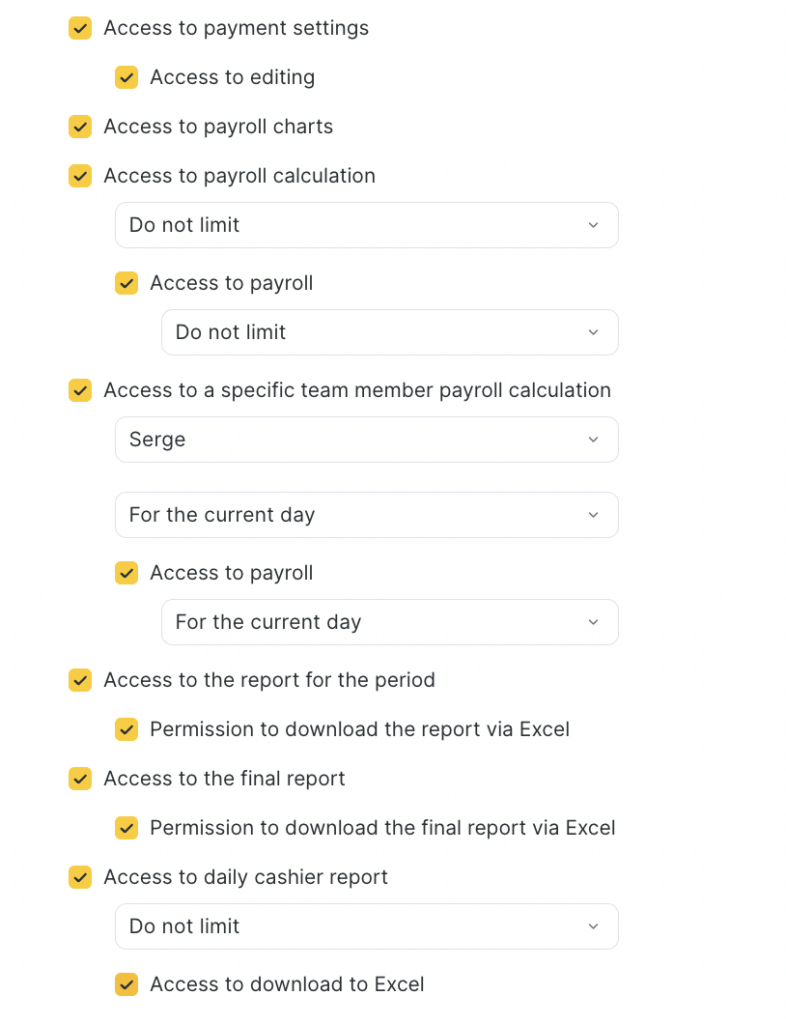
- Access to payroll calculation for a specific team member only
This is an additional permission used when you need to restrict access to payroll data to only one specific team member.
This permission controls whether the Payroll section is displayed in the Altegio mobile app.
Access to salary accrual — enable this option so the team member can accrue salary for the selected team member. You can also additionally restrict accruals to the current day only.
Note
Access to payroll calculation for a specific team member only is usually assigned to specialists so they can see only their own salary;
When enabling this permission, you must select the team member whose data will be accessible;
You can also restrict the viewing period.
- Access to all cash registers / Access only to selected cash registers
Choose which cash registers the team member should have access to — all of them or only specific ones. This permission works only together with other finance permissions.
Example: if the team member has access only to the Main cash register, then with View cash flow enabled they will see financial operations only for that cash register.
Important
Access only to selected cash registers limits access only within the Finance section. If the team member also has the Take payment permission (the Booking window section), they will still be able to take payments into any created cash register, regardless of this limitation
- View cash flow
This permission is required to open access to:
- Finance > Financial operations
- Finance > Documents
Select how far back the team member can view operations:
- Do not limit — all operations for any period are available.
- Restrict previous days — only current-day operations are available.
- N days before — access to the last 1–15 days.
- N months before — access to the last 1, 2, 3, or 6 months.
Create transactions — enable this checkbox to show the New payment button in Finance > Financial operations. Also choose the period during which the team member can create financial operations (same logic as viewing depth).
Important
This permission alone is not enough — creating payments also requires the Edit transactions permission.
Editing transactions — allows editing already created financial operations.
Choose the allowed editing period using the same logic as for viewing operations.
Delete transactions — allows the team member to delete financial operations.
Permission to download the cash flow via Excel
Allows exporting the financial operations available to the team member to Excel.
If Creating transactions is also enabled, the team member will additionally be able to import financial operations from Excel.
Access to all transaction types / Access only to selected transaction types
Choose which transaction types the team member can work with. You can allow full access or restrict the list to specific types.

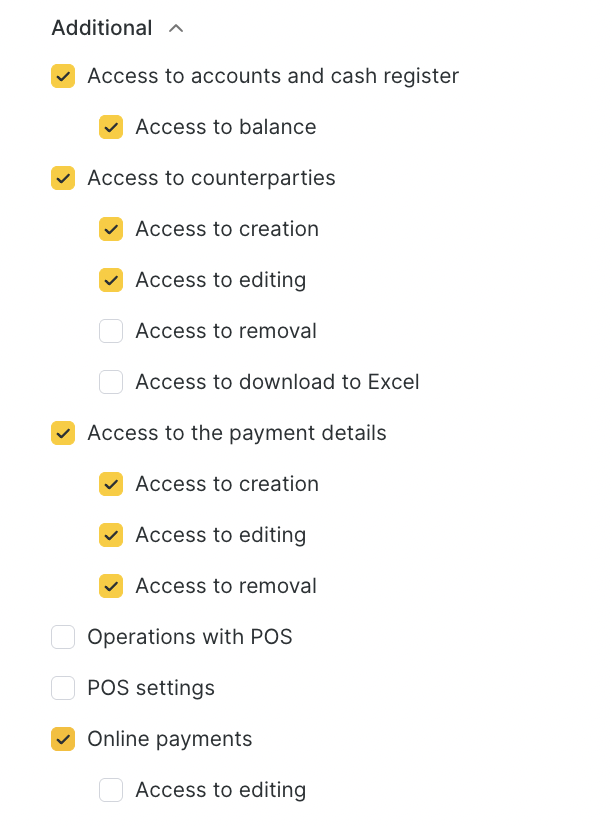
- Access to accounts and cash registers
Allows the team member to manage the location’s cash registers and accounts. With this permission, they can:
- add new cash registers,
- view existing cash registers,
- make payments into cash registers,
- transfer funds between cash registers.
Access to balance — if you uncheck this, the team member will not be able to see cash register balances.
- Access to counterparties
Allows the team member to view counterparties in Finance > Suppliers & Partners and in other sections where they are used, and to select counterparties from the list when creating a payment.
- Create access — allows adding new counterparties.
- Edit access — allows editing counterparty data.
- Delete access — allows deleting counterparties.
- Export to Excel access — allows exporting the counterparty list to Excel.
- Access to payment categories
Allows the team member to view payment categories in Finance > Income & Expenses.
- Create access — allows creating new payment categories.
- Edit access — allows editing existing categories.
- Delete access — allows deleting payment categories.
- Operations with POS
Allows the team member to view the list of operations in Finance > POS operations, and to open and close shifts.
Important
At the moment, Altegio’s integration with online cash registers is not available.
- POS settings
The main permission provides access to view Finance > Settings > POS settings (or Settings > Finance > POS settings).
Edit access — allows the team member to change POS parameters and configure integration with an online cash register.
Important
At the moment, Altegio’s integration with online cash registers is not available.
- Online payments
Gives the team member access to Finance > Online payments, where they can view all connected cashless payment methods in the location, but without the ability to configure them.
Edit access — enable this option if the team member should be able to configure cashless payment methods: enable/disable methods, choose payment systems, and change payment details.
- Access to payment settings
Allows the team member to open Finance > Settings > Payment settings in view-only mode (without the ability to change settings).
Edit access — allows the team member to choose which cash registers will be used by default for cashless payments.
- Access to payroll calculation schemes
Allows creating and editing payroll calculation rules and schemes: base rules, accrual criteria, bonuses, and penalties.
- Access to payroll calculation
Allows the team member to perform payroll calculation. If needed, you can set a time limit for the current day within which the team member can perform accrual.
Access to salary accrual — enable this option so the team member can create accruals in payroll statements. You can also set a time limit for the current day.
- Access to the period report
Gives the team member access to the financial period report in:
- Finance > Reports > Financial report
- Analytics > Reports > Financial report
Export period report to Excel access — allows exporting the period financial report to Excel.
- Access to the annual report
Gives access to the annual P&L report in:
- Finance > Reports > P&L report
- Analytics > Reports > P&L report
Export annual report to Excel access — allows exporting the P&L report to Excel.
- Access to receipt printing
Enable this permission if the team member performs cashier duties and needs to print fiscal receipts.
This permission allows:
- printing a receipt from a visit or an inventory operation,
- printing a correction receipt (if the team member also has the POS operations permission).
To print receipts in a location, integration with an online cash register must be configured.
Important
At the moment, Altegio’s integration with online cash registers is not available.
- Access to the daily cash register report
Gives the team member access to:
- Finance > Reports > Daily cash register report, or
- Analytical Reports > Reports > Daily cash register report.
This permission is important for team members who monitor and analyze financial flows. The report shows all processed payments (cash and cashless), product sales, client payments, applied discounts, refunds, and other financial operations.
No limits / Current day only — you can allow full access or limit it to the current day only.
Export to Excel access — enables exporting the daily report to Excel.Thinking