
The Reports section contains service information needed to contact Altegio Support, as well as information about reviews, messages, and calls; details on recent appointments and visits; data on which appointments were created during a selected period and who created them (a receptionist or a client); the source of the online booking; which professional and service were booked; client details, and more.
Access-rights configuration lets you control who can view this data.
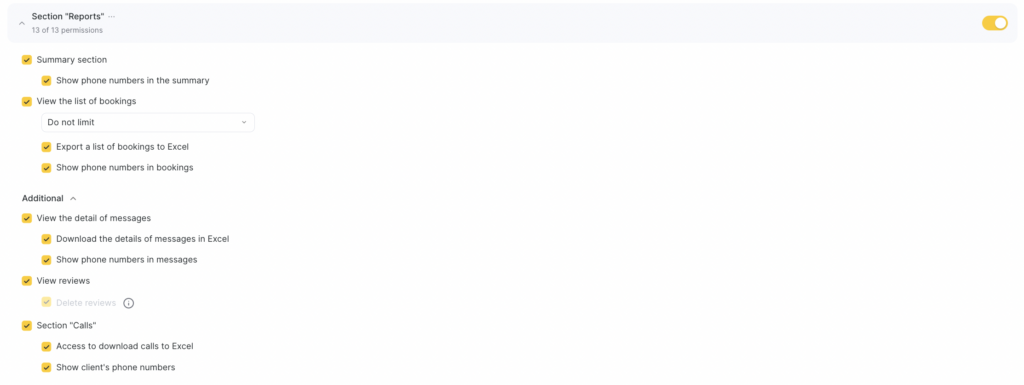
For example, a receptionist may have access to the Upcoming Appointments section: they can see the contact details of personal consultants and the location ID (which is needed for quick identification when contacting Support), but they can’t see clients’ phone numbers. They can also view reviews and the appointment list (the list shows only today’s appointments and does not include clients’ phone numbers).
Setup #
- Go to Settings > Team, select the required team member, and open the Access tab.
- Find the required permission block and enable it using the toggle, then click the “Reports” section block and enable the specific permissions you want to grant the team member.
To save changes, click Save in the bottom-right corner.

More details about each permission #
- Summary section
This permission grants the team member access to Reports > Upcoming Appointments, but without displaying clients’ phone numbers.
Show phone numbers in the Summary
Enable this option if the team member needs to see clients’ phone numbers in Reports > Upcoming Appointments.
- View the list of bookings
This permission grants access to Reports > Appointments and Reports > Events, but without showing phone numbers and without the ability to export data to Excel.
Limit the viewing period
Specify how far back a team member can view the appointment and event history. This helps prevent “looking back” and analyzing historical data, reducing the risk of errors in financial reporting.
You can limit access to a period from 1 day to 6 months, leave it unlimited, or completely block history viewing.
Export a list of bookings to Excel
Allows the team member to export available appointments to Excel in Reports > Appointments.
Show phone numbers in appointments
Enable this option so the team member can see clients’ phone numbers in Reports > Appointments.
- View the detail of messages
This permission grants access to Reports > Messages, allowing the employee to view the history of all sent messages — both to clients and to team members.
Without the Show phone numbers in messages permission, phone numbers in the details are hidden, but the recipient’s email is still displayed (if the message was sent to email).
Also, if the employee notification settings include Send the client’s name and phone number, the client’s number will be visible in the sent message details.
Export message details to Excel
Allows the employee to export data from Reports > Messages to Excel.
Show phone numbers in messages
Allows viewing client phone numbers in the Contacts column in Reports > Messages.
- View reviews
This permission grants access to Reports > Reviews, allowing the team member to use almost all section features except deleting reviews.
Delete reviews
Allows the team member to delete any reviews about the location or its team members.
- “Calls” section
Grants access to Reports > Call Logs, but without showing phone numbers and without the ability to export data to Excel.
Access to download calls as Excel
Allows exporting the call list to Excel.
Show client phone numbers
Enable this option so the team member can see phone numbers in Reports > Call Logs.

