
How do I connect the integration? #
A barcode scanner is an input device, like a keyboard or mouse. It simply scans a barcode and inserts the value into the active field. You just need to connect the scanner to a computer or laptop.
Integration between the scanner and Altegio is not required.
General workflow #
- Click in the field where you want to enter a barcode or add a product by barcode.
- Point the scanner at the product barcode.
- Press the scanner button to scan the barcode.
- The barcode number will appear in the field.
How can a barcode scanner be useful in Altegio? #
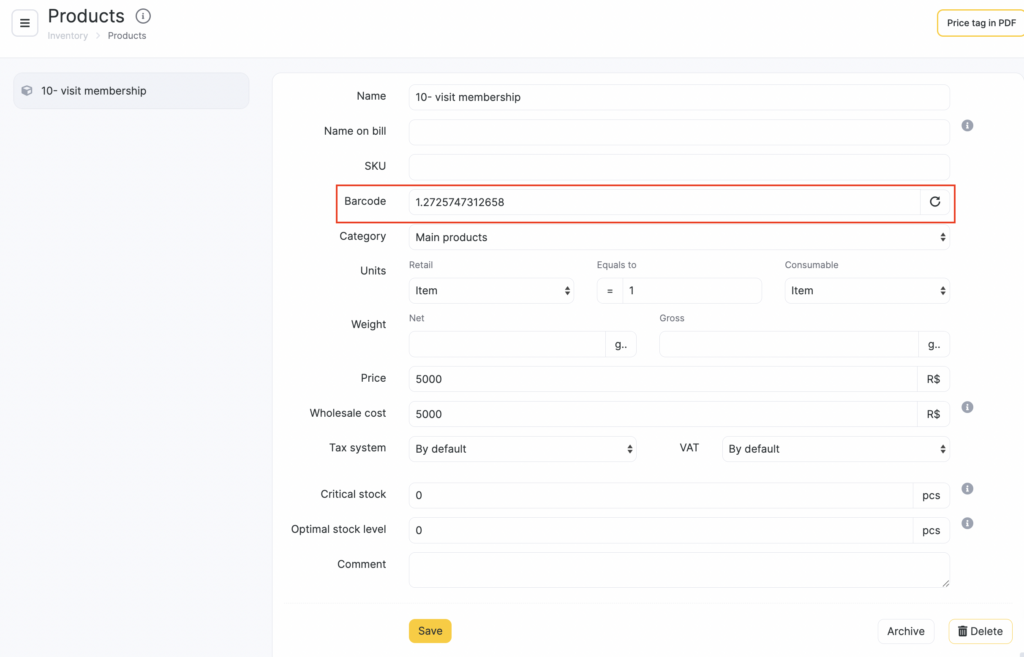
The scanner helps enter a barcode in a product card #
- In Products > All products (Administration mode), open a product card or the product creation form.
- Click in the Barcode field.
- Point the scanner at the product barcode.
- Press the scanner button to scan it.
- The barcode number will appear in the Barcode field. Save the product.
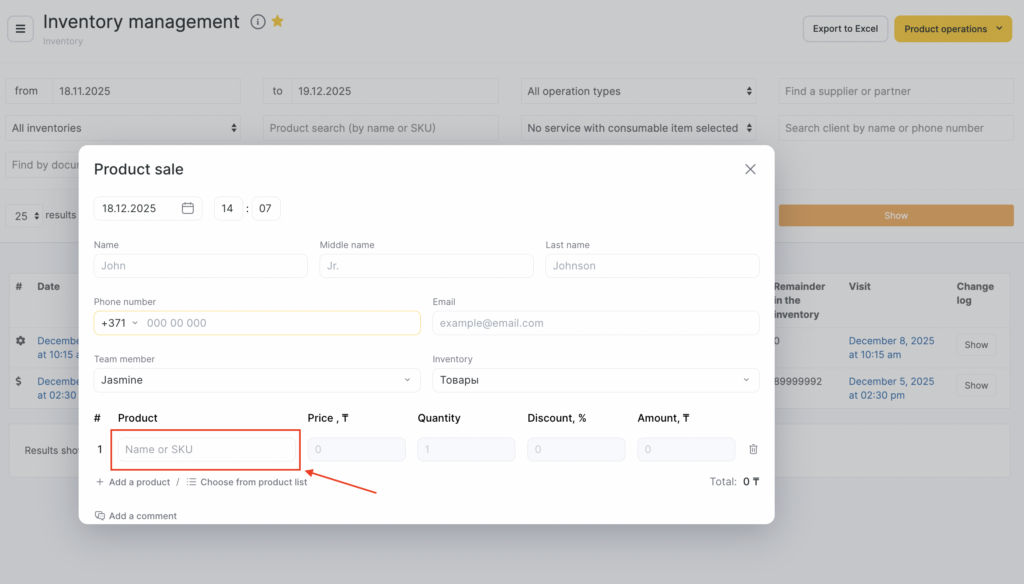
The scanner helps sell a product faster #
- Open a visit or the inventory operation creation form.
- Click in the product field.
- Point the scanner at the product barcode.
- Press the scanner button to scan it.
- The barcode number will appear in the product field.
- The required product will appear in the dropdown list and you can select it.
The scanner helps track gift cards and memberships #
If you have gift cards or memberships with different barcodes on each card, a scanner can speed up selling a gift card/membership and paying with a gift card/membership.
To sell a certificate or membership:
- Open a visit or the inventory operation creation form.
- Select the required certificate or membership type.
- Click in the Code field.
- Point the scanner at the certificate or membership barcode.
- Press the scanner button to scan it. The barcode number will appear in the Code field. This assigns the code to the sold certificate or membership.
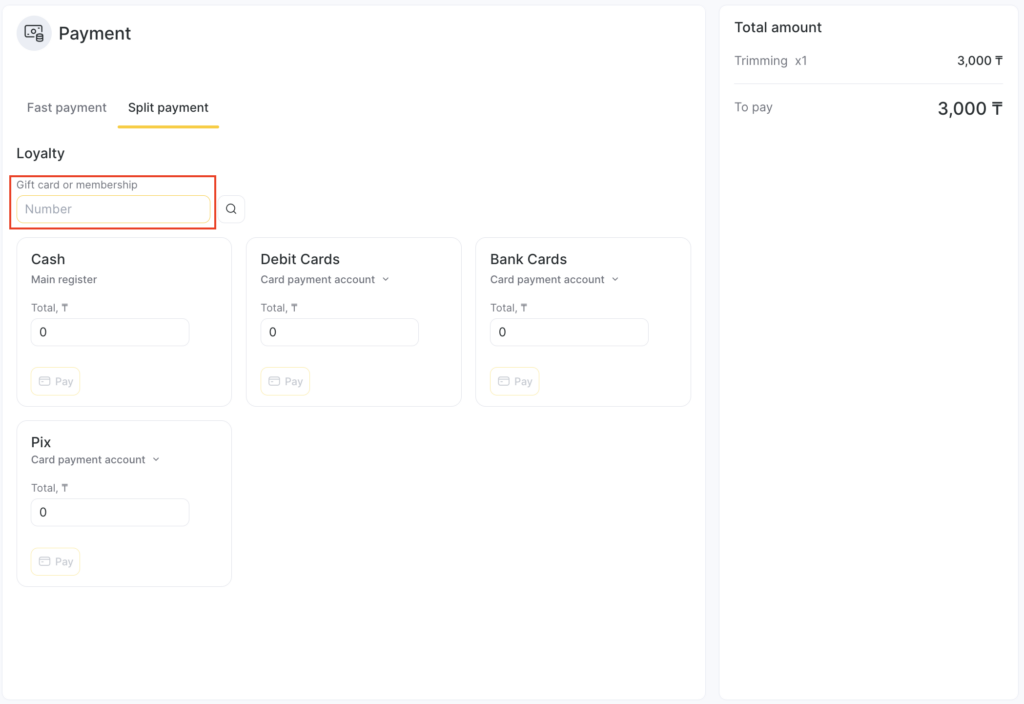
To make a payment:
- Open the visit payment screen.
- In Loyalty, click into the code input field under Search certificate or Search membership.
- Point the scanner at the certificate or membership barcode.
- Press the scanner button to scan it. The barcode number will appear in the field, then click the magnifying glass icon to search for the certificate or membership.
The scanner helps with inventory audit #
First, prepare a file for the audit:
- Create a new text file on your computer (it must have the .txt extension).
- Click inside the opened file.
- Scan all barcodes for all products in the inventory. They will be added to the file. If you have multiple units of the same product, the same barcode will appear in the file multiple times.
- Save the file with a name that makes sense to you.
Then upload the file to the inventory audit:
- In Altegio, go to Products > Stock Audit.
- Click Create inventory audit.
- Fill in the required fields: Date and time, Inventory, Product category, Comment.
- Check Upload a file with product barcodes.
- Set Actual stock for products not in the file to “Set to zero” or “Set equal to calculated stock”.
- Drag and drop your file or upload it manually.
- Click Start inventory audit. The number of times a barcode appears in the file will become the product’s actual stock (units available for sale) for that barcode.

