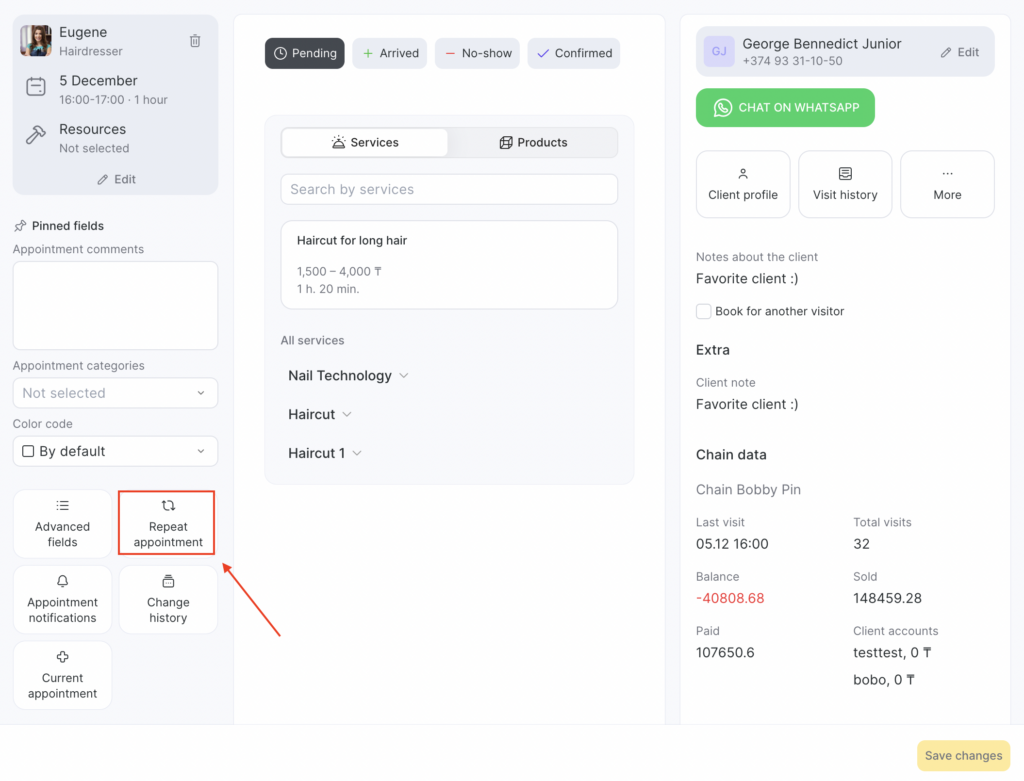
You can automatically repeat an appointment — this setting removes the need to create a new appointment in the schedule each time. To create a repeat template, in the appointment window click the Repeat appointment tab.
- Enter the template name and select how often it should repeat, then click Create template. Later, you will be able to choose this template to set up other appointments.
- Set the time and start date for the repeating appointment. Set the maximum number of repeats or the end date.
- Choose how the appointments will repeat: without clients or with clients.
- Click Save. After that, the repeated appointments will appear in the schedule.
- For group events, you can also create a Repeat or set up a Schedule.
By default, in group events the Repeat appointment tab is replaced with the Schedule tab, but you can switch between them. For a detailed setup guide read this article.