
When the widgets are added, configure the booking steps.
What is it and what is it for? #
Booking steps are a sequence of actions that a client will perform when booking online. For example, first, they will need to choose the date and time of the appointment, and then the service and employee.
Here you can configure the booking format (step by step or menu), set default value for some steps (for example, select a specific date for booking), and also configure the display of locations (list or map) in the chain booking form.
Settings #
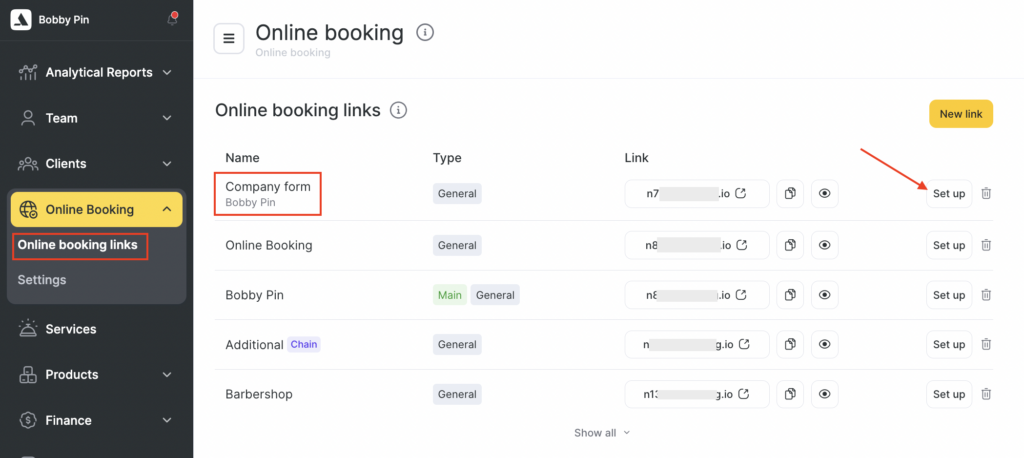
- Go to Online booking> Online booking links section.
- Select the required online booking link, click its name or use the Set up button.
- In the Individual appointment section, select the format you need: Menu, Step-by-step, or Short step-by-step.

- Menu — with this option, the client can choose employees, services, and time in any order that’s convenient for them. It’s the most universal scenario: it lets clients book in the way that works best for them right now.
In the Menu format, the booking steps are almost the same as in the step-by-step format. The differences are how the nearest available time is shown on the employee selection step, and the ability to edit booking details on the final step.
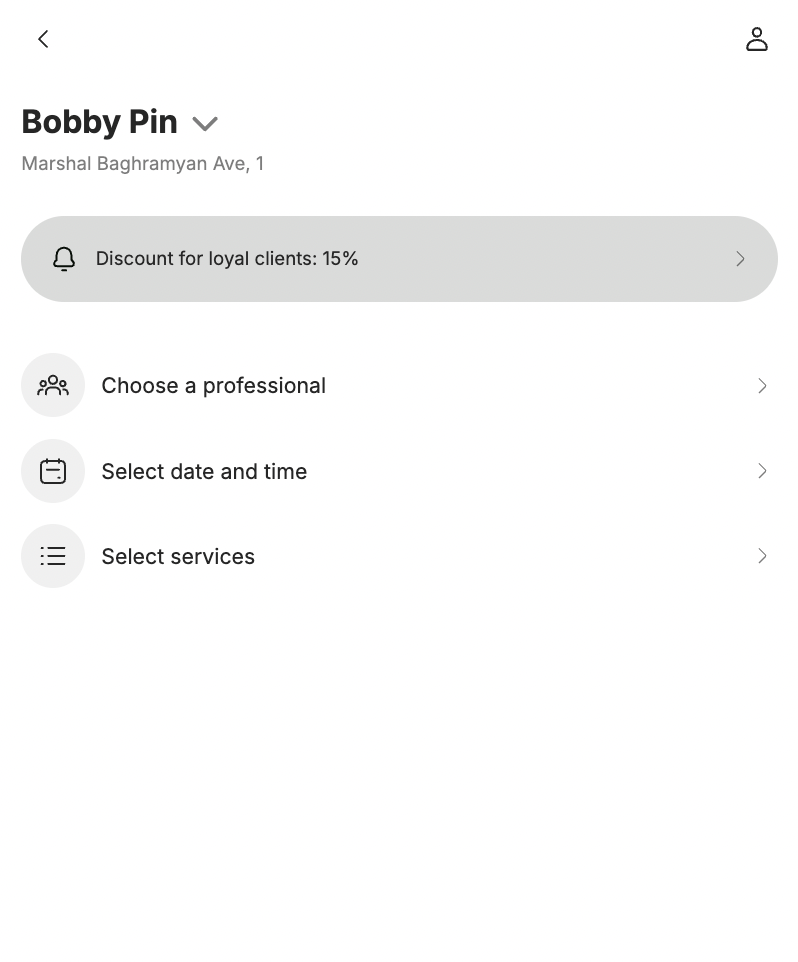
- Step-by-step — in this scenario, the client can complete the online booking form only in the sequence you set. It’s a convenient option if most of your clients are new. The client won’t have to decide where to start — they’ll move strictly through the steps you’ve defined. For example, the client first selects a service, then an employee, and only then chooses the date and time.
In the step-by-step format (unlike the Menu format), there is no “nearest available time” option on the professional selection step.
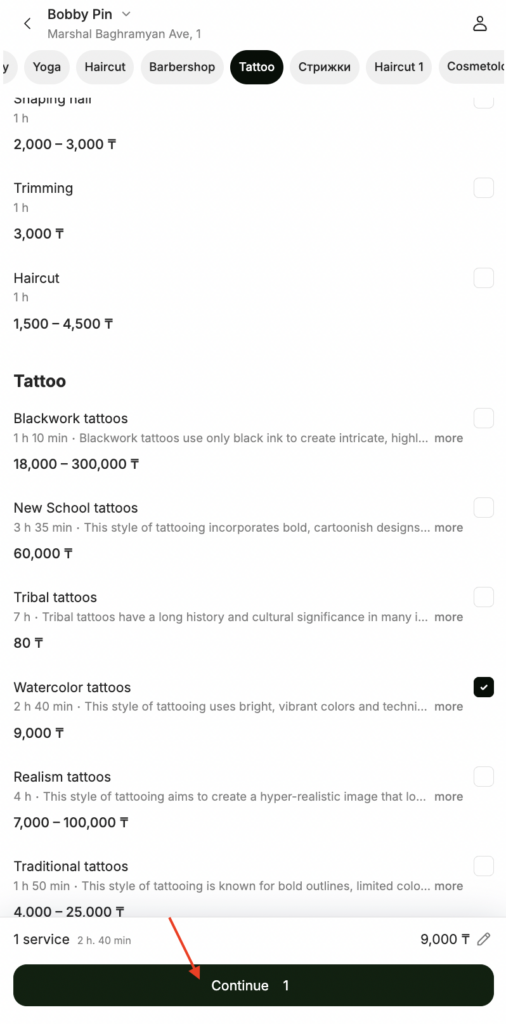
1st step:
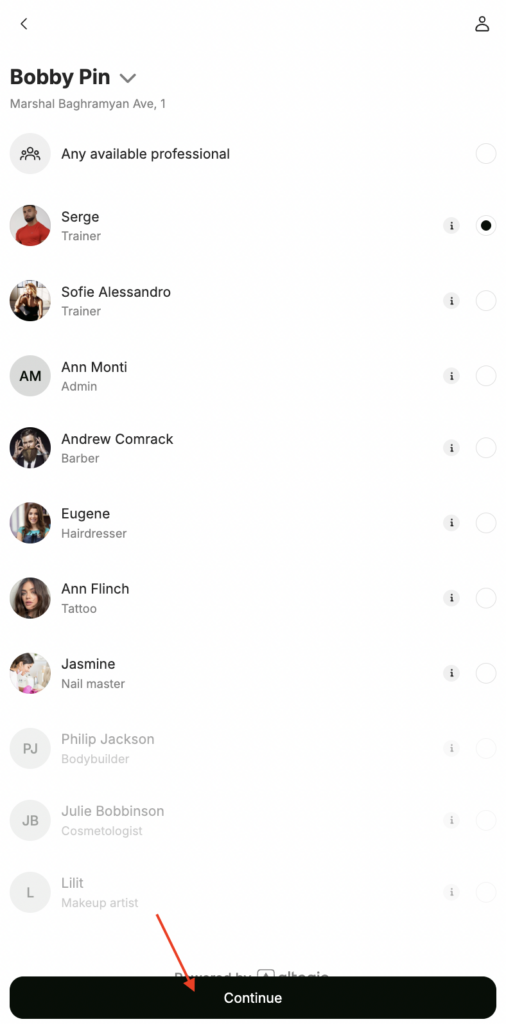
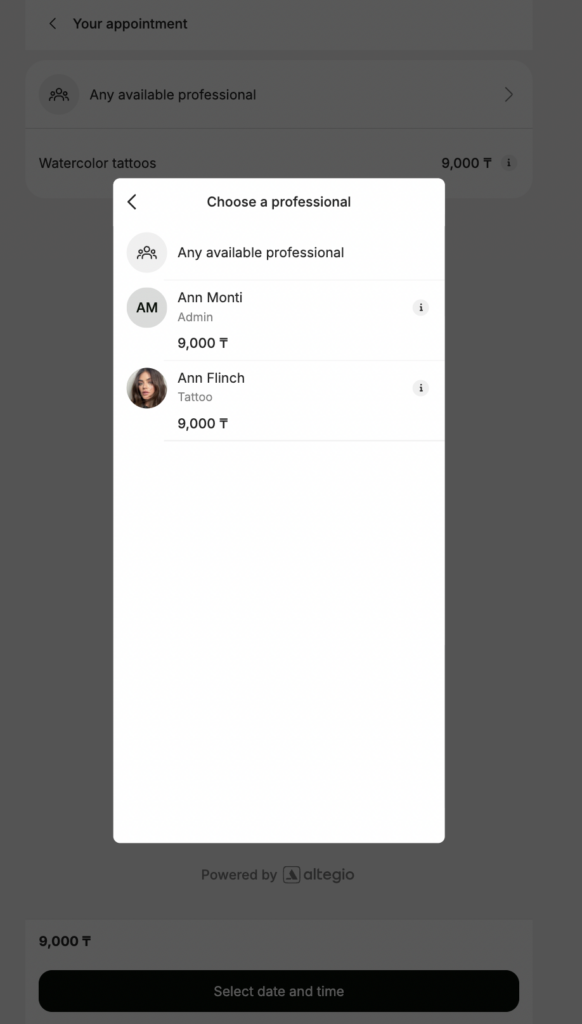
2nd step:
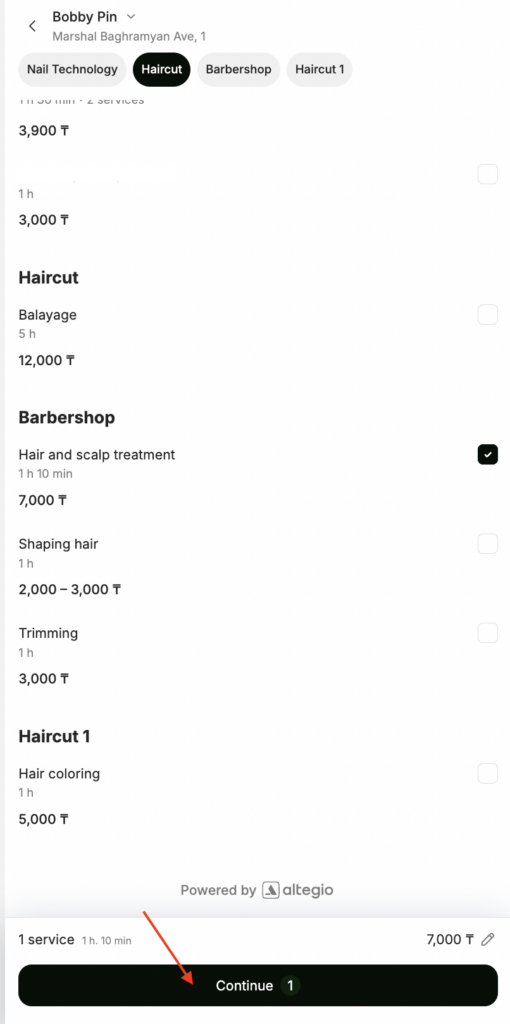
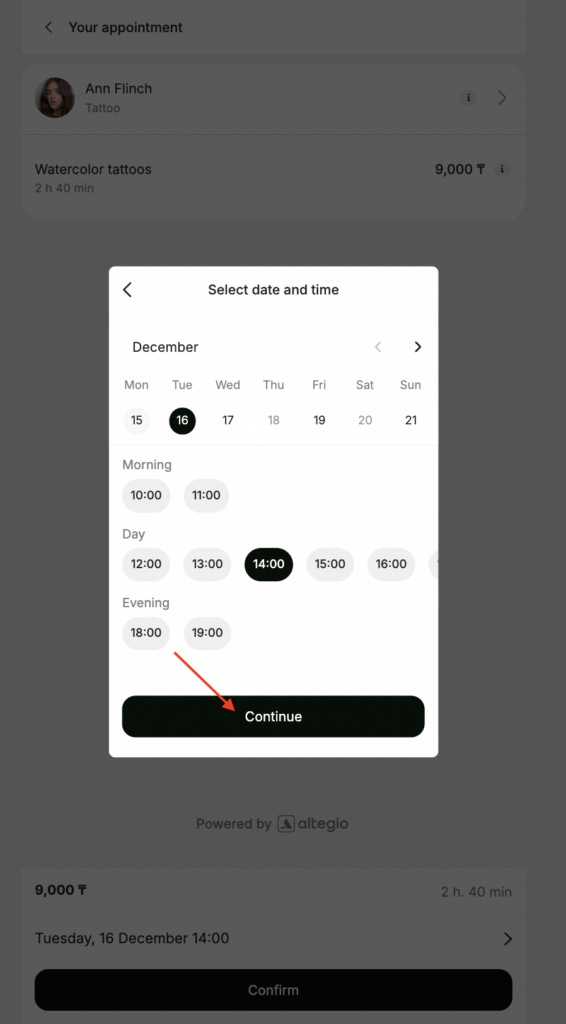
3rd step:

- Short step-by-step — in this scenario, the client always selects the service first, then the employee, and then the date and time. In this format, changing the step order isn’t available.
Otherwise, the booking process works the same as in the step-by-step format, with minor visual differences on the employee selection step and the date/time selection step.
1st step:
2nd step:
3rd step:
Editing booking steps #
You can customize the booking steps and change their order (except for the Short step-by-step format — there you can only edit steps without changing the sequence). After making changes, be sure to click Save at the bottom of the page.
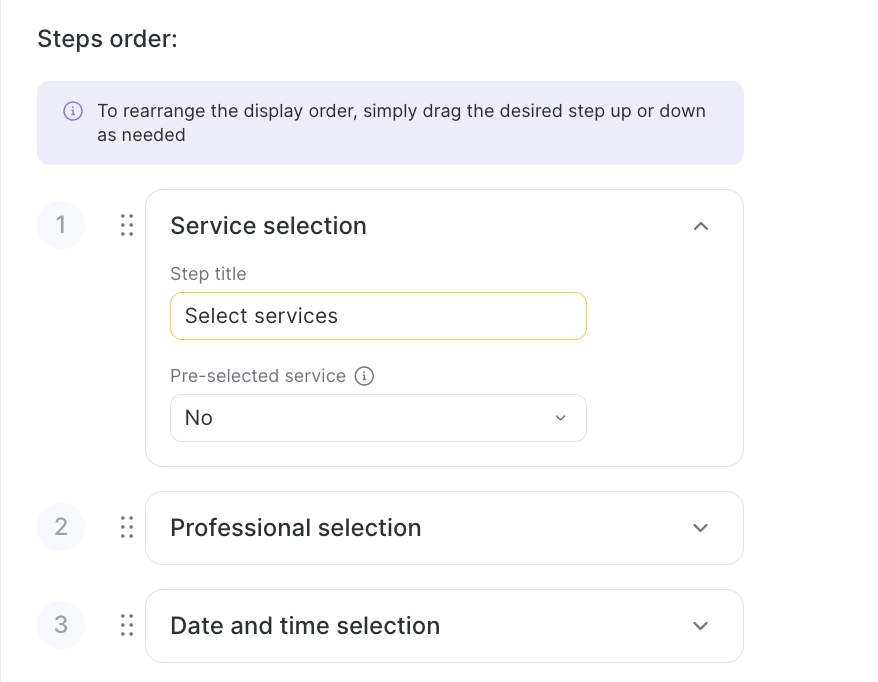
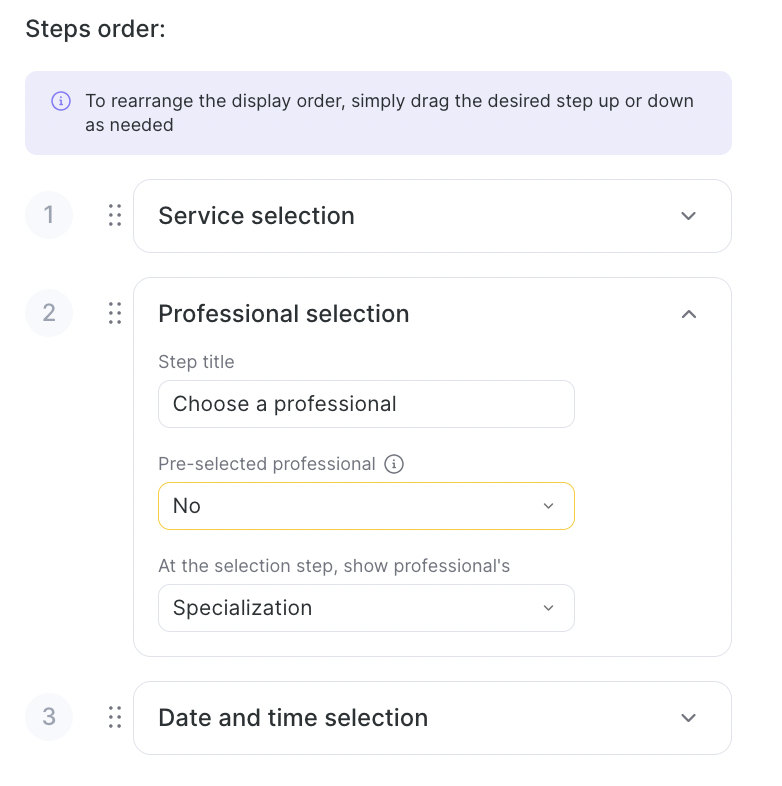
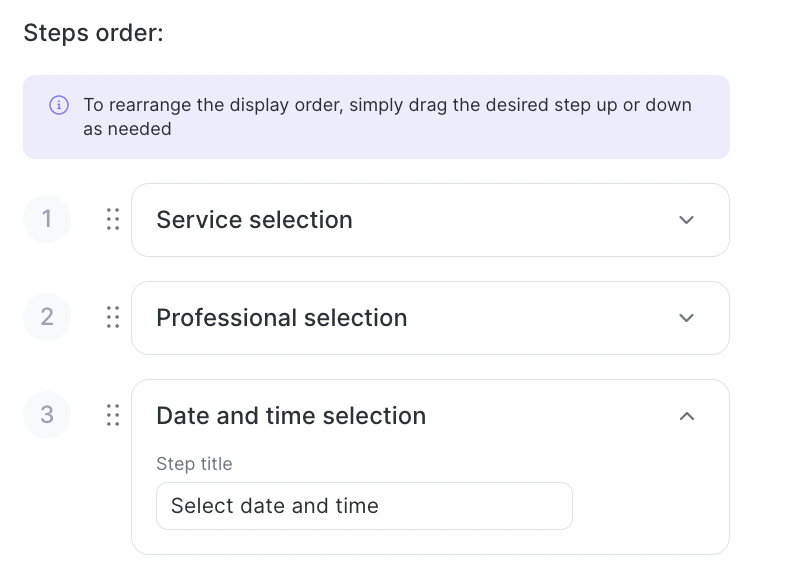
To change the order of steps, click and hold the dotted icon to the left of the step name, then drag it to the desired position. The selected sequence will be shown in the online booking widget.

You can configure each step by clicking the step you need. Then make the required changes in the sections that expand.
Available settings #
Service selection
Here you can set a name for the service selection step. You can also choose a preselected service, which means a specific service will be selected by default for online booking. Clients will be able to book the preselected service right away, but they can change their choice if needed.
Professional selection #
Here you can change the step name that your clients will see during online booking.
You can assign a preselected professional. If you choose a specific employee in this field, that employee will be selected by default for online booking. Clients will be able to book appointments with them right away, but they can change their choice if needed.
You can also hide the professional selection step — in that case, the booking will be assigned to the preselected employee with no option to choose someone else.
Professional position or specialization: here you can choose whether to show the employee’s position or specialization during online booking. By default, specialization is selected.
- Date and time selection – here you can change only the step name that your clients will see during online booking.
Important
If a client selects multiple services in online booking, the appointment will be created only if one and the same professional can perform all selected services.
If the selected services are assigned to different professional, you need to create a package service.
If you want to set both a preselected professional and a preselected service, make sure they match: the professional must provide the service that is set as the default.

