
With online booking, your clients can choose a professional and a convenient time and book a service on their own — on your website, via social media, Google Maps, and more.
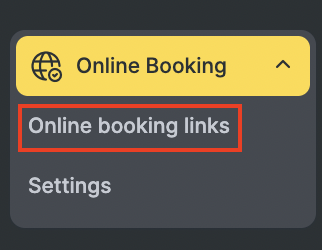
You can add online booking to your website, social media, and other online platforms using the online booking form in Online booking > Online booking links.
You can create as many links as you need: a general one for the whole company, one for a specific service category, or one for a particular specialist.
How to create an online booking link #
- From the main menu go to the “Online booking” section.
2. You will be taken to the “Online booking links” page. Here you can see two buttons:
General link and Team member link
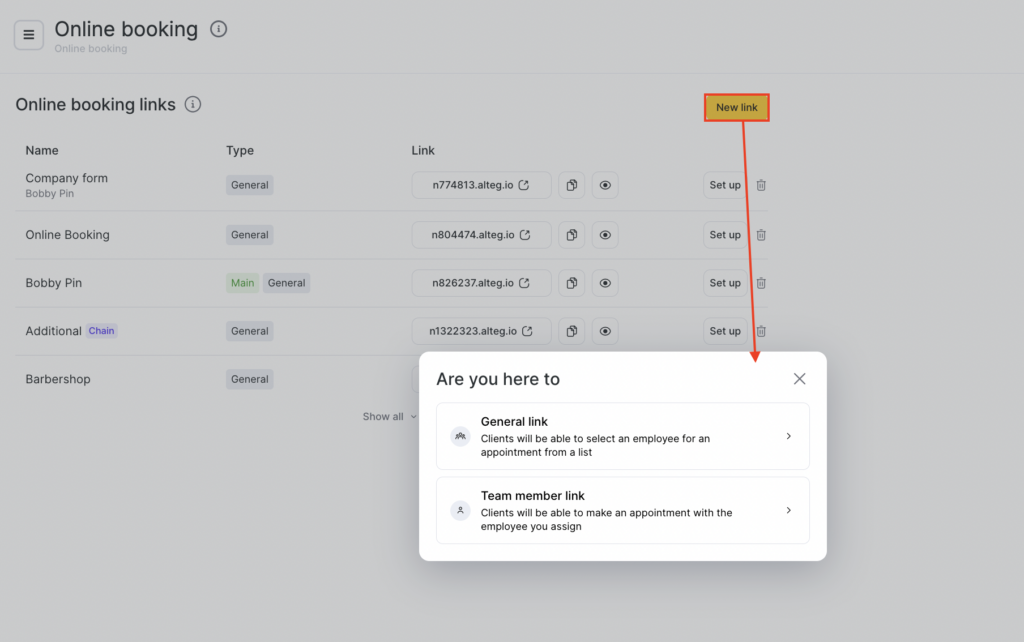
- Choose General link if you want to create a universal online booking widget for your business.
- If you want to create a separate link for one of your employees—or if you run a personal beauty studio with a single specialist—click Employee link.
- Fill in the Link name and Description fields, which are visible only to Altegio internal users. These fields are for internal use only and won’t be shown to your clients.
- Select the online booking language that will be displayed by default. To set the language, click the pencil icon in the online booking settings.
- Choose the map type. In addition to Google Maps, you can select Apple Maps or Leaflet in the widget to display the branch location.
- Specify a network if you want to create a network form that includes multiple branches. However, if the link is for a single branch without online sales, you don’t have to select a network.
- Enable Make link primary to use this general link for online platforms and as a network online booking form.
- Click Create to finish the process.
- Once completed, a booking link will be created.
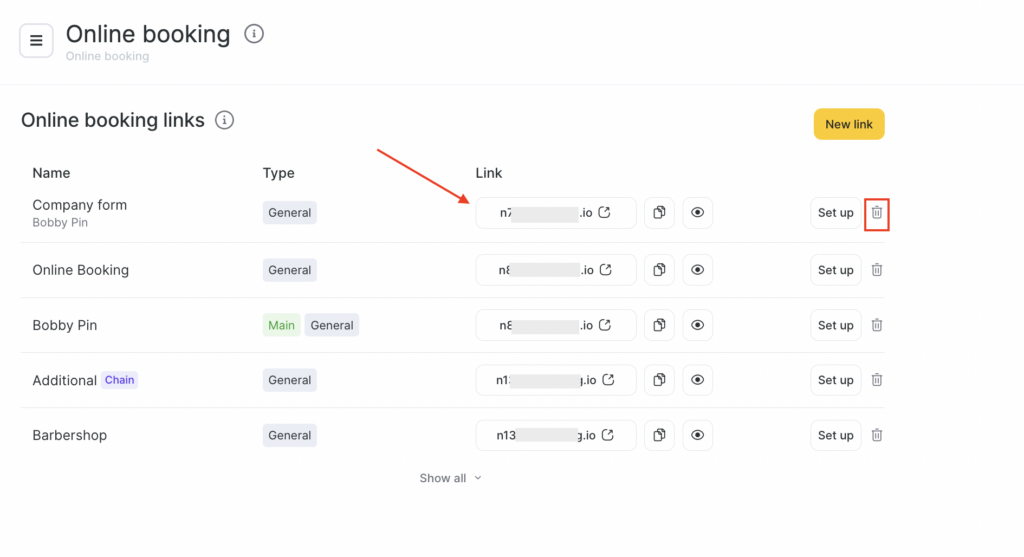
You can copy the online booking form link in the Link section and share it on social media or in messengers.
To delete a link, click the trash icon.
Benefits of configuring online booking #
Altegio offers a wide range of options to tailor online booking to your business’s unique needs. You can:
- Set the order in which the online booking steps are shown.
- Customize the design of the online booking widget, including the main colors.
- Modify the widget to fit your needs by embedding scripts: hide buttons inside the widget, hide service price or duration, change default button or section names, and more (you can learn more about this from your account manager in Reports> Upcoming Appointments).
- Customize the appearance of the Online booking button on your website.
- Track client behavior using analytics.
- For additional settings such as required fields, skipping specialist selection, promo blocks, online payments, and more, see the article.


