
Use this instruction if you want to create separate booking links for each employee or service. For example, if each employee or service has a separate page with a description and you want to place the Online booking button on it.
Setup #
- Read the instructions for setting an online booking with customized buttons.
- Create a separate widget for each button. Choose a step by step option and at the first step put the required parameter (service or team member). Learn more about creating widget here. To set up the booking steps refer to this article.
- Open the widget in a separate window and select the required parameter (a service or a team member). Copy the link from the address bar and replace the value in the custom button code (as shown in the screenshot).
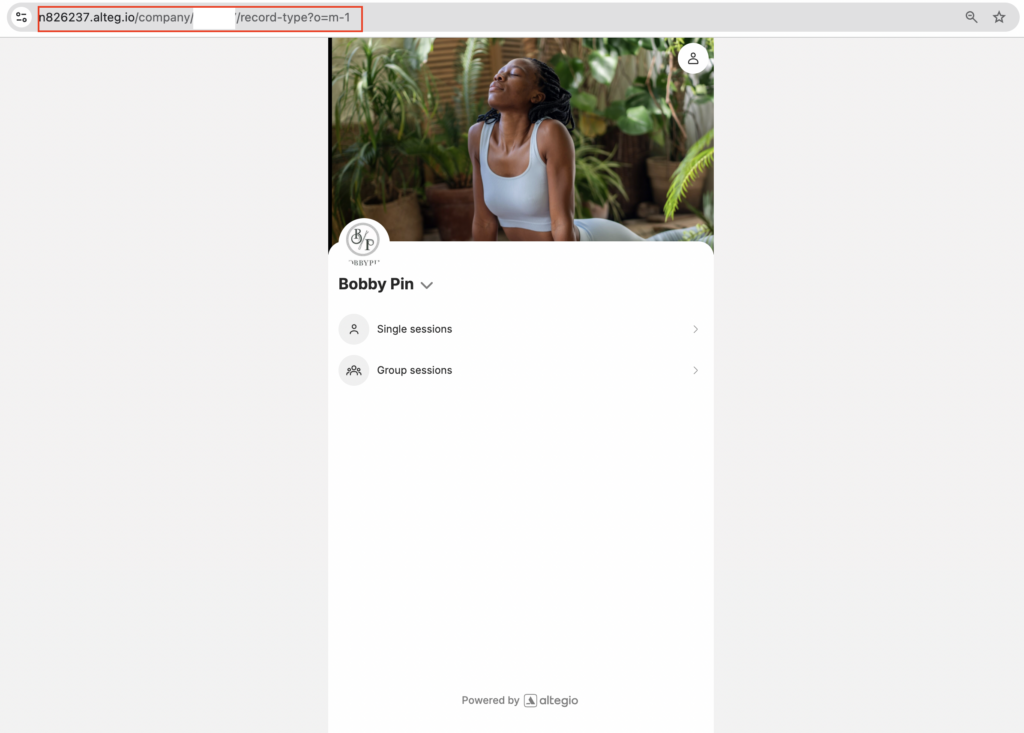
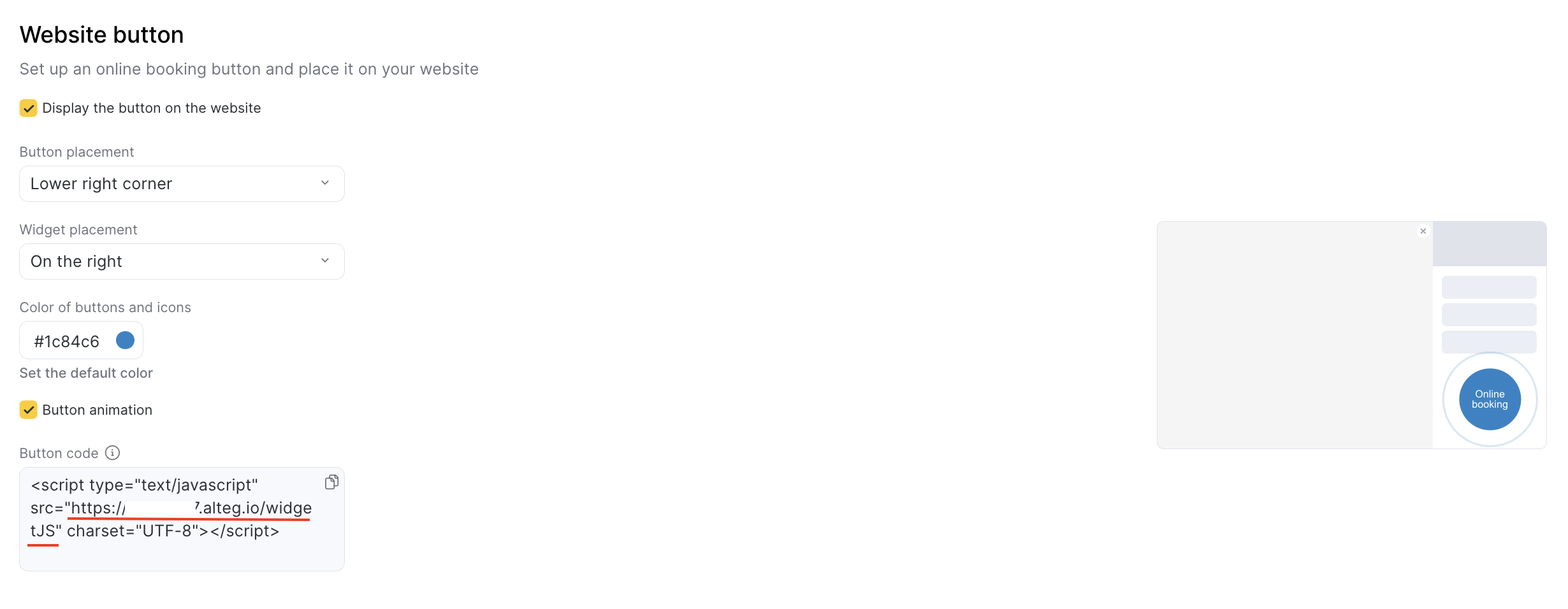
4. For each button, create your own value by indicating in it the team member ID and/or service ID and the parameters that are responsible for their selection.
Parameters are passed in the address line:
- Service Parameter – s
- Team member Parameter – m
For example, for a booking form where an team member ID is 299751, the service ID is 1682896, the value will be as follows:

How to find out the service number (ID) in Altegio

