In the chain interface, you can assign a team member to multiple locations. This setting removes the need to create a separate team member profile in each location and also helps you merge multiple profiles of the same team member who works in different locations into one.
Chain team members are marked with a special chain icon.

Setup and editing #
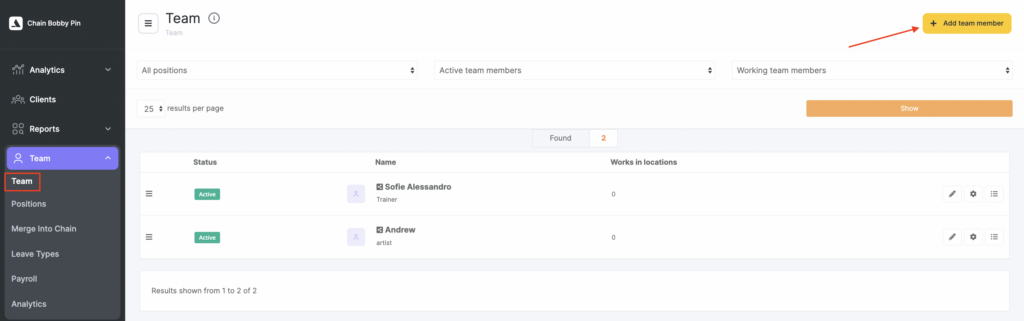
- In the main menu of the chain interface, go to Team > Team and click Add team member.
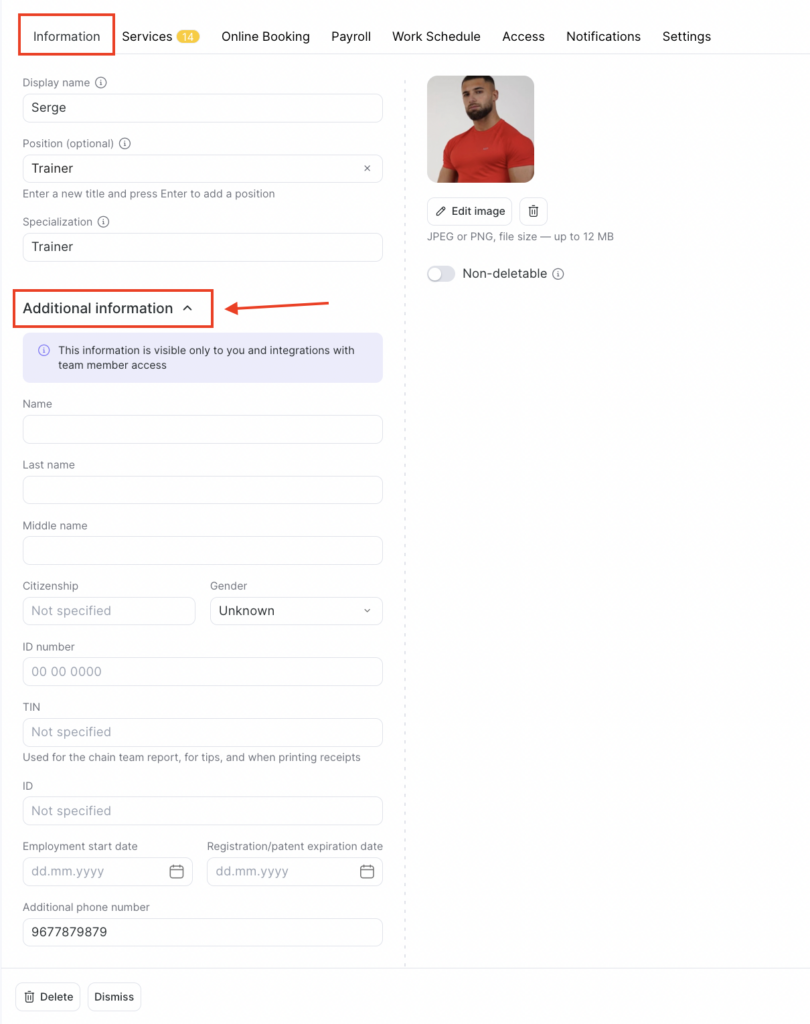
- In the new window that opens, fill in the team member’s basic and additional information (for details, see the articles Adding team members and Additional team member information).
- On the Locations tab, select the locations where the team member will work, then click Save.

Important
After you save the profile, you can edit a chain team member card only in the chain interface (in Team > Team ).
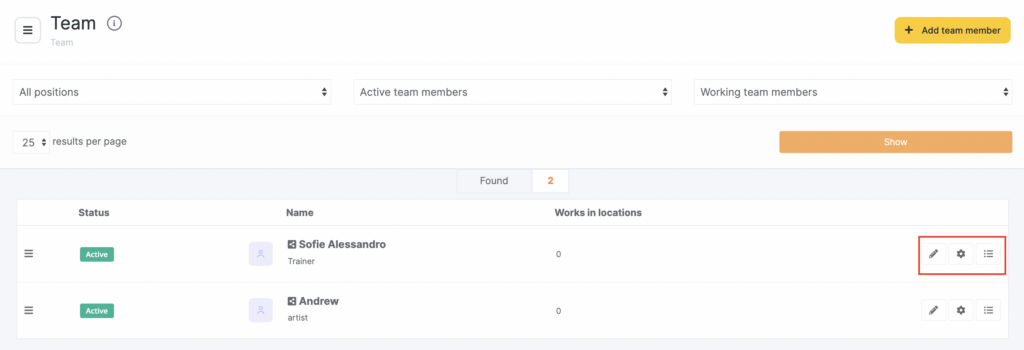
You can also edit team member data after creation using the buttons to the right of the team member:
Edit description and photo, Details, Locations.
Sorting #
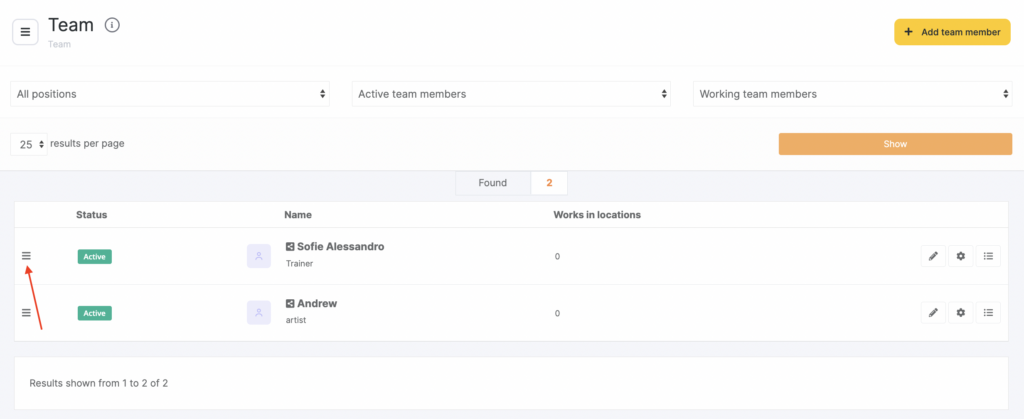
You can rearrange team members in the list. To do this, click the three-line icon to the left of a team member and drag the row to the desired position. This order is displayed in the appointment calendar and the online booking widget.
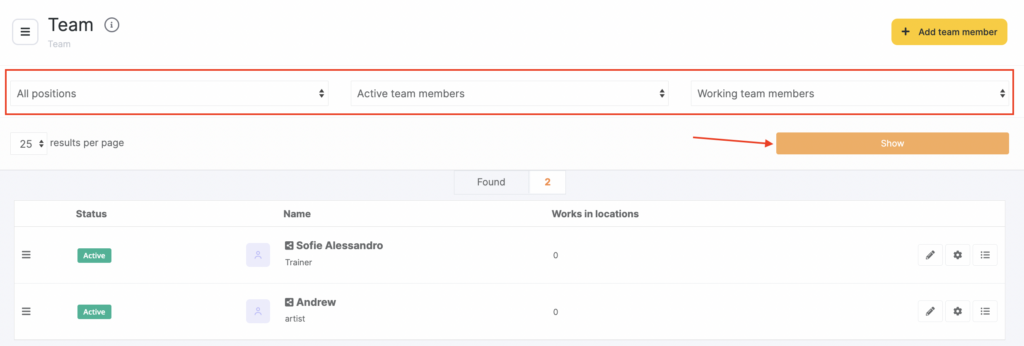
For convenience, you can view team members selectively by filtering the list by:
- Position (for details about positions and how to set them up, see here), or
- statuses Deleted/Active, Dismissed/Working,
then click Show.
Dismissing and deleting team members #
You can dismiss or delete team members.
- To do this, select a team member and click their name or click Edit description and photo.
- On the Information tab select the Dismissed status and set the dismissal date if you want to remove the team member from the list while keeping all their statistics.
- If you want to delete the team member and all data related to them, click Delete.
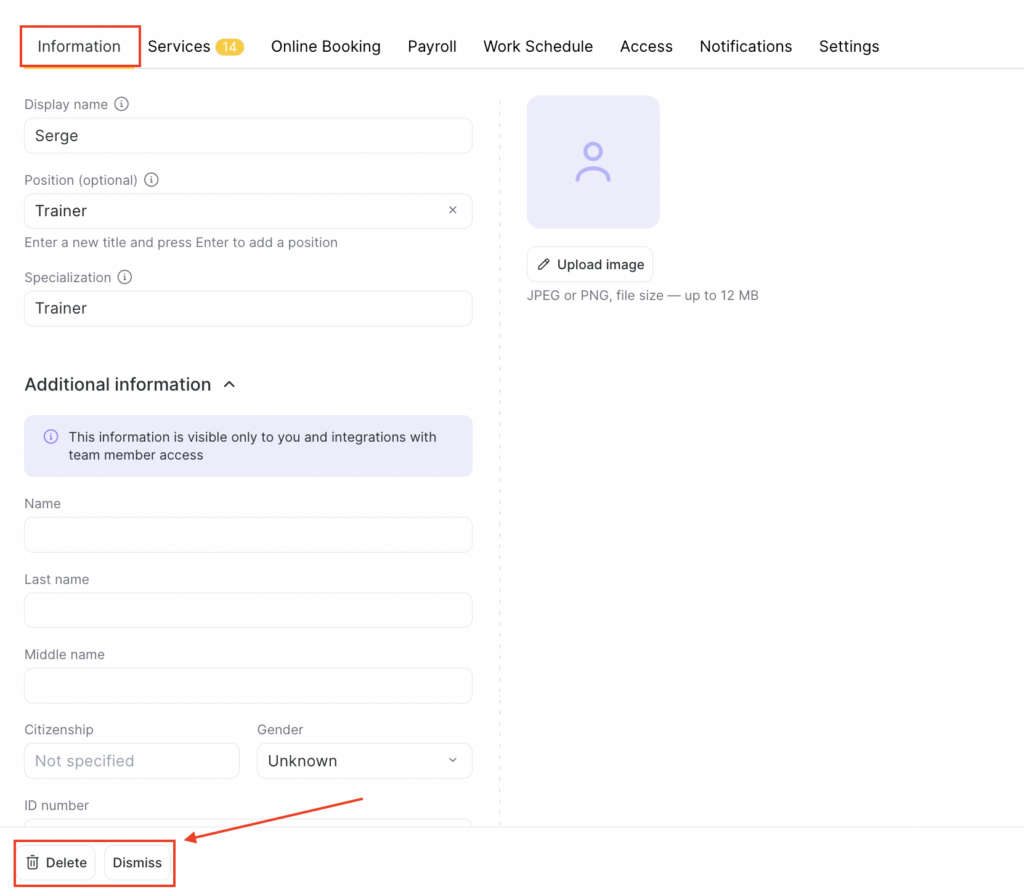
- Finally, make sure to click Save.
Restoring dismissed and deleted team members #
Dismissed and deleted team members can be restored.
Restore dismissed team members #
Filter the list by Dismissed and click Show.
- Select the team member in the list and click their name or Edit description and photo.
- On the Information tab, select the Working status and click Save.
Restore deleted team members #
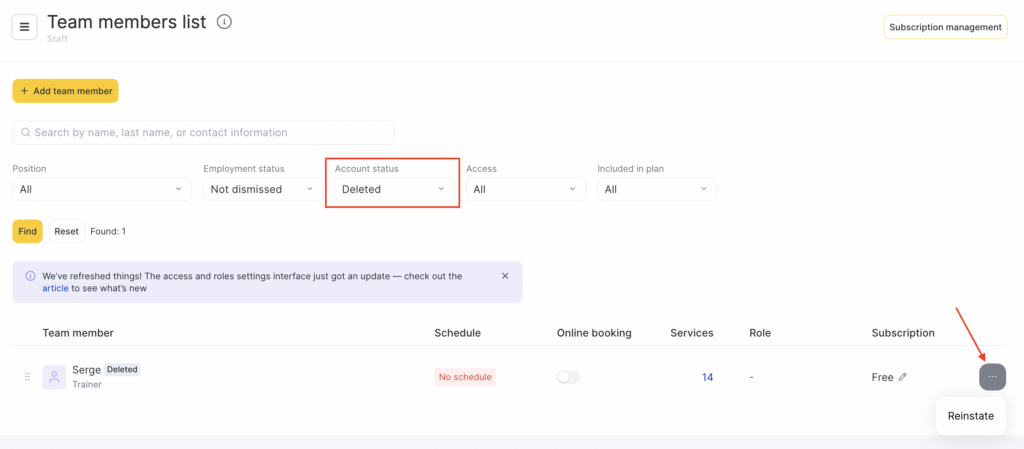
- Filter the list by Deleted and click Show.
- Select the team member and click Restore (the arrow button) next to their name.