What is it and what is it for? #
The client account allows you to make an advance payment – replenish an account. The client can use the credited funds for the next visit or to pay for services for their child.
Creating and setting #
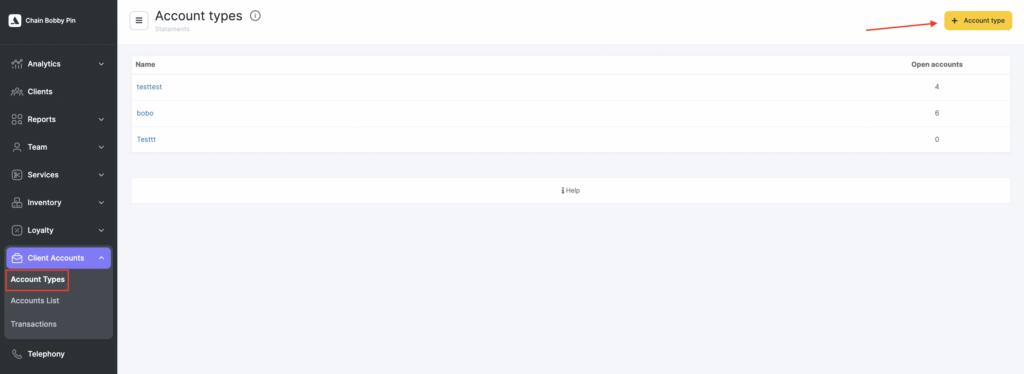
- In the chain interface go to the Client Accounts > Account Types section and click the Account type button to add.
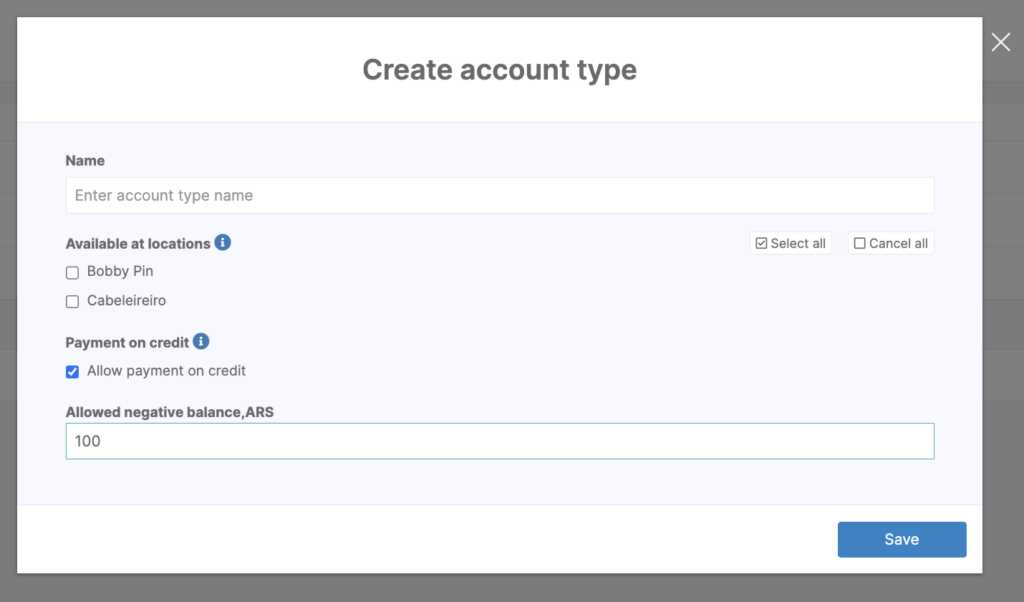
- Specify the name of the account type, for example, Deposits. Select the locations where the account type will be available and click Save.
- Select the Allow payment on credit option. Enter the maximum allowed amount for a negative balance (required field).
Important
Make sure the allowed negative balance amount aligns with your internal client credit policy.
- Click Save.
Opening client account #
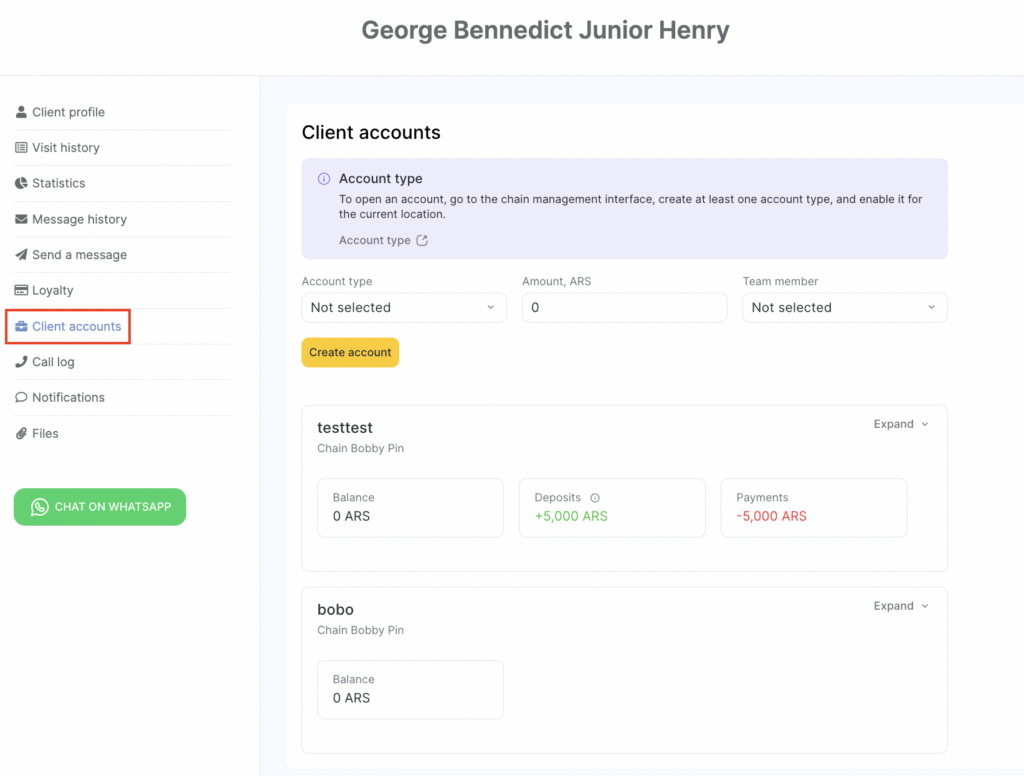
- Open an account to the client. To do this, in the location interface, in the client card (Clients –All Clients section or in the Client section in the Visit window), go to the Client accounts section, select the account type, if necessary, specify the initial balance and the team member who opened the account. Click Create account.
Note
It is possible to transfer client account data from another system by exporting from Excel, to do this, contact your personal Altegio manager. His contacts can be found in the branch interface under Reports > Upcoming Visits.
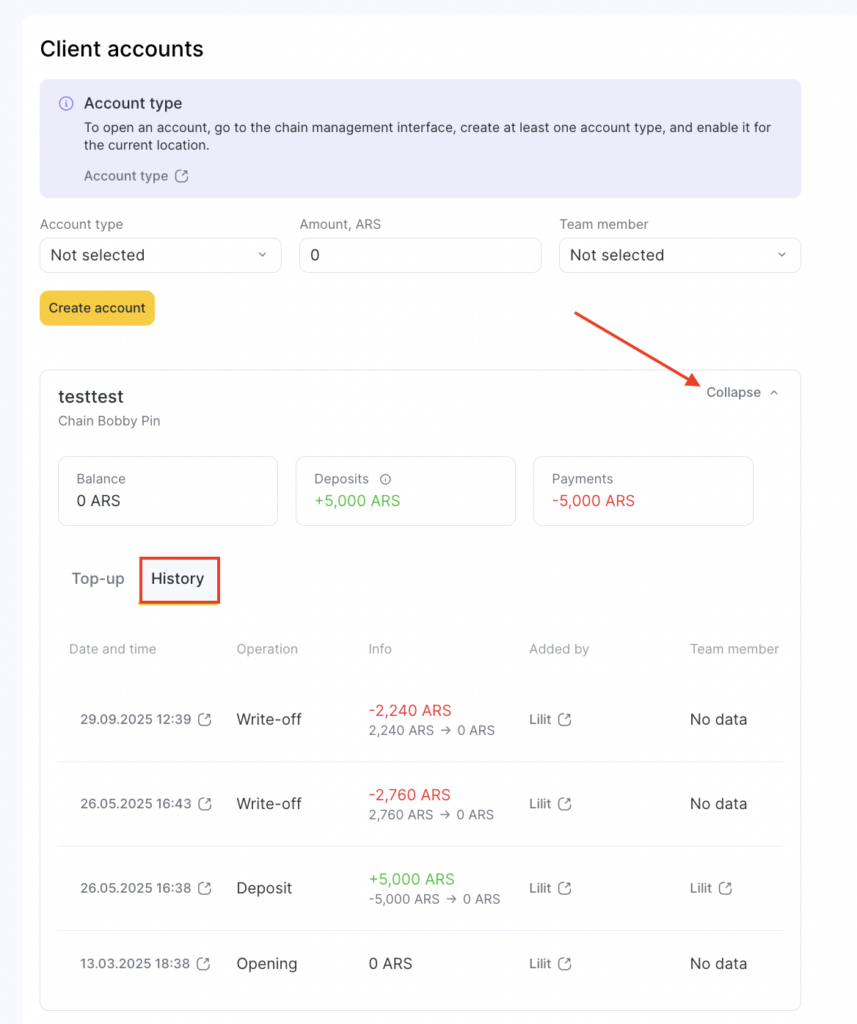
- After these settings are done, information about the current account balance, the ability to top up and view the history of changes will appear.
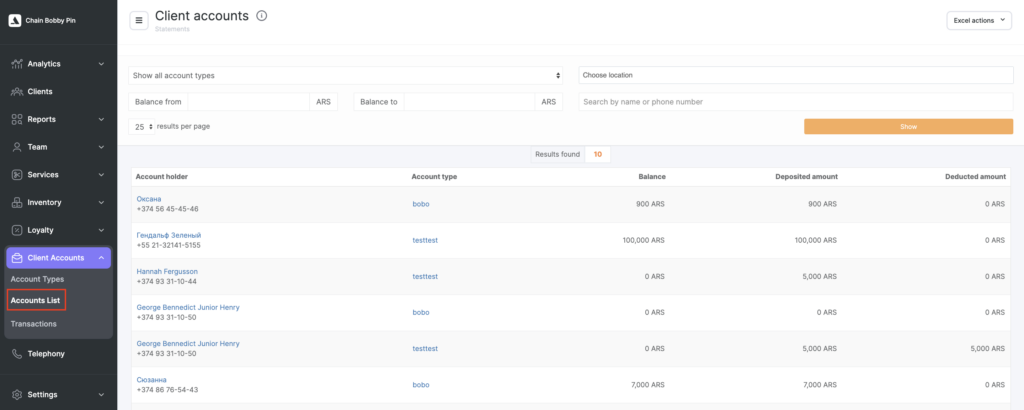
- In the chain interface, in the Client Accounts > Accounts List section, the accounts of all clients who have opened an account are displayed.
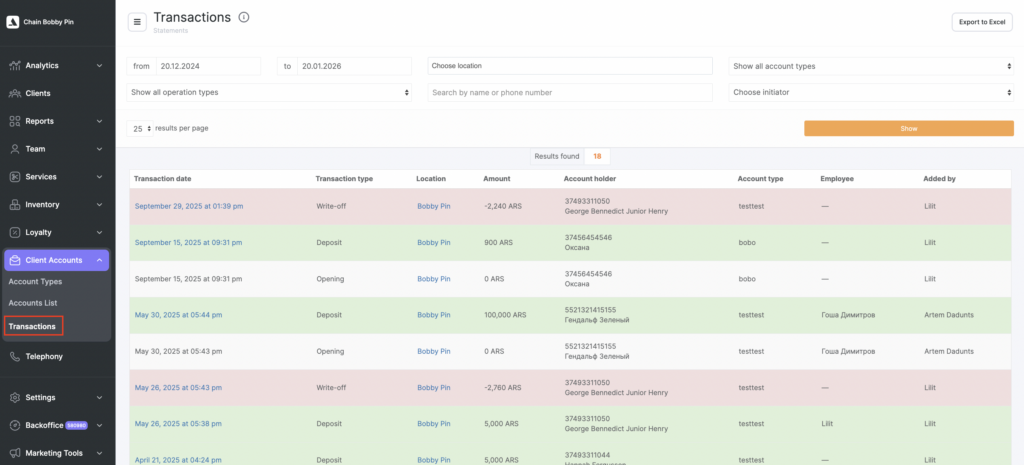
- In the Client Accounts > Transactions section, all operations that were made are displayed: opening, deposit, payment.
Working with accounts #
- To top up an account, go to the Client accounts section in the client card and click Add funds.
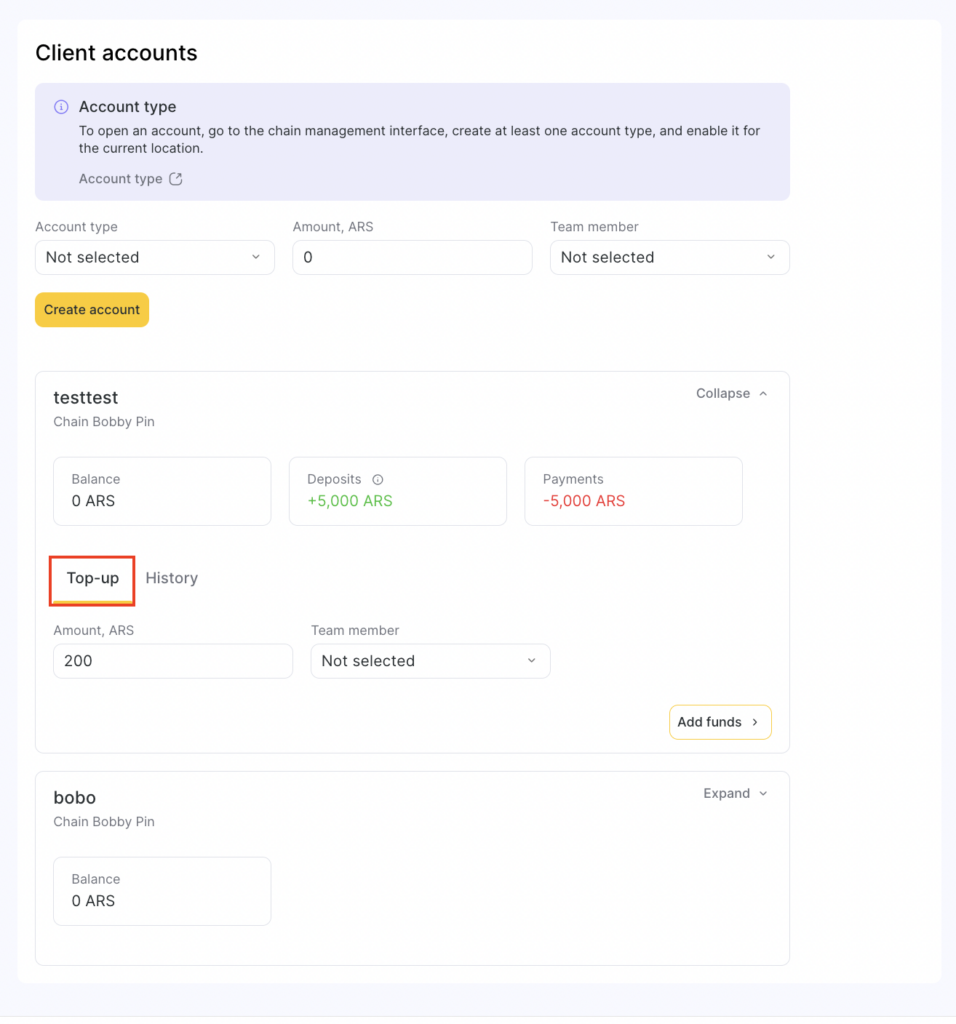
- Enter the amount, if necessary, select a team member and click the Add funds button.
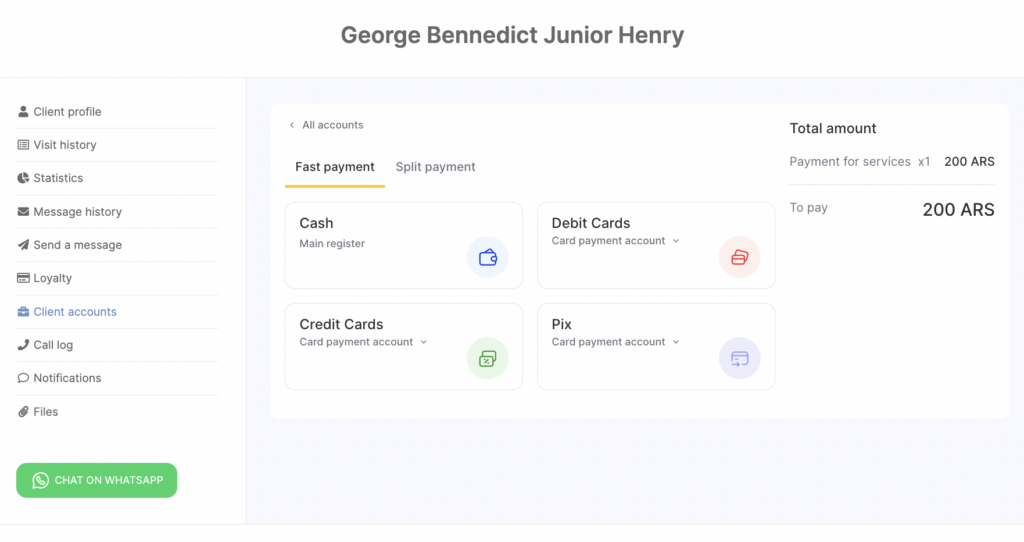
- Top up the client account with any suitable payment option (you can choose a cash register when paying).
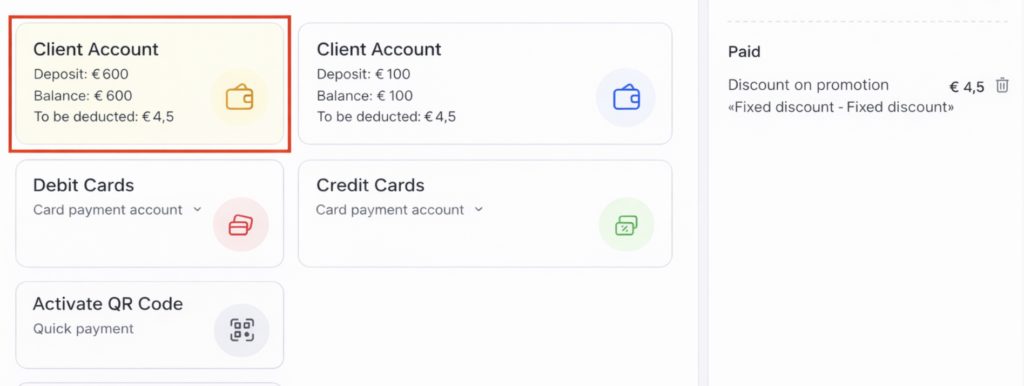
- To use funds from the account to pay for products and services in the Visit window, go to the Checkout (Payment) section and select the Client personal account option. Select the type of account and specify the amount (partial payment is possible), click Pay.
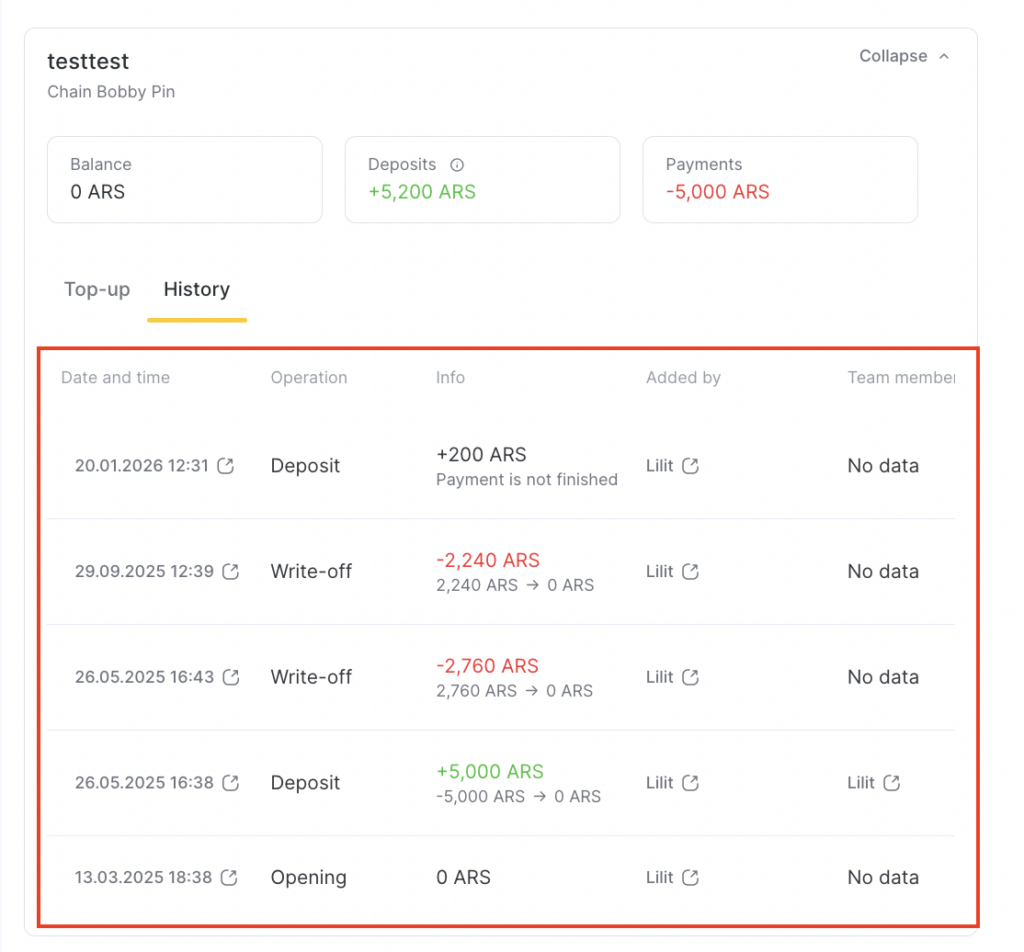
- In the client’s card the history of debiting and replenishment will be displayed in the Client accounts section.
Note
Working with accounts is only available in the Altegio web version.
When replenishing a personal account, an operation is created in the Finance – Financial Transactions section.You cannot create this operation manually, the account is replenished only in the Client accounts tab.
To cancel the replenishment of the account, you need to delete the financial operation in the Finance > Financial Transactions section.
Printing receipts #
1. When printing a receipt, it will contain:
- When replenishing a client account – an advance payment.
- When paying with client account – information about the full payment.
2. The taxation system specified in the settings is applied by default.
If a business has several taxation systems, then by default the one that is set for calculations on products will be applied (therefore, it cannot be applied for services that have another taxation system).
User access rights #
To work with accounts in the location, grant the user the following rights:
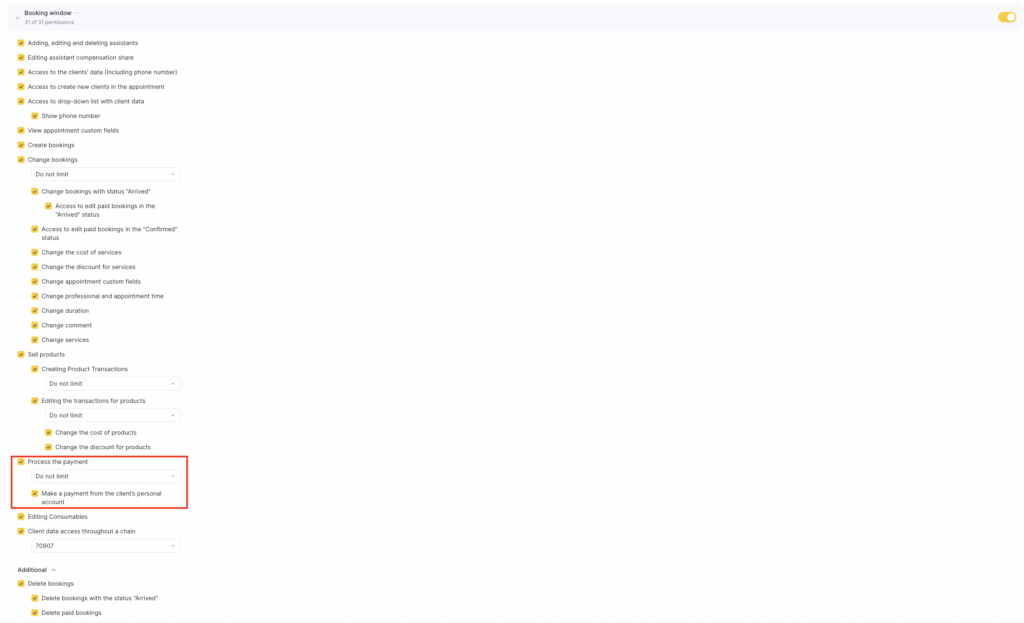
- Booking window – Process the payment – Make a payment from the client’s personal account
- All Clients – Accounts
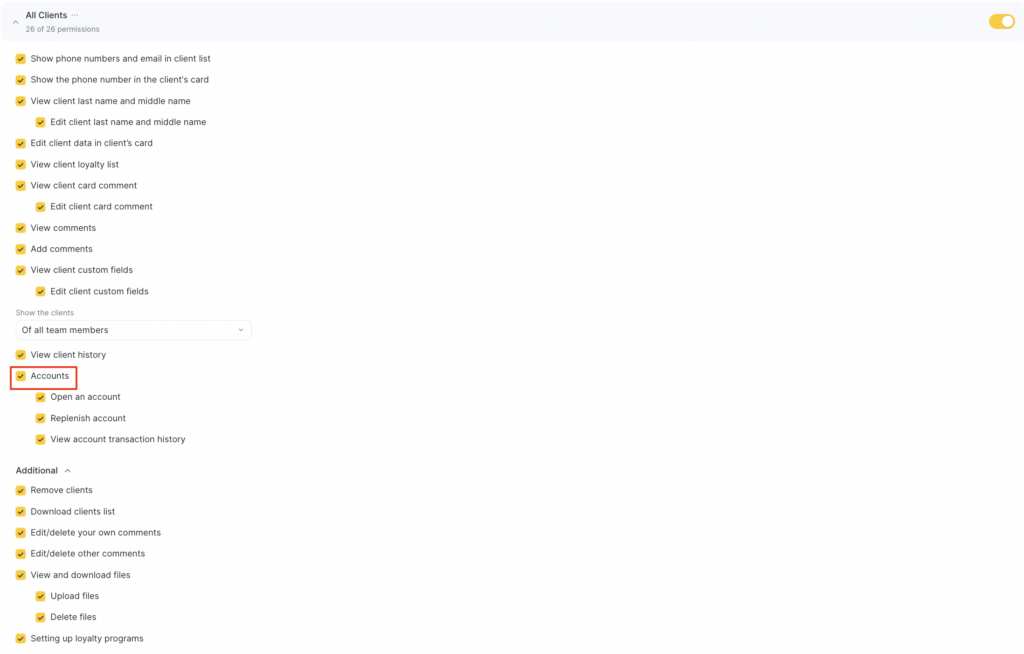
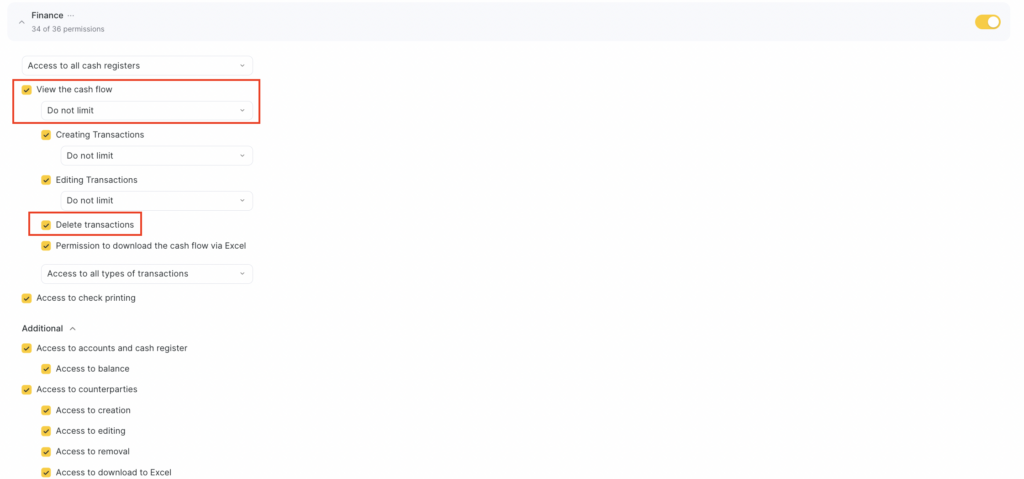
Rights that are required to cancel top up transactions:
- Finance – View the cash flow.