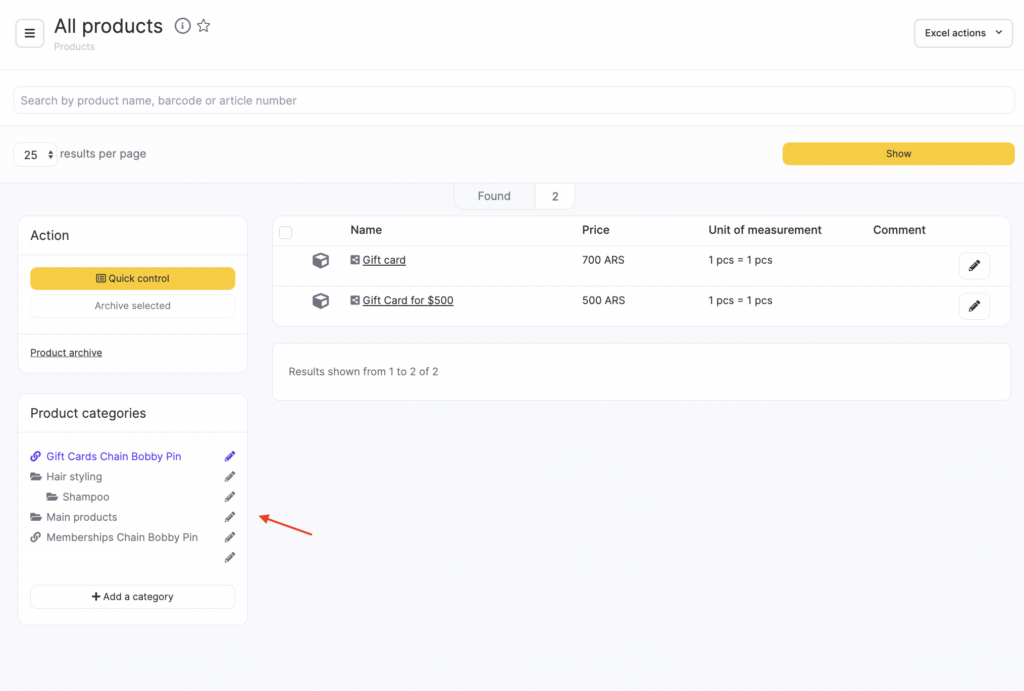
There are two types of spaces in Altegio: locations and chains. Locations — with yellow highlight on the left, chains — with purple highlight on the left. Locations and chains have different sections.
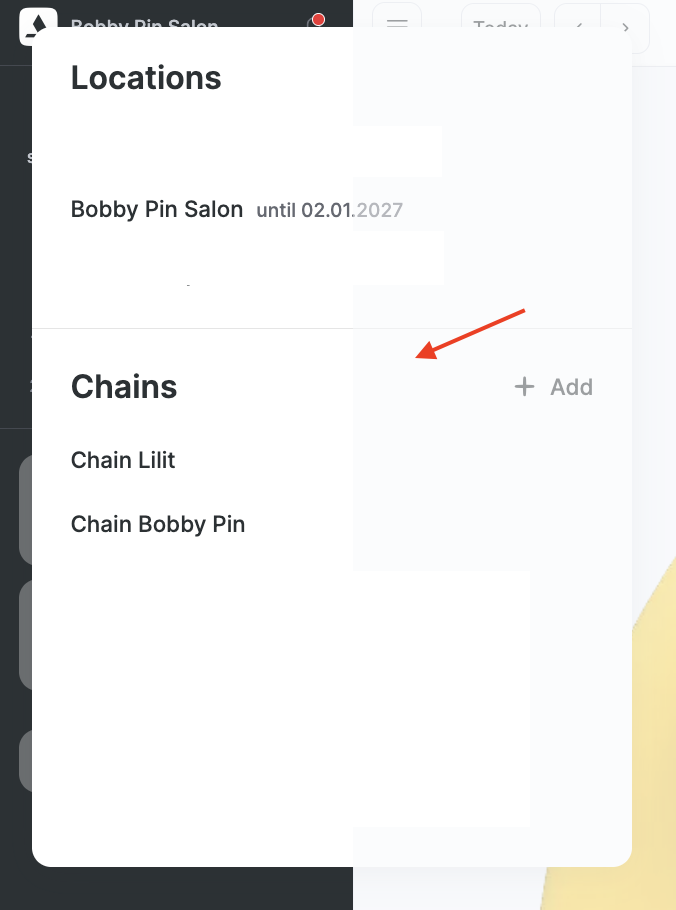
To open the chain you need to do the following:
- Click the name of the location in the top left corner.
- In the drop-down list select the desired chain.
Creating gift card type #
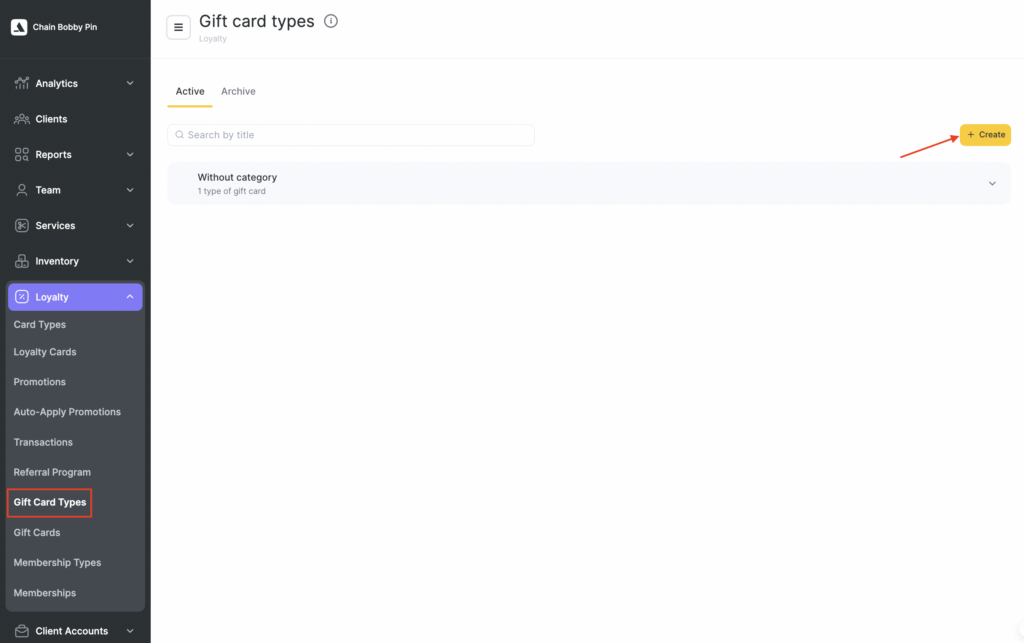
- In the chain interface go to the Loyalty > Gift card types section and click the Create button and choose Gift card type option.
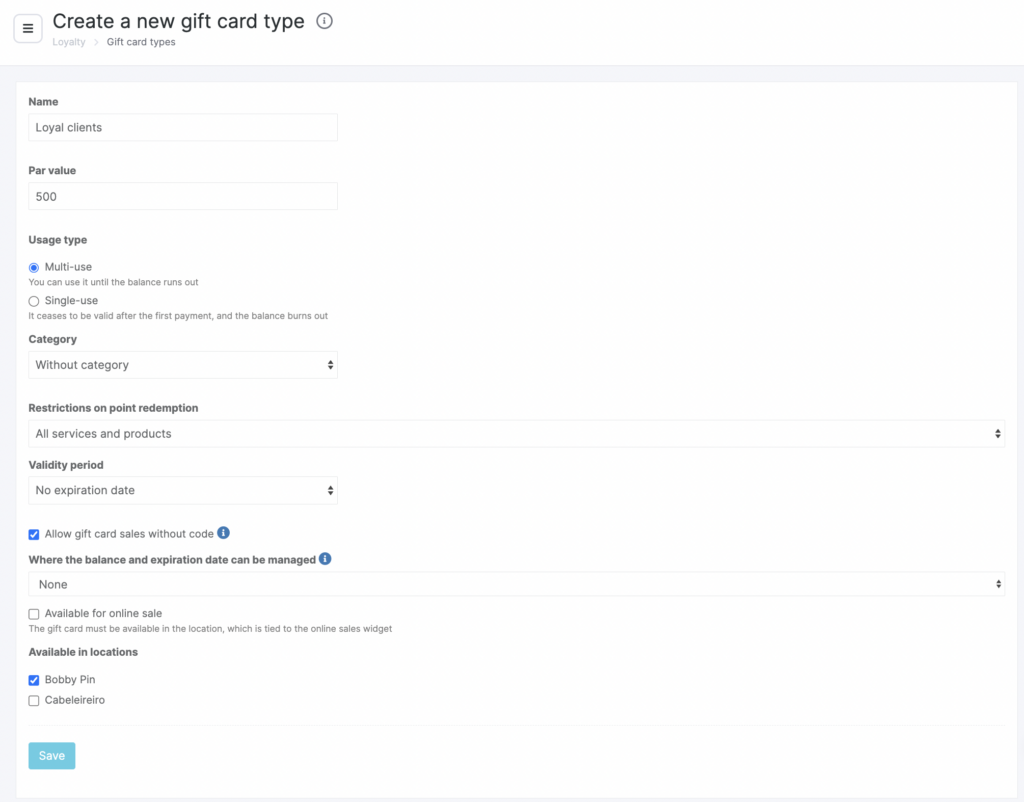
- On the newly opened page, enter the gift card type name, for example, Gift card for 1000.
- Enter the denomination (the gift card’s starting balance) in the currency of the branches where it will be valid.
- Select the usage type:
- Single-use: the gift card becomes invalid after the first payment.
- Multiple-use: the gift card can be used until its balance reaches zero.
- Select a gift card category. Learn more about creating and using gift card categories in the article.
- Set usage restrictions (what the gift card can be used for):
- No restrictions.
- Any services without products.
- Some services and any products (when selected, an Edit button will appear so you can choose categories/services).
- Some services without products (when selected, an Edit button will appear so you can choose categories/services).
- Any products without services.
Notes
To add certain services to a gift card type, the categories and services must be chain-wide. You can make a branch’s categories and services network-wide in the network section: Services > Service migration via synchronization. Detailed instructions are in the article Migration and merging of chain services.If, when selecting services, you check only the category itself (without selecting each service individually), the gift card will apply to all services in that category (both network services and branch services).
You cannot add specific products to a gift card type.
- Set the validity period limit:
- No expiration date.
- Fixed date for all instances (when selected, an Expiration date field will appear).
- Fixed validity period from the date of sale (when selected, the Validity period from sale and Unit fields will appear).
- Check the box if you want to Allow selling a gift card without a code. You’ll be able to create gift cards that don’t require assigning a code at sale, but you must enter the customer’s phone number.
Important
Always specify the client in the visit window when selling gift cards without a code.
- After the sale, a gift card without a code will be linked to the phone number of the customer who bought it. You won’t be able to apply it to a customer with a different number.
- Check Available for online sale if you plan to sell the gift card online. Select the locations where the gift card will be valid.
- Click Save.
Using gift cards #
After you create them the gift cards will appear in locations in the Inventory > Products section: the same products and Gift cards category will be created. Gift cards can be sold to clients (detailed manual can be found in the Sale of gift cards article) and sold gift cards will be available for payment (detailed manual can be found in Payment for products and services using gift cards article).