
Gift card payment details #
You can apply a gift card in the visit window when paying for products and services.
You can view gift card details in the Loyalty tab in the client profile (in the client database) or in the client’s booking/appointment. To open the gift card details, click Expand. There you can edit the balance and validity period, if needed.
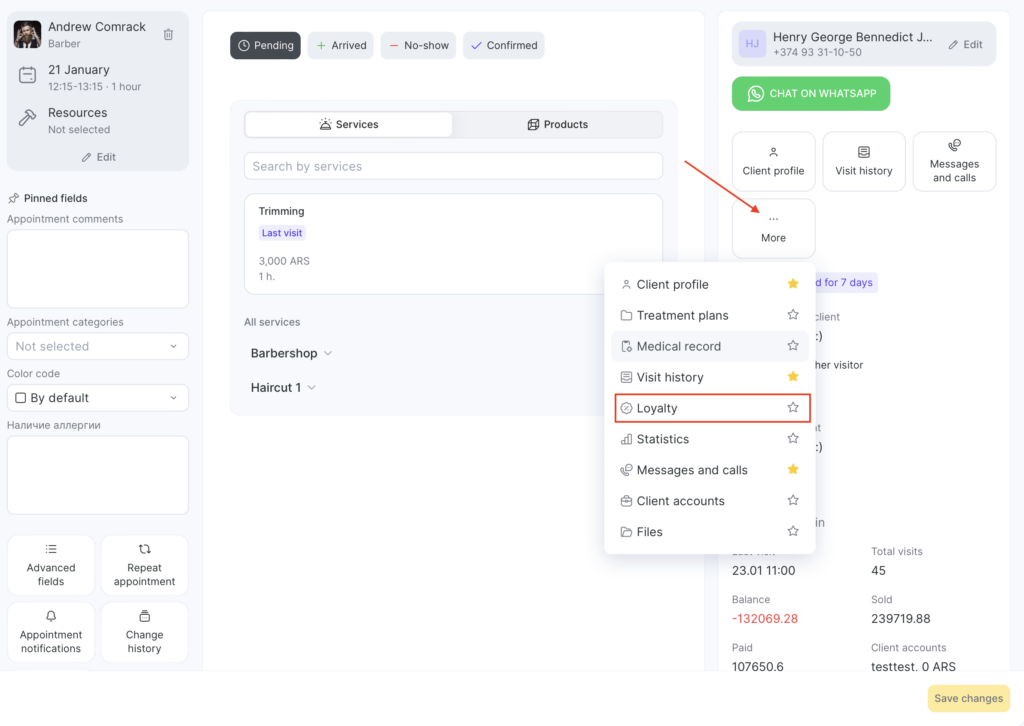
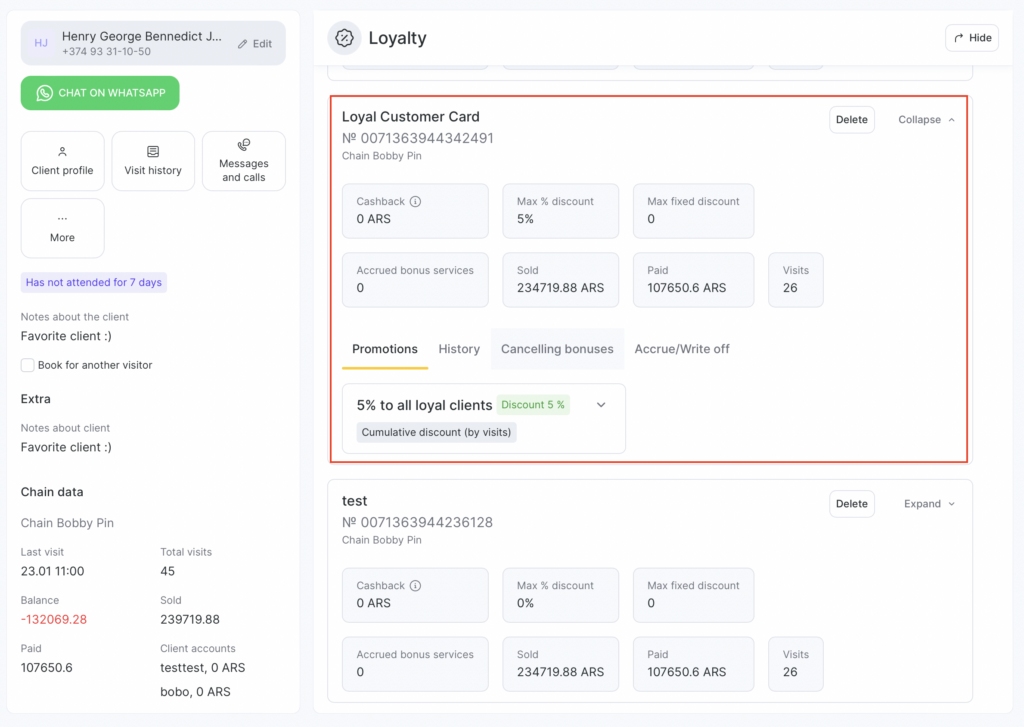
A client doesn’t have to be the person who purchased the gift card in order to use it for payment. For example, if the client received a gift card as a gift, they know the code and can pay with it. You can find the gift card by its code in the Gift card or membership block and apply it in the visit.
Before payment, the gift card is shown in the Loyalty section of the profile of the client who purchased it. After payment, the gift card will move to Loyalty for the client who used it, even if they didn’t buy it. Accordingly, it will be removed from Loyalty for the client who purchased it.
If, when creating the gift card type, the option Allow selling a gift card without a code was enabled, then after the sale such a gift card becomes personalized and is linked to the phone number of the client who purchased it. It can only be applied to that client.
Gift card with Single-use redemption type #
- If the gift card value is less than the receipt total, the full value will be deducted from the gift card.
- If the gift card value is greater than the receipt total, only the receipt total will be deducted, and any remaining balance cannot be used later.
Gift card with Multiple-use redemption type #
- If the gift card value is less than the receipt total, the full value will be deducted from the gift card.
- If the gift card value is greater than the receipt total, only the receipt total will be deducted, and the remaining balance can be used for a future visit.
You can view the updated gift card balance in the Loyalty section of the client profile.
Paying with a gift card #
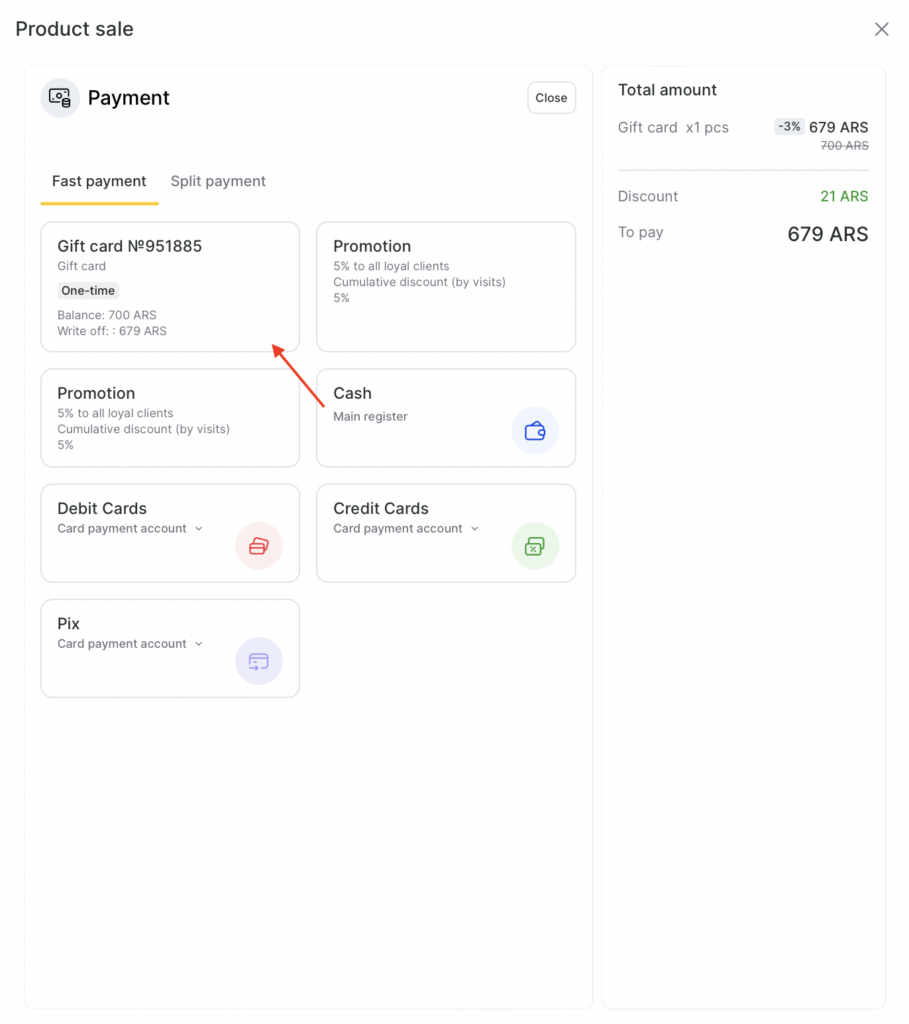
In the visit window, go to payment. If a gift card was sold to this customer, it will appear as a payment method on the Fast payment tab. Tap the gift card to complete the payment.
If no gift card is linked to the customer, you can still use one by entering the gift card code on the Split payment tab. In the Gift card or membership field, enter the gift card code in the appropriate box and click the search icon. If a gift card with that code exists and hasn’t expired, it will appear in the list of available options. Then you can pay for the visit by selecting it.
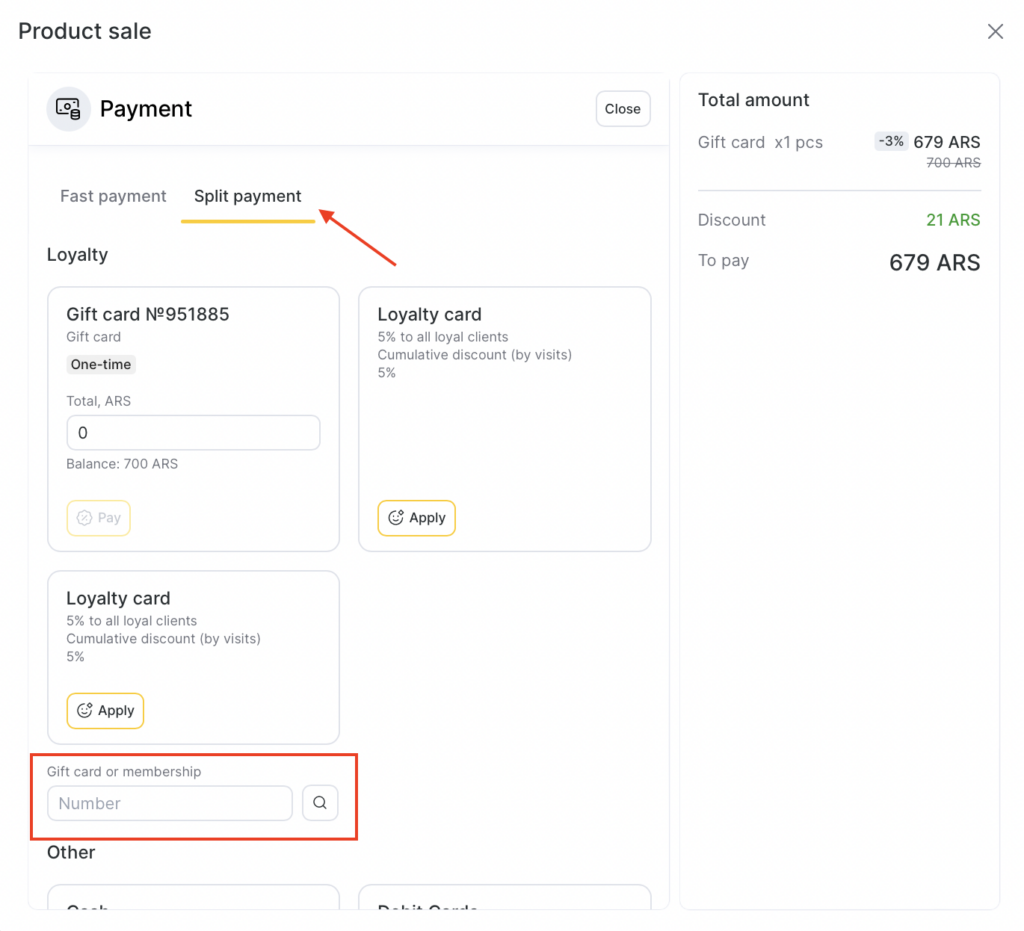
You can also split the payment between different methods here—for example, pay part with a gift card and the rest in cash.
Access rights #
Access rights are configured in Settings > Team. Click the team member’s name and open the Access tab.
- For the Apply gift card button to appear in a booking or event, the team member must have this branch permission enabled: Loyalty > Paying with a gift card and membership without a code.
- To allow a team member to edit the balance, enable: Loyalty > Edit gift card balance.
- To allow a team member to edit the validity period, enable: Loyalty > Edit gift card validity period.


