In the mobile app, you can set a schedule for multiple team members at once or individually for each person. Bulk scheduling is useful when several team members work the same hours.
If needed, you can edit or delete a work schedule. You can edit or delete schedules both for a long period and for individual days.
Setting a schedule for multiple team members #
To set a schedule for several team members:
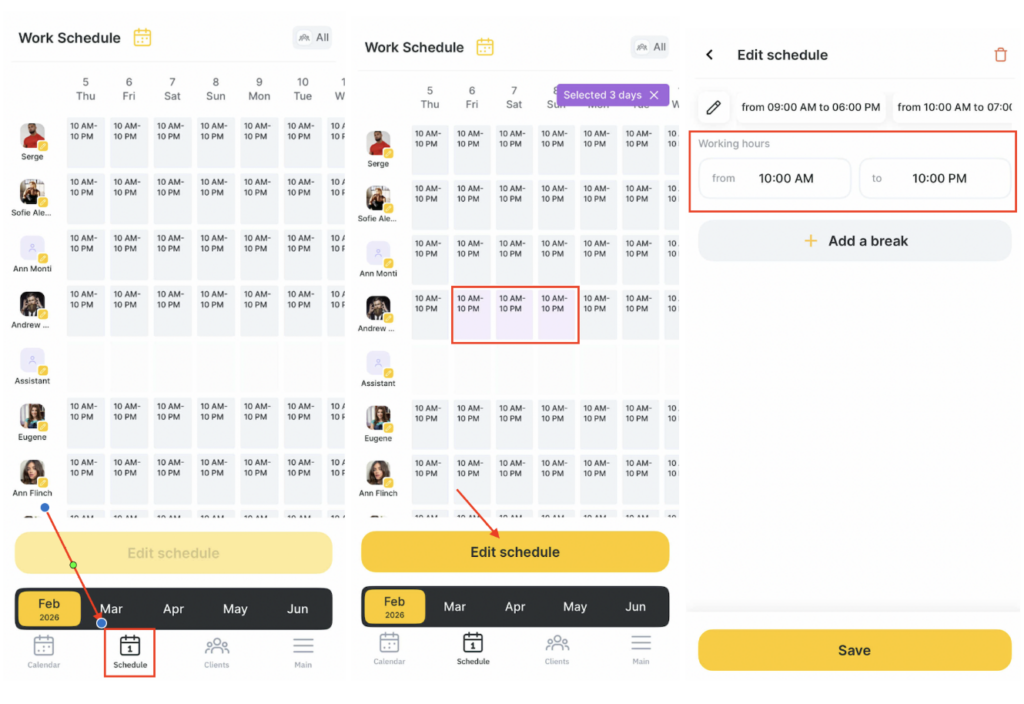
- Go to the Schedule tab at the bottom.
- Select the required dates in the calendar and tap Edit schedule.
- On the page that opens, set the start and end of the workday.
- If needed, add a break using Add break.
- Tap Save at the bottom.
Setting a schedule for one team member #
To set a schedule for one team member:
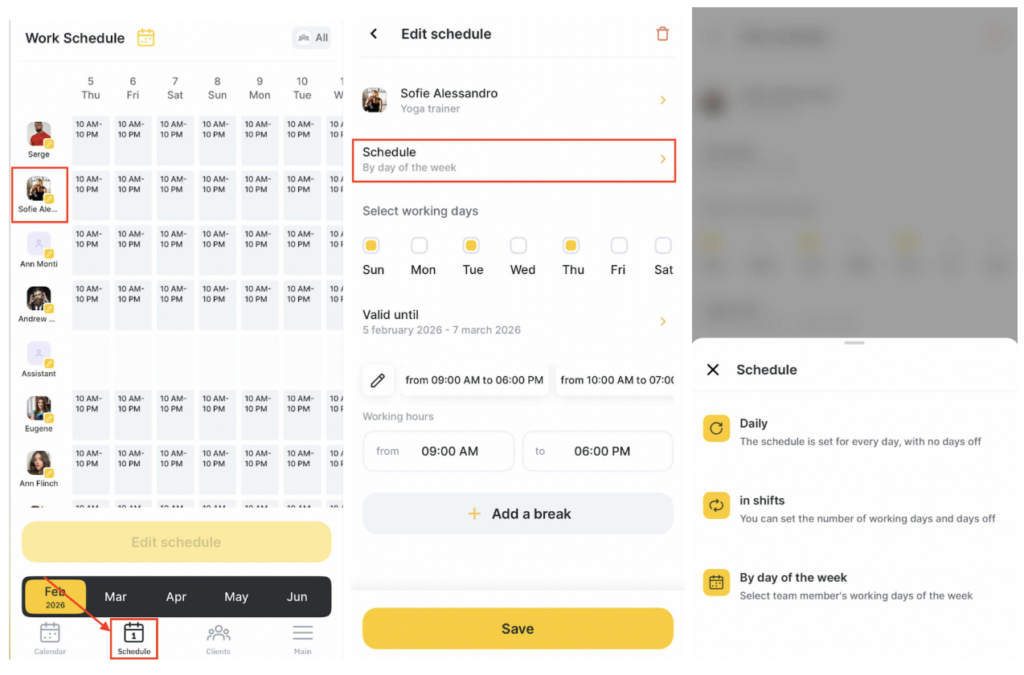
- Go to the Schedule tab in the bottom bar.
- Tap the photo of the required team member in the calendar.
- In the Schedule field, choose the schedule type:
- Daily: the schedule is applied to every day with no days off. After selecting this type, the schedule will be set for every day within the selected period.
- Shift-based: set the number of workdays and days off. After selecting this type, specify the pattern, for example 2 on / 2 off.
- By weekdays: select which weekdays are working days for the team member. After selecting this type, tick the required weekdays.
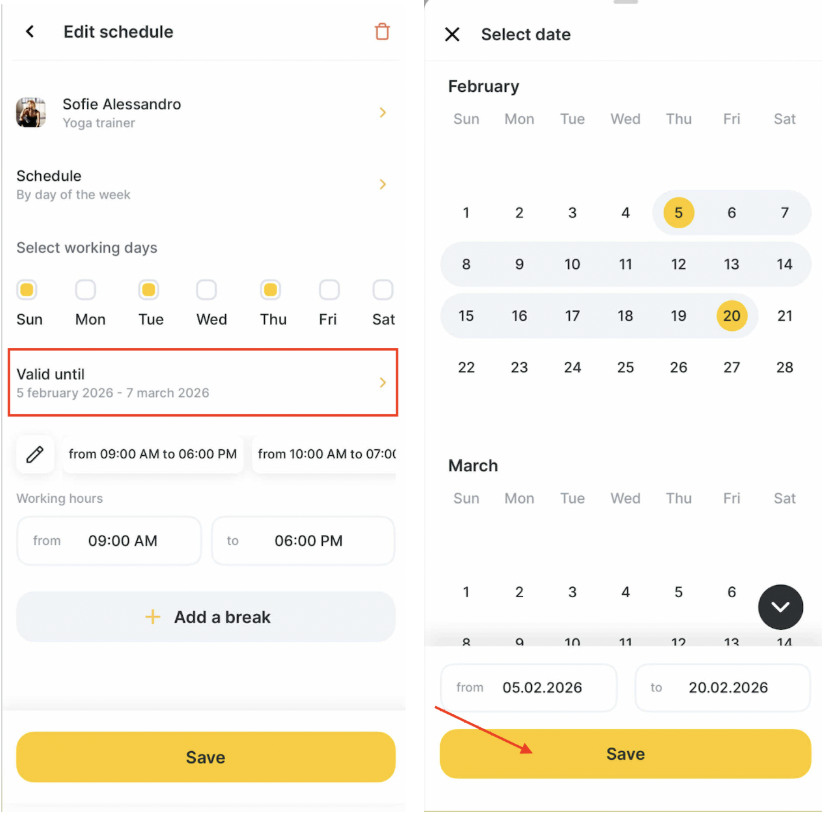
- In the Valid until field, select the start and end dates of the schedule in the calendar, then tap Save.
- To add breaks, tap Add break.
- Tap Save.
After the schedule is set, the team member will appear in the schedule and you can start booking clients with them. If you marked the team member as available for online booking in their settings, clients will be able to book with them on their own.
Editing a work schedule #
You can edit a team member’s schedule in several ways.
Changing a schedule for a period #
To change a schedule for a period:
- Go to the Schedule tab at the bottom.
- Select the required dates in the calendar and tap Edit schedule.
- Or tap the team member’s photo if you need to change the schedule for a specific person.
- On the page that opens, make changes and tap Save.
To delete a schedule, tap the trash icon in the upper-right corner. Tap Yes to confirm.
Changing a schedule for a specific day #
To change a team member’s schedule for a specific day:
- Go to the Schedule tab in the bottom bar.
- Select the required day and tap Edit schedule.
- On the page that opens, make changes and tap Save.
To remove the workday from the schedule, tap the trash icon in the upper-right corner. Tap Yes to confirm.
You can also edit team members’ schedules directly in the appointment book.
Setting a schedule in the appointment book #
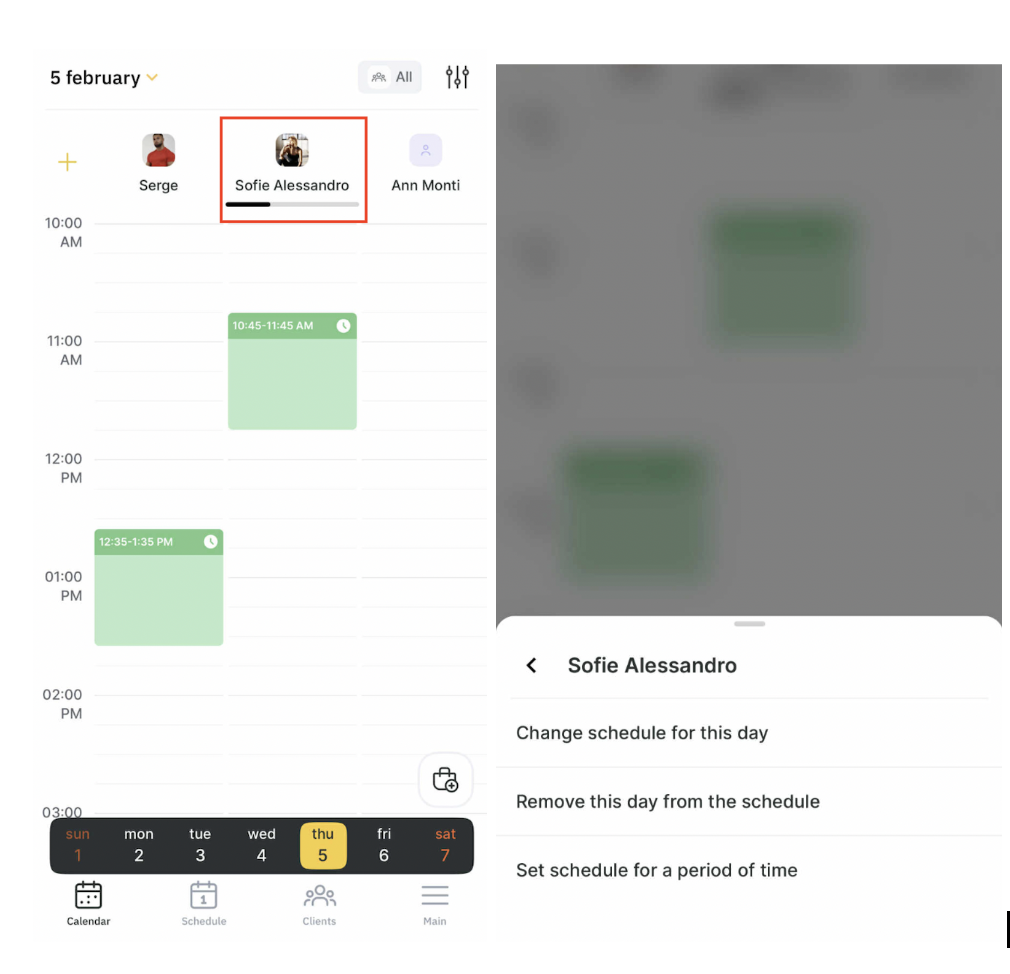
To edit a team member’s schedule in the appointment book:
- Go to the Book tab at the bottom.
- Tap the team member’s photo in the book.
- Choose an action:
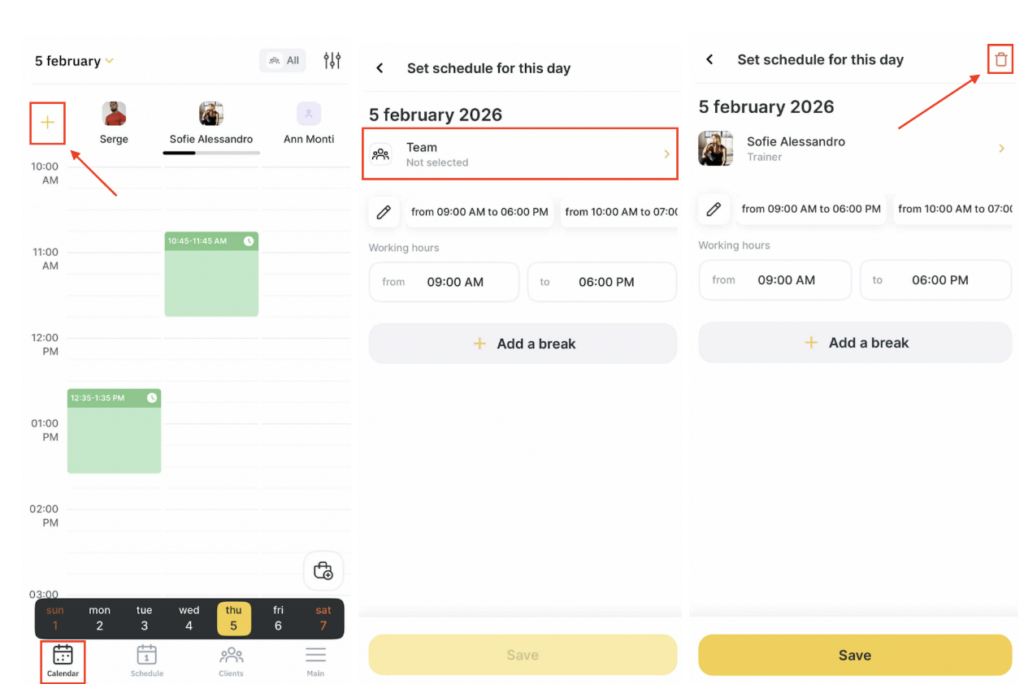
- Change schedule for the day: opens the schedule editor for the day selected in the book. Here you can change working hours or add a break using Add break. To remove a break, tap the × next to it.
- Remove from schedule for the day: a message appears: “Remove from the schedule for the selected day?” Tap Yes to remove the team member from the schedule for that day.
- Set schedule for a period: opens the same period schedule editor as in the Schedule section.
Editing a schedule in the appointment book #
To edit a schedule in the appointment book:
- Go to the Book tab in the bottom bar and tap the + button to the left of the team member’s name.
- In the Team members field, select the required team members. You can:
- select one team member,
- select everyone by tapping All team members,
- select a position (all team members with that position will be selected),
- or select team members manually.
- Edit the schedule in the same way as in the Schedule section.
- Tap Save.
To delete a schedule from the calendar, tap the trash icon in the upper-right corner. Tap Yes to confirm.